18 Schedule
What is Schedule?
A schedule sends a series of induction training courses in order, by itself. When someone passes one induction, the invite for the next one goes out after the wait you set, such as 7 days or 1 month. Set up one schedule for each group, such as full-time staff or contractors, and nobody has to remember who is due next.
Rules to know
- Plan: Team Pro, Enterprise and the free trial.
- Who: the Account owner, Administration Users and Site Administrators. Site Managers and Supervisors don’t see Schedule.
- Starting someone: on a person’s Schedule tab, every admin role except Supervisors can click Start.
- How people join: a person joins a schedule when they start one of its inductions. Usually you invite them to the first one.
- One schedule per induction: each induction can only be in one schedule. Adding it to a second schedule takes it out of the first.
- Only after a pass: the next invite goes out only once they pass. If they fail, or their documents still need approval, nothing is sent yet.
- Timing: the wait counts from when they passed the previous induction. With a wait of 0, the next invite usually goes out straight away.
- Checked every half hour: after a longer wait, the invite goes out within about half an hour, between early morning and late evening.
- Due date: each scheduled invite is due 3 days after it’s sent.
- Same invite email: people get your normal induction invite. People marked Do Not Contact, and archived people, are skipped.
- Changes: each person’s next induction is set when they start the one before. Adding or reordering inductions only affects inductions started after the change. A changed wait applies to everyone already waiting.
- Archiving: an archived schedule, or an archived induction in it, sends no more invites, even to people part-way through. Restore it and their invites carry on, and any that are overdue go out straight away.
What you’ll need
- Team Pro, Enterprise or the free trial.
- An Account owner, Administration User or Site Administrator login.
- The inductions for each step, already set up.
Create a schedule
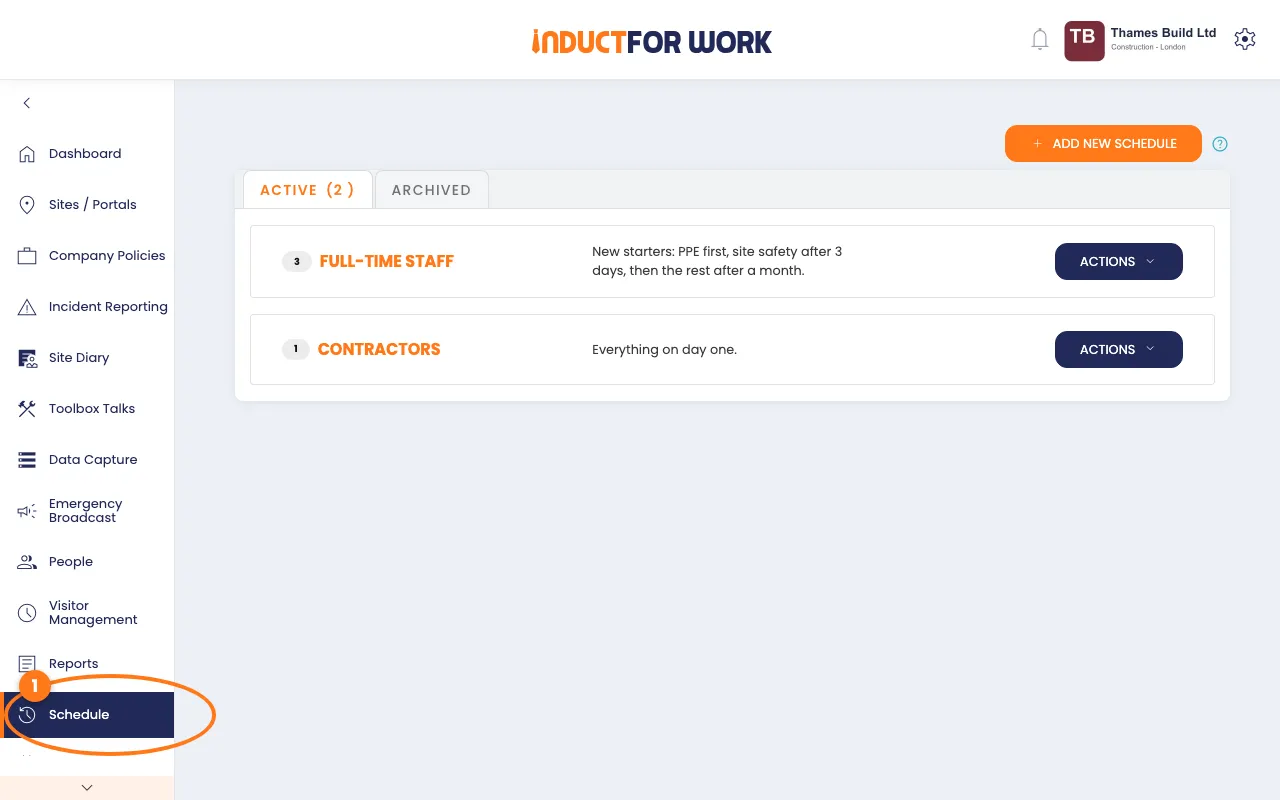
- In the left menu, click Schedule.
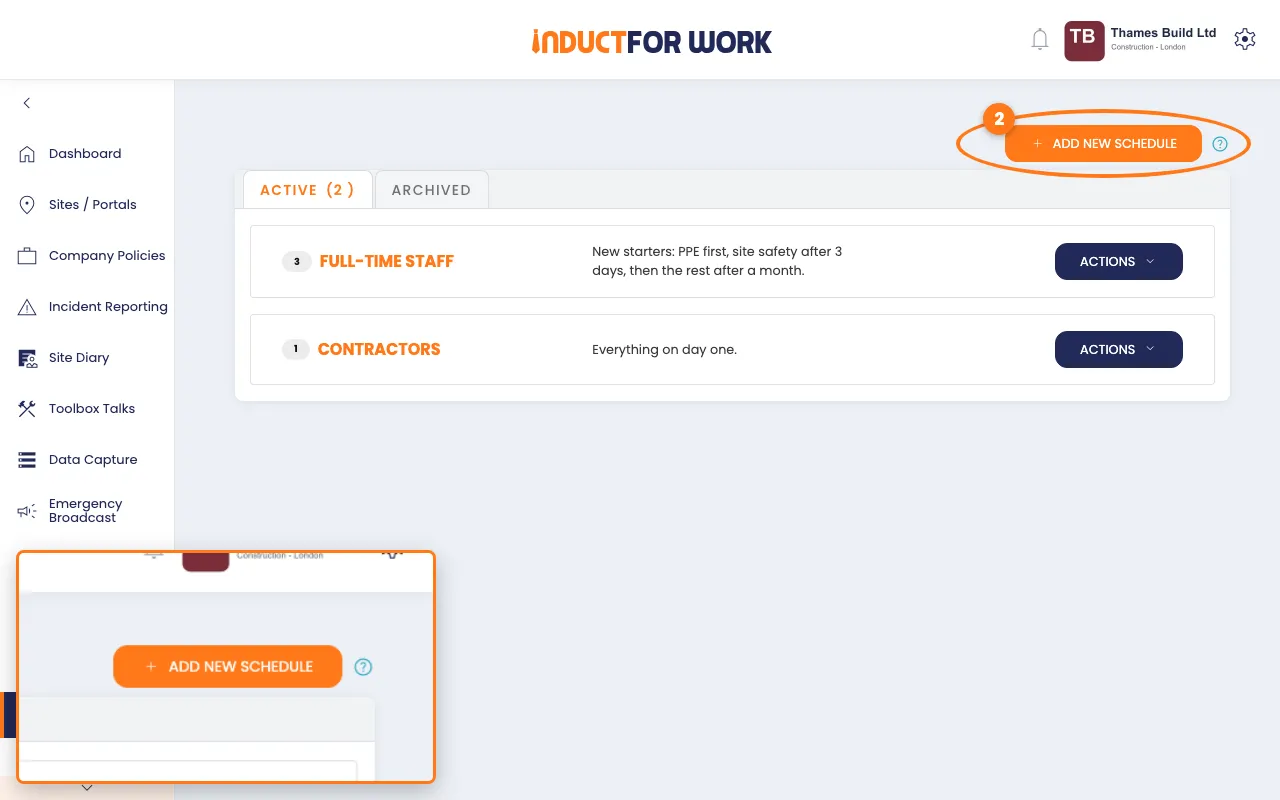
- Click the orange Add new schedule button, top right.
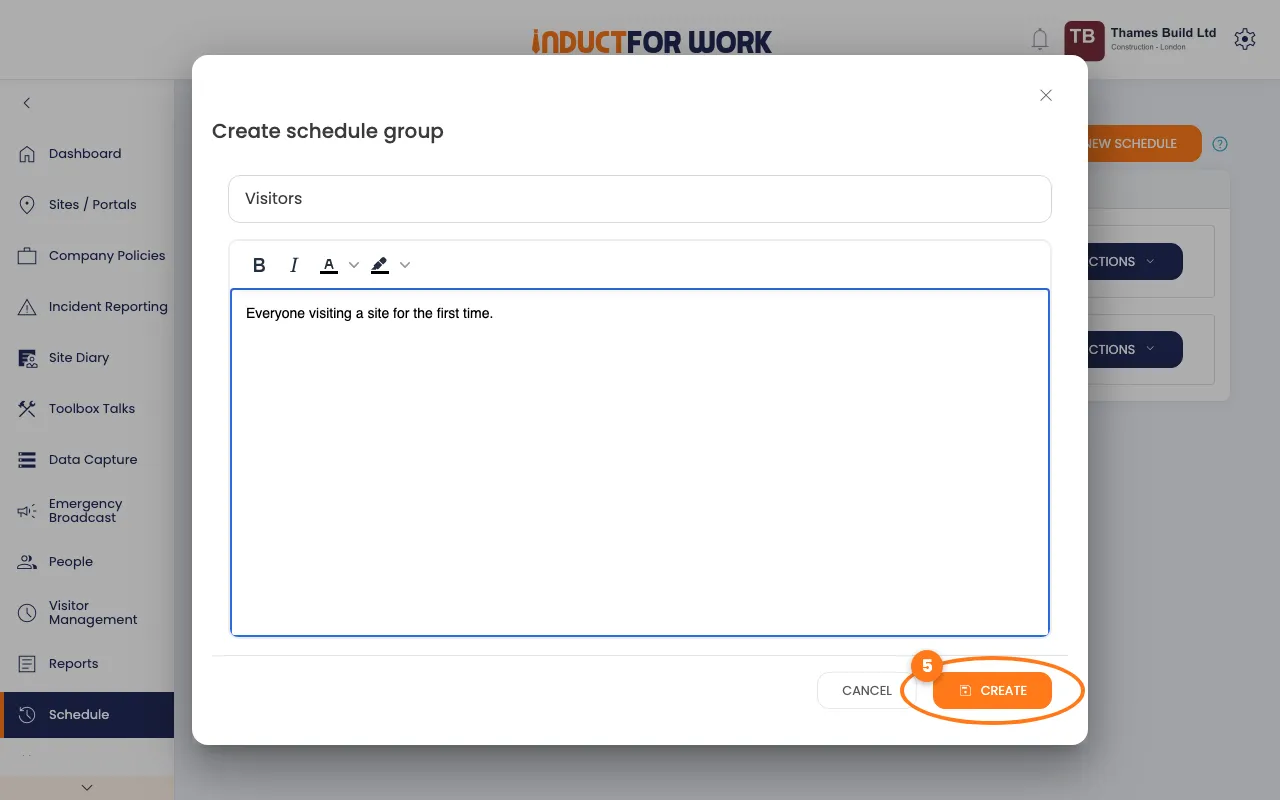
- Type a Name for the group, such as "Full-time staff".
- Optional: add a short description.
- Click the orange Create button.
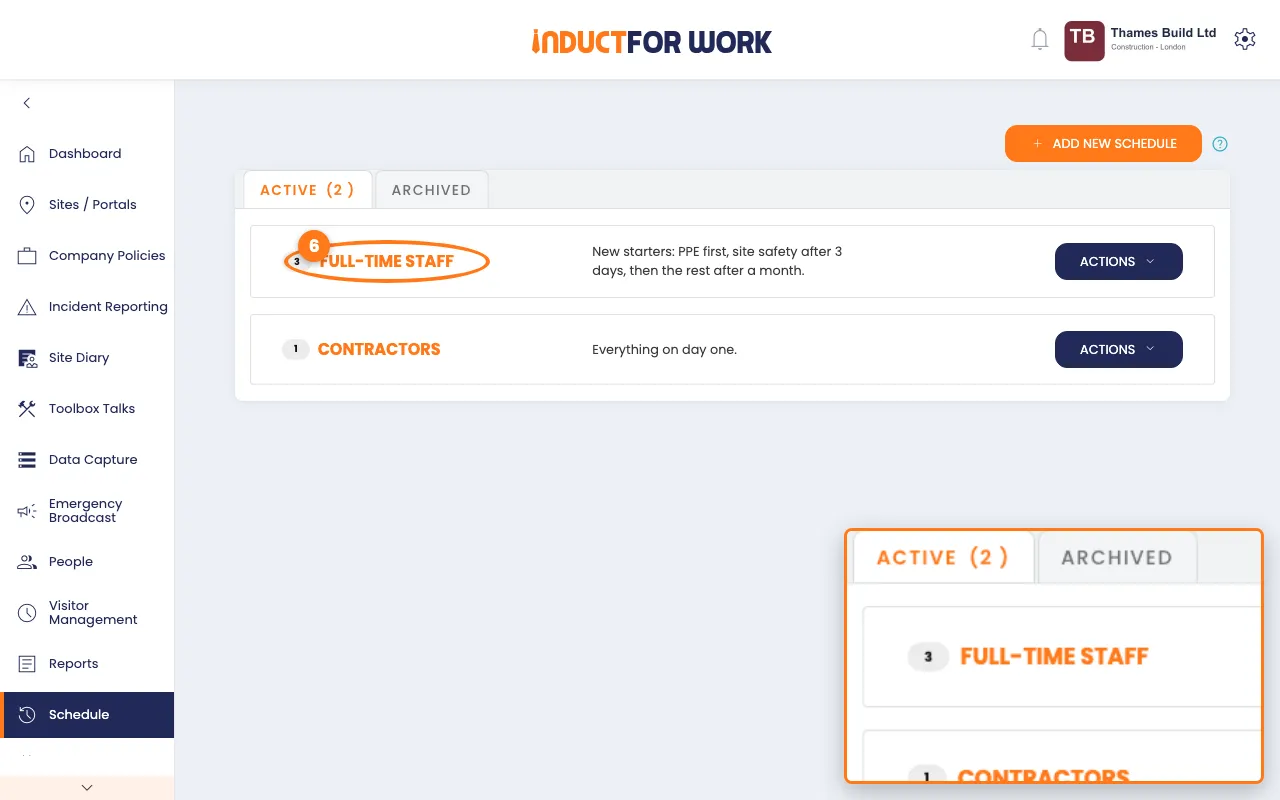
- Click the schedule’s name to open it.
Add the inductions in order
- Click the orange Add induction button.
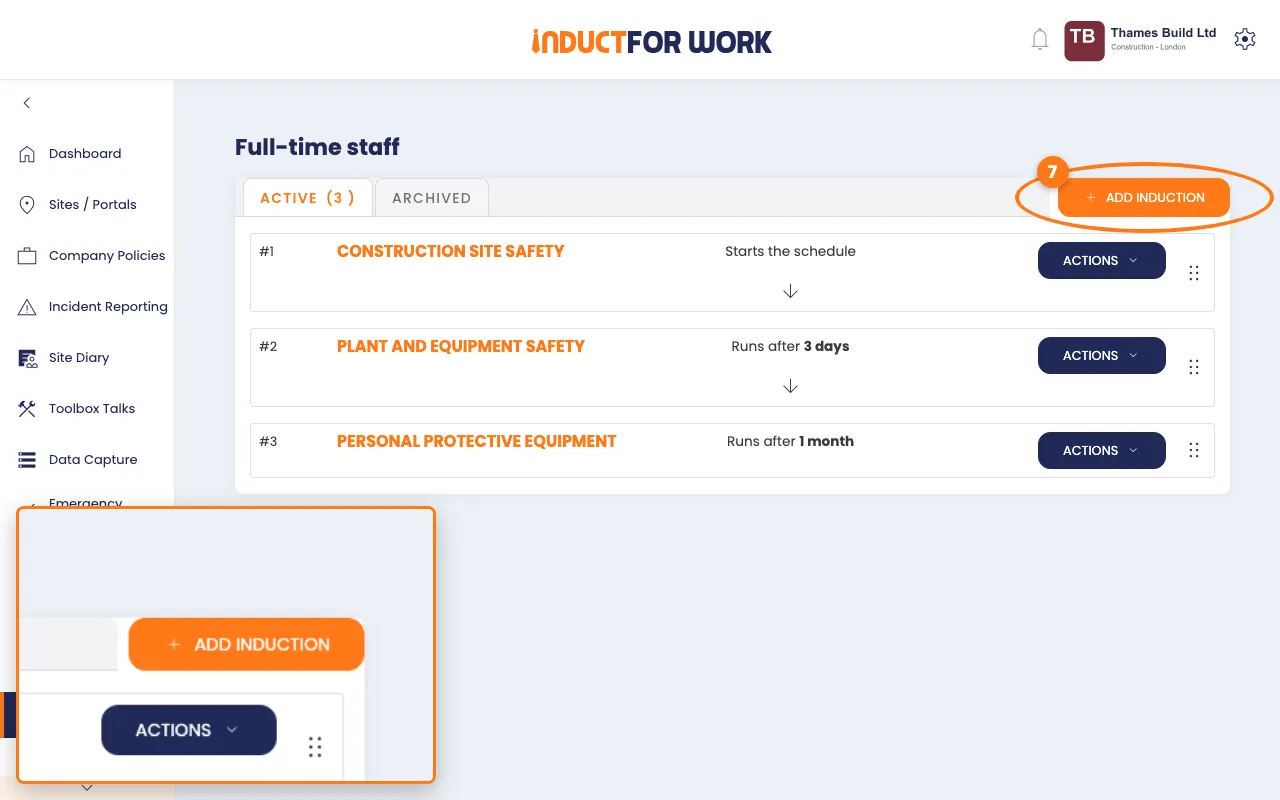
- Under Available/Unscheduled Induction, pick the first induction.
- Under Time, type how long to wait, then pick Days or Months.
- Click the orange Create button.
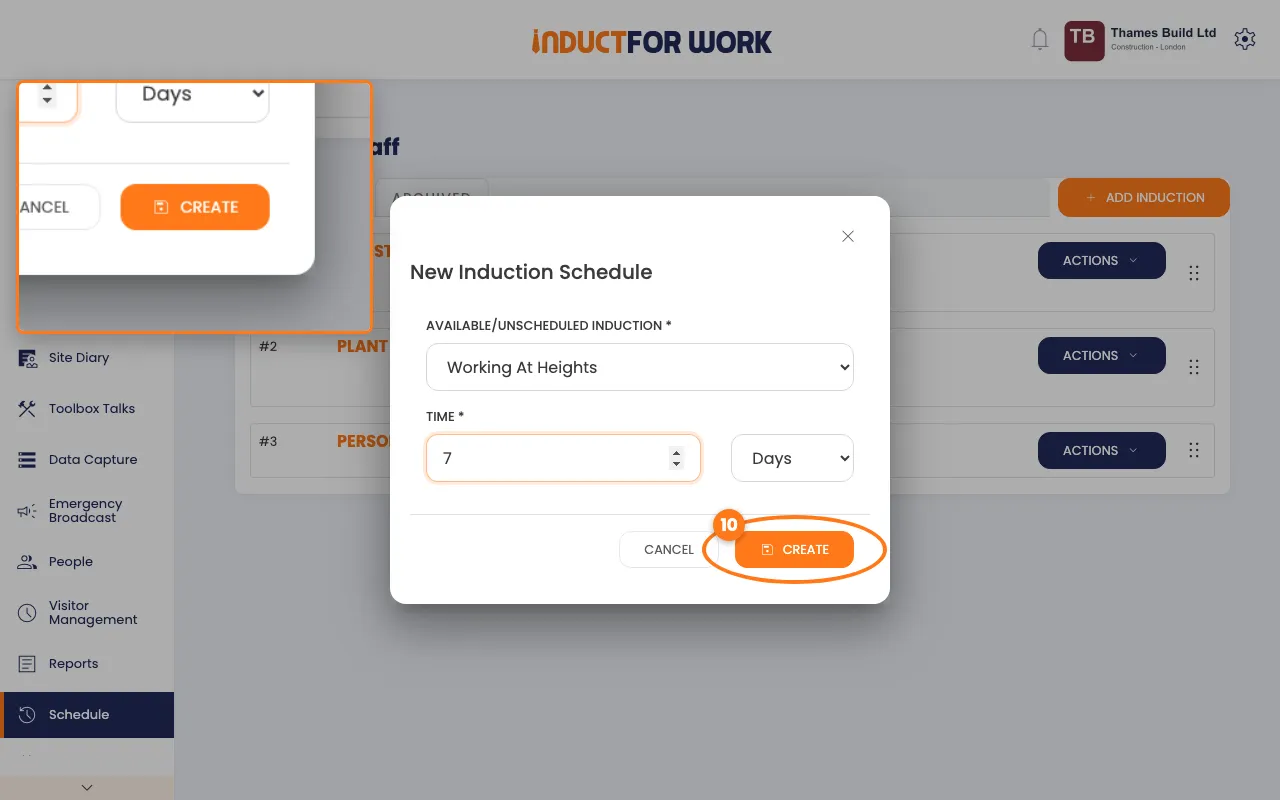
- Repeat for each induction, in the order people should do them.
The first induction Starts the schedule, so its wait isn’t used. Each later one shows Runs after and its wait, counted from when the one before was passed.
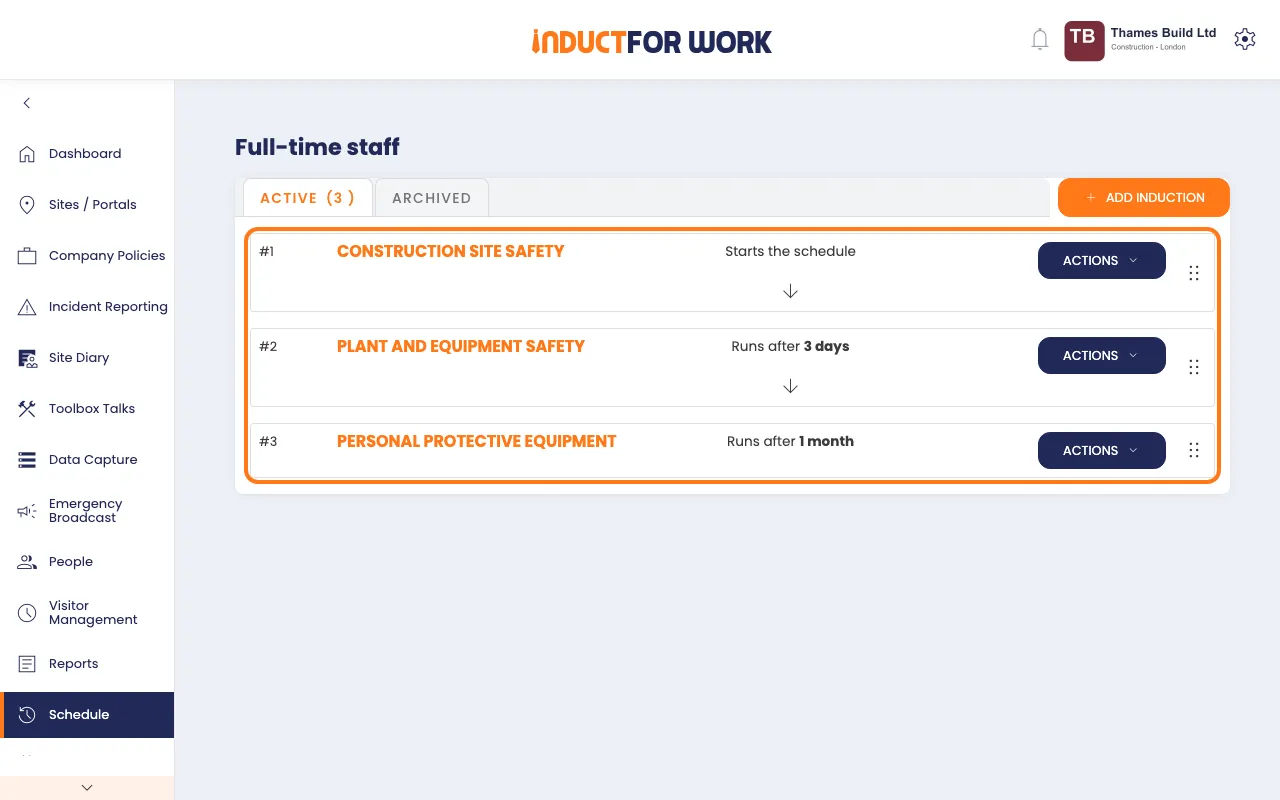
Each new induction goes to the end of the list. To change the order, drag an induction by the handle on its right.
Track and start people
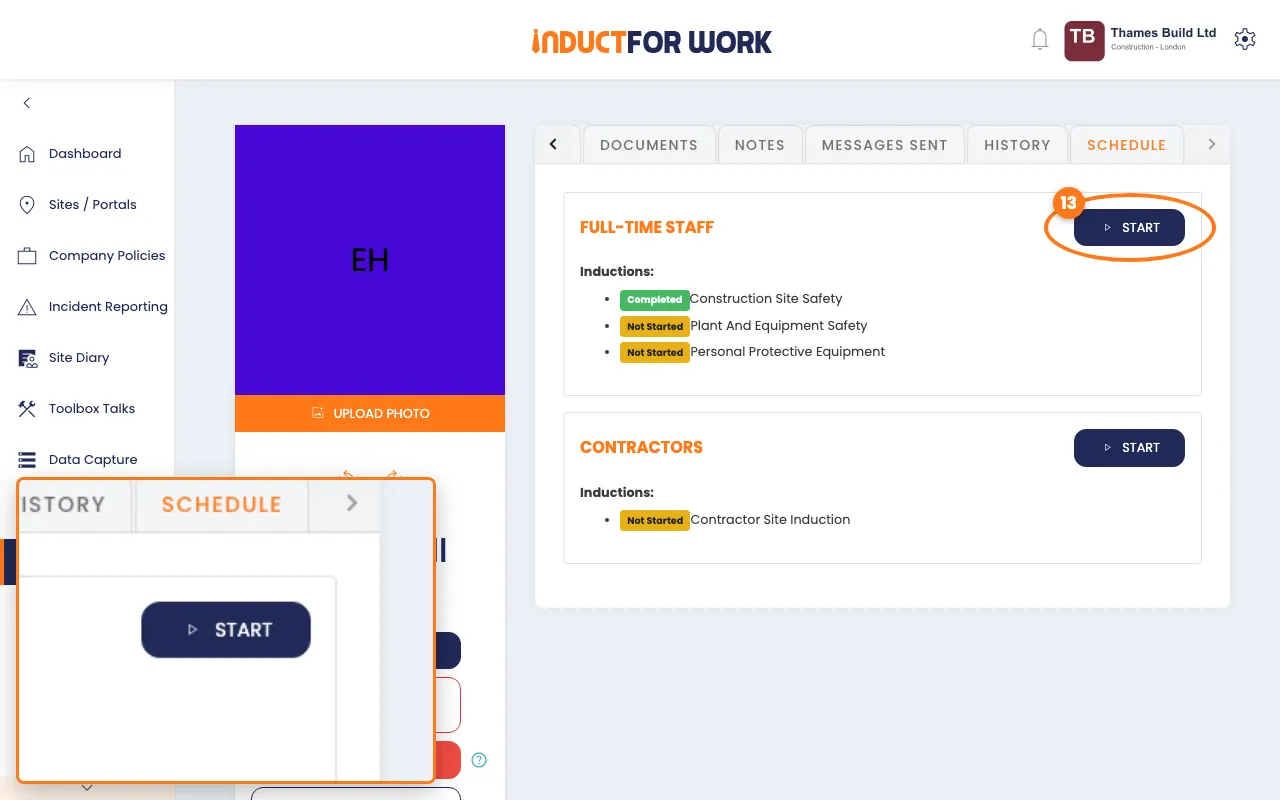
- Open a person’s profile, then click the Schedule tab.
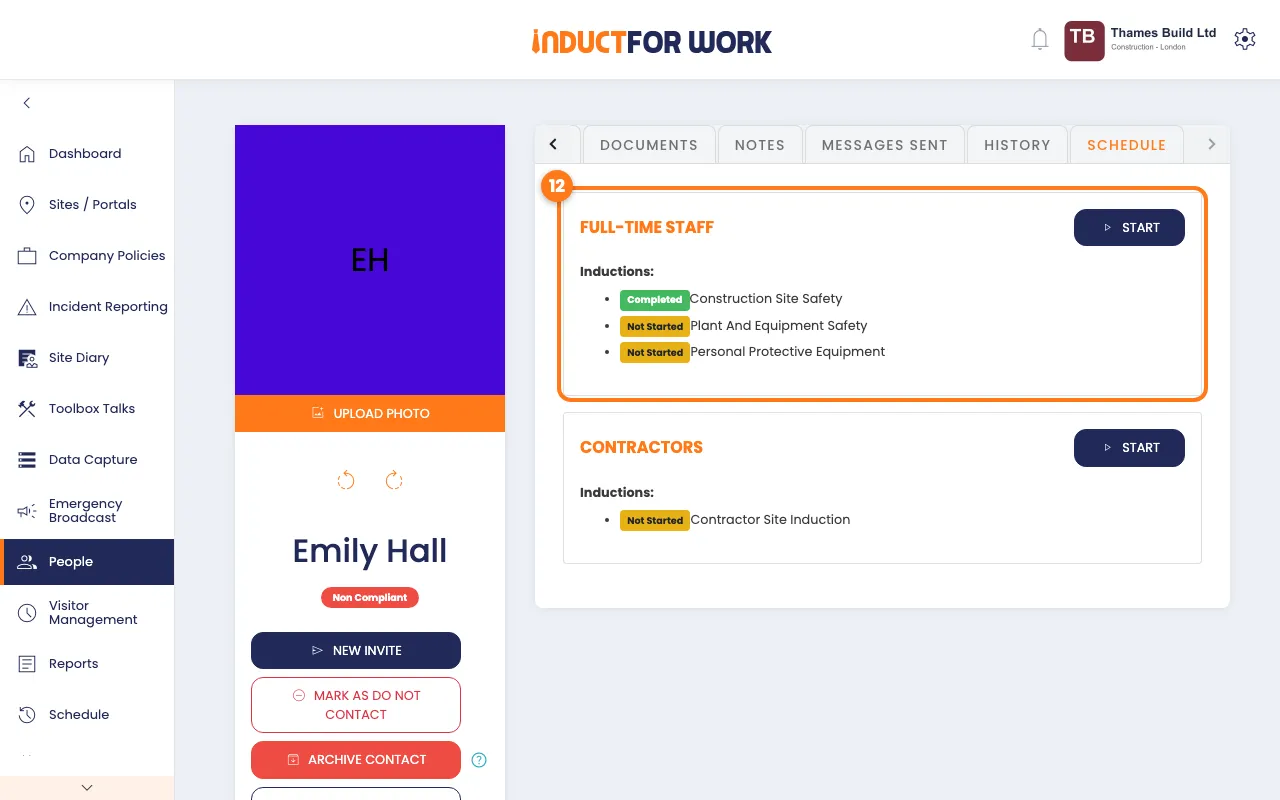
Each induction shows Completed, In Progress or Not Started. To see everyone at once, open the Schedule Status report. See Reports.
To start someone on a schedule from here:
- Next to the schedule, click the navy Start button.
- Check the invite for the first induction, then click the orange Invite button.
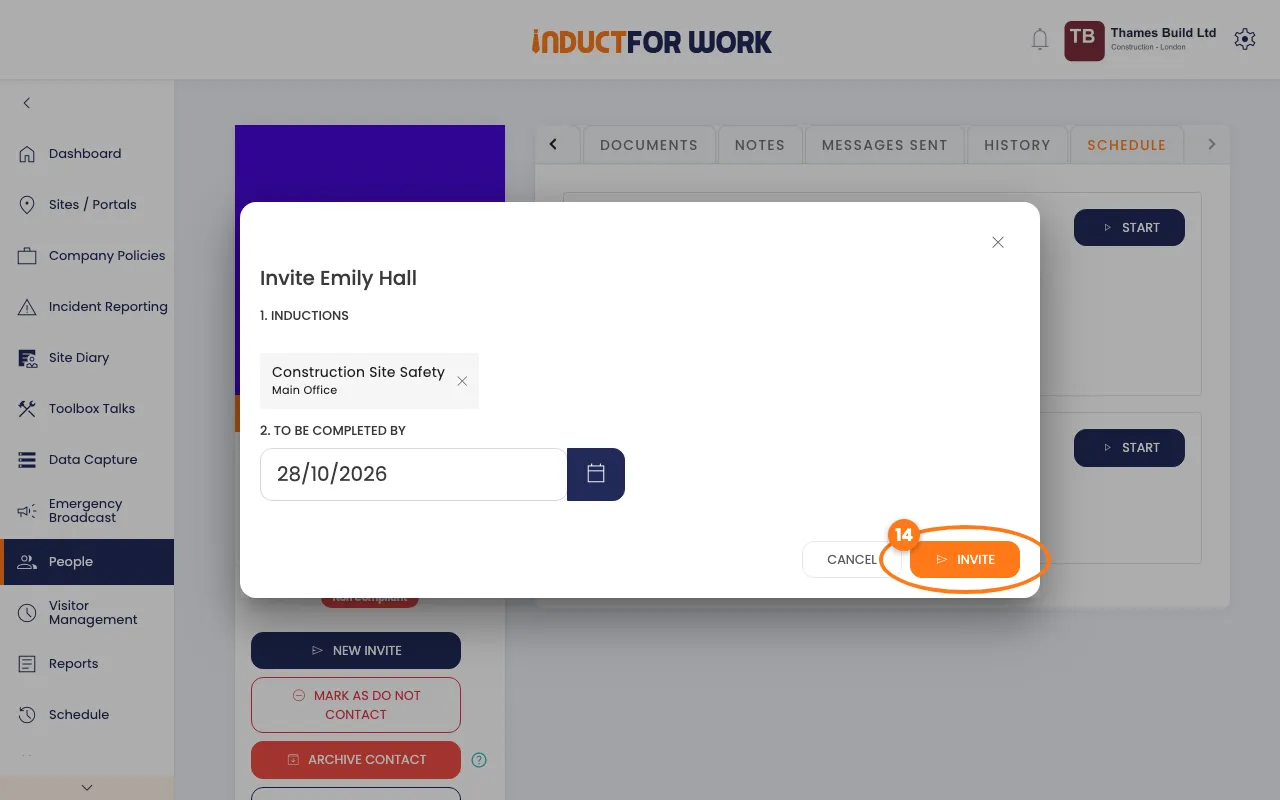
You can also invite people to the first induction the usual way. See Induction Invites.
What your people get
- An invite email for each induction in turn, titled "[Important] Induction Invitation from:" and your company name.
- The invite looks the same as one you send yourself, with a due date 3 days later.
- Once they pass, the next invite follows after the wait. They don’t need to do anything else.
Change or archive a schedule
- On the Schedule page, click the navy Actions button next to a schedule.
- Click Edit to rename it, or Archive to stop it sending invites.
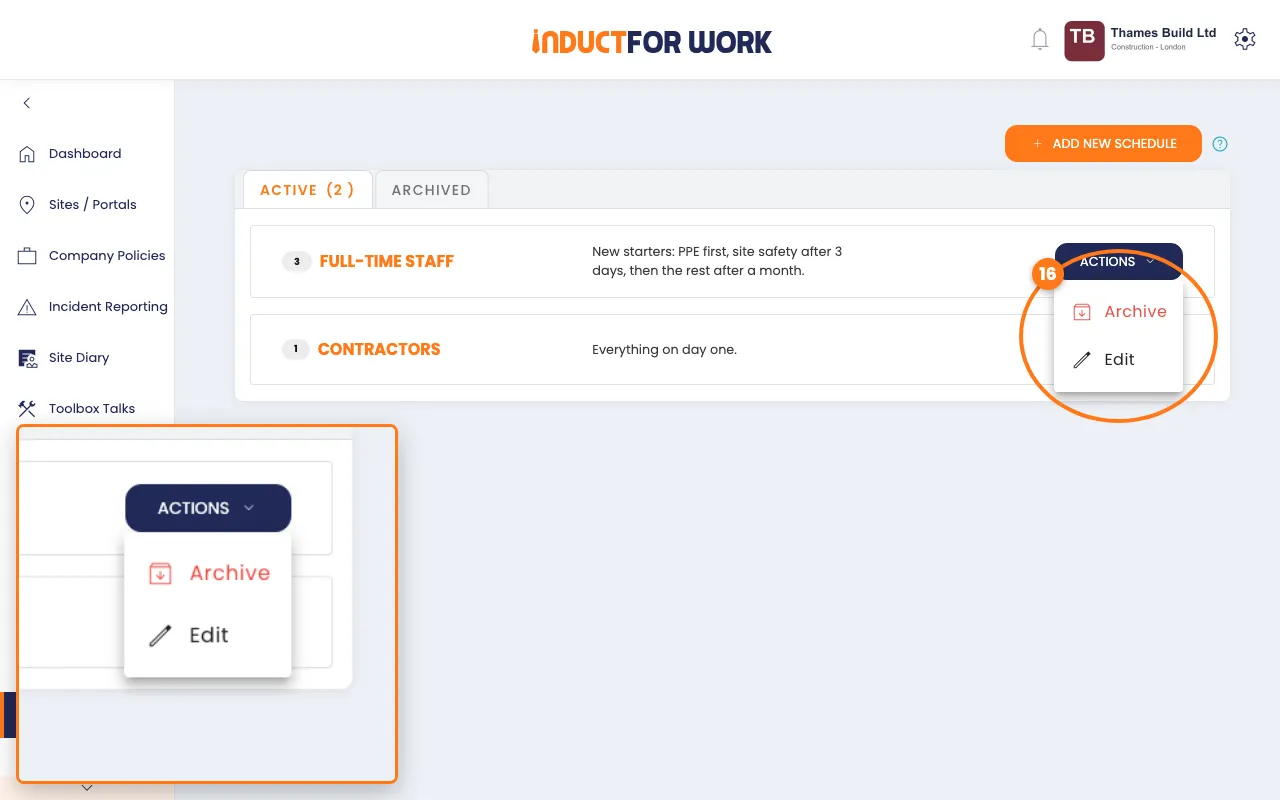
Archived schedules move to the Archived tab. Click Restore to bring one back. Each induction inside a schedule has the same Actions list. A restored induction goes back at the end of its schedule.
Done! What happens next
- People who start the first induction now move through the schedule by themselves.
- Their progress shows on their profile’s Schedule tab, and their invites show in the Unanswered Invites report until they start.
- Next: Integration.