21 Invoices
What are Invoices?
The Invoices page lists the invoices for your induction training subscription, plus your next bill. Open any invoice as a PDF, and choose the company name, VAT number and email address your invoices use. It’s the quick way to give your accounts team what they need.
Rules to know
- Who: only the Account owner and Administration Users. Other admin roles don’t see Invoices in the menu.
- What’s listed: your last 24 invoices. Rows numbered –UPCOMING– are your next bills. They haven’t been issued yet, so they have no View button.
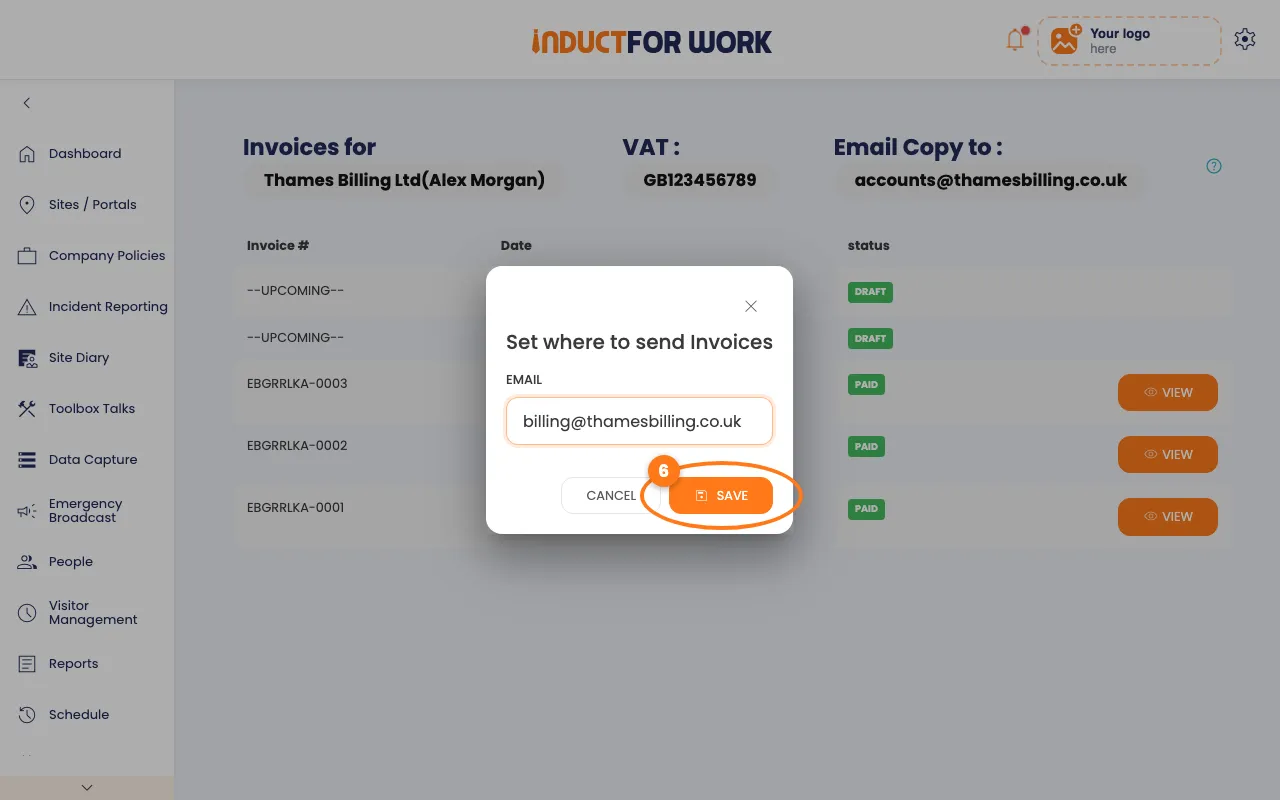
- Email Copy to: each time a payment goes through, a PDF copy of the invoice is emailed to this address. Payment failed and payment reminder emails go there too, instead of to your admins.
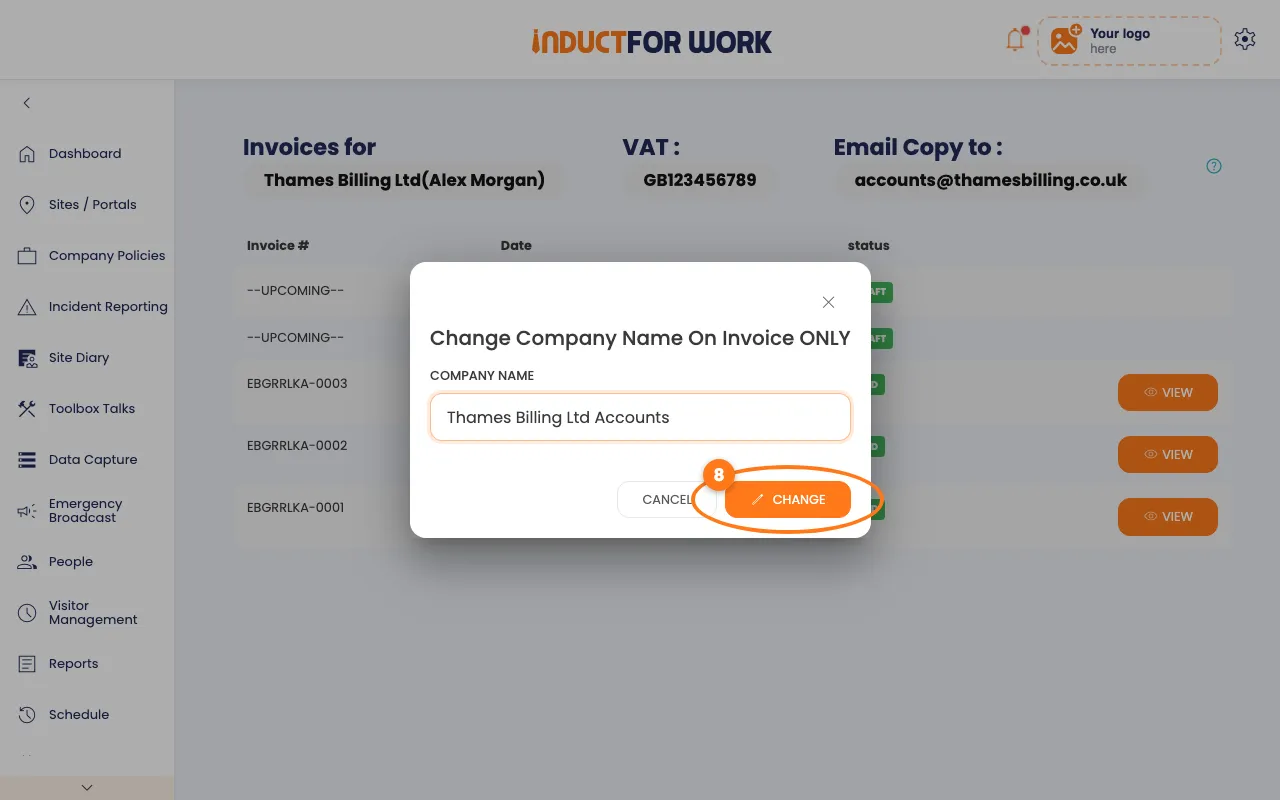
- Company name: changes the name printed on invoices only. Your company name in the app stays the same.
- VAT number: printed on your invoices. GB is added at the start if you leave it off.
- Amounts: in GBP.
What you’ll need
- An Account owner or Administration User login.
- A paid plan. Invoices appear after your first payment.
Open your invoices
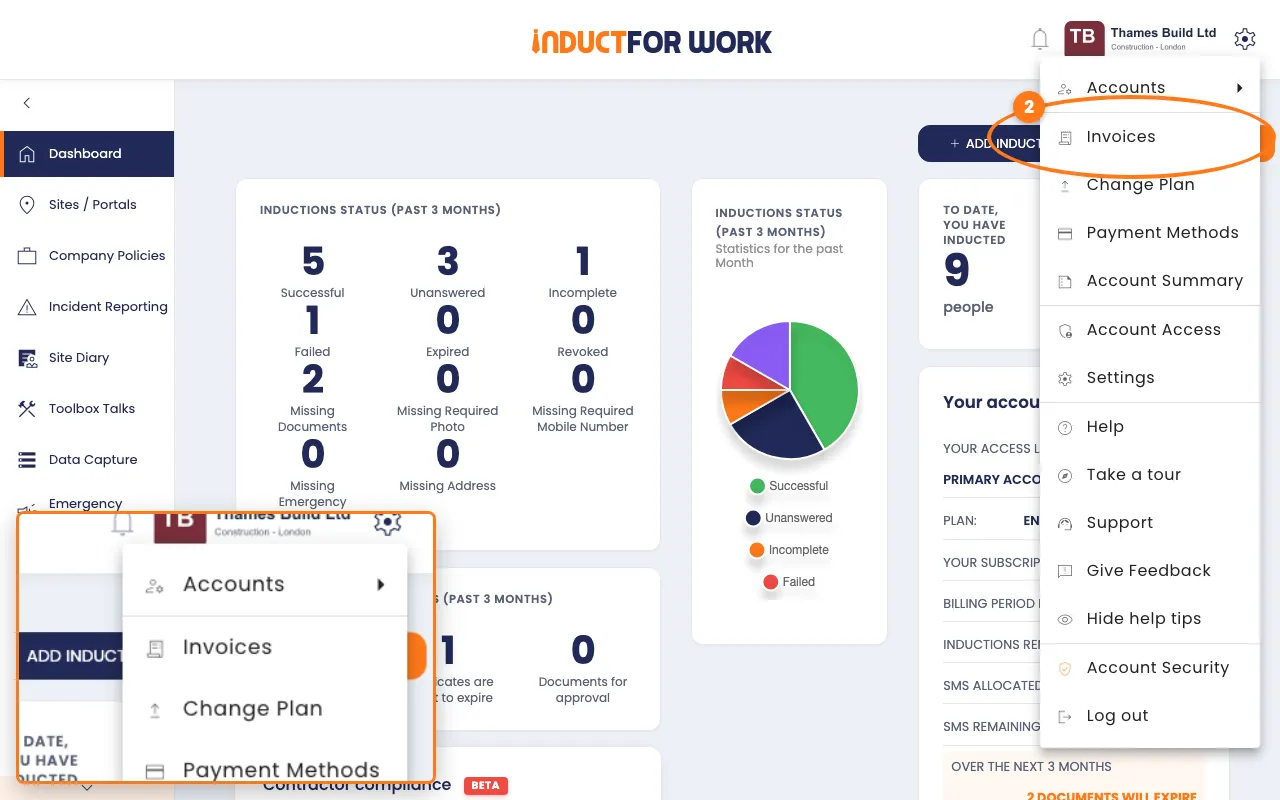
- Click the gear icon, top right.
- Click Invoices.
- Find the invoice by its Invoice # or Date.
- Click the orange View button next to it.
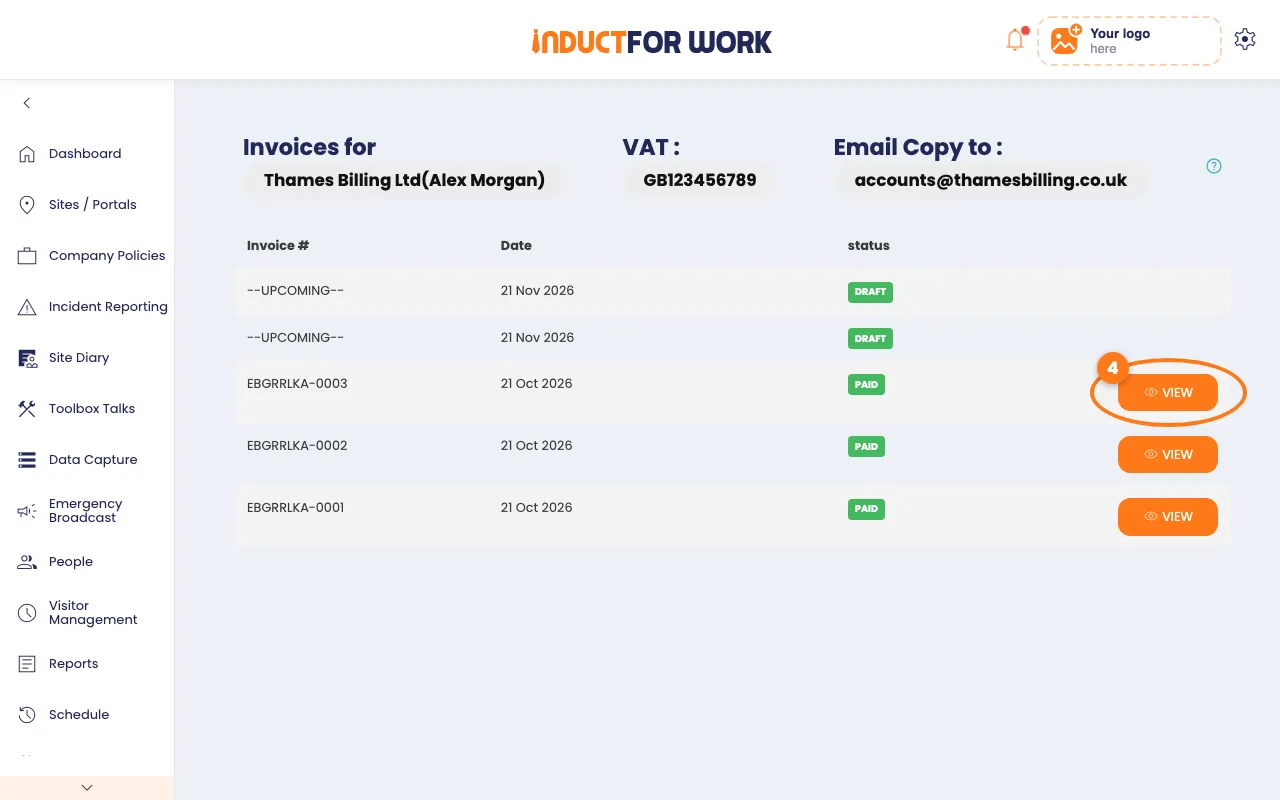
The invoice opens as a PDF in a new tab. Download or print it from there.
Choose where invoices go
- Next to Email Copy to, click the email address.
- Change the email address, then click the orange Save button.
Change the name or VAT number on invoices
- Next to Invoices for, click your company name.
- Change the name, then click the orange Change button.
- Next to VAT, click the number.
- Change the number, then click the orange Change button.
Done! What happens next
- Each new invoice appears here after it’s paid, and a copy goes to the Email Copy to address.
- The new name and VAT number show on invoices from now on.
- To change the card you pay with, see Updating payment details. To move to another plan, see Changing Plans.