29 Do Not Contact List
If you see a user profile that displays Do Not Contact it means that user has unsubscribed from receiving emails from Induct For Work.
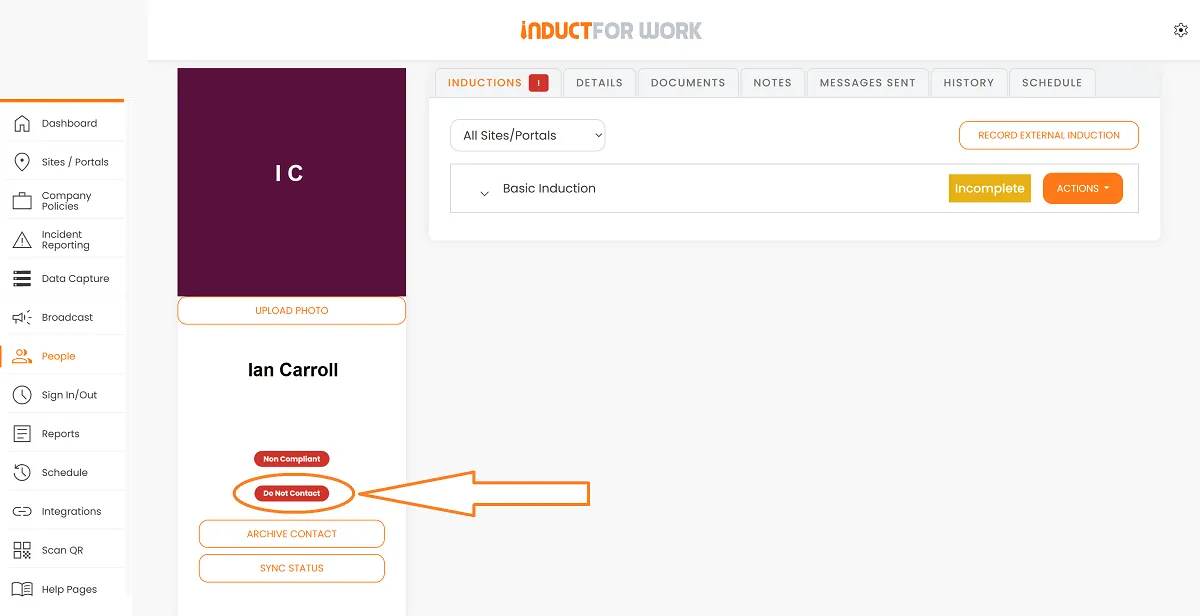
When Do Not Contact is active the user will not receive:
Induction invites
Reminders
Expiration date notifications
Auto refresher and admin invites
Any invites or messages sent while this status is active will not arrive in their inbox.
Here is how to fix this
- Direct the user to the main Login page and ask them to click Login
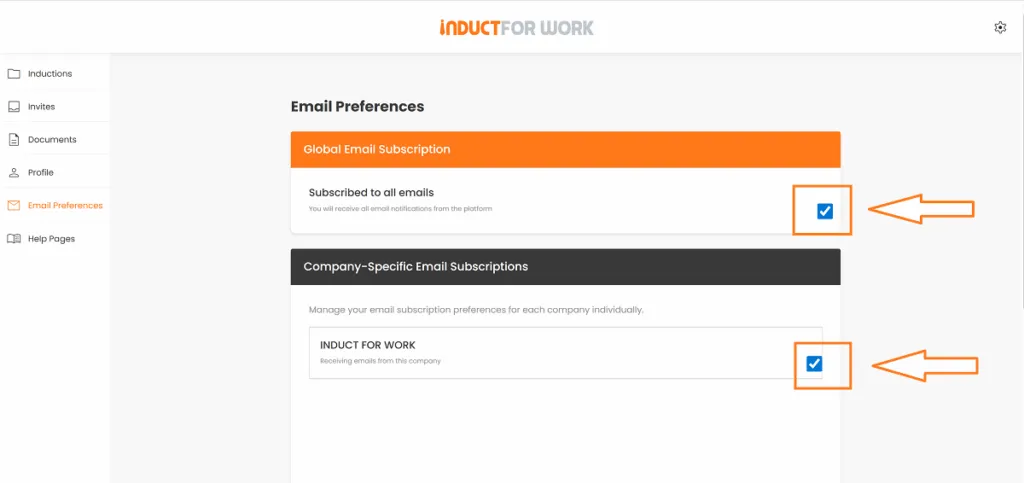
In their personal account ask them to go to Email Preferences
Turn on Global Email and Your Company Subscriptions
Email template you can use
Hi ‘Name’,
It looks like your profile is currently set to “Do Not Contact” which means Induct For Work is not able to send you induction invites, reminders, expiration date notifications or auto refresher and other invites.
To turn emails back on please follow these steps:
Go to the Induct For Work home page
Click Login and sign in to your account
https://www.inductforwork.co.uk/log-in/Open your Personal account settings
Navigate to Email Preferences
Turn on Global Email and Our Company Subscriptions
Save your changes
Once this is enabled you will start receiving induction invites and reminders again.
If emails still land in spam after you switch this on tell us which email provider you use and we will send you the steps to whitelist Induct For Work emails.
Thank you
If emails are enabled but still going to spam
Even after subscriptions are turned back on the user’s email provider may treat messages as spam. Use the steps below based on the provider.
Gmail
Open an email from Induct For Work
Click the three dots menu
Choose Filter messages like these
Click Create filter
Tick Never send it to Spam then click Create filter
Optional: add the sender to Contacts.
Outlook desktop
Open an email from Induct For Work
Right click the sender address
Choose Junk then Never Block Sender
Optional: add the sender or domain to Safe Senders
File → Options → Mail → Junk Email → Safe Senders → Add
Outlook on the web
Settings
Mail
Junk email
Add the sender or domain under Safe senders and domains
Save
Apple Mail
Mail
Settings
Junk Mail
Turn off junk filtering or add a rule to move Induct For Work messages to Inbox
Optional: add the sender to Contacts.
If the user is on a business mail system
If the user’s organisation manages email centrally their IT team may need to allow list the sender.
Microsoft 365 Defender
Add Induct For Work sending domains to the Tenant Allow Block List
Add allowed sending IPs if you have them
Create a mail flow rule to bypass spam filtering for the domain
Google Workspace Admin
Apps → Google Workspace → Gmail → Compliance
Add an allow list entry for the sending domain or IP
Optionally bypass spam filtering for the domain
Common best practice for any gateway
Ask IT to allow list the From domain and the Return Path domain
Ensure the spam gateway is not rewriting links in a way that triggers filtering
If you use Mimecast Proofpoint or Barracuda add the sender to the allow list there too
Quick check before troubleshooting
Confirm Do Not Contact is no longer shown on the user profile
Confirm Global Email and Your Company Subscriptions are enabled in Email Preferences
Then apply the relevant spam allow list steps above
FAQ
It means the user has unsubscribed from receiving emails from Induct For Work. While this is active they will not receive induction invites reminders expiration date notifications or auto refresher and admin invites.
They need to log in to their personal account, then go to Email Preferences, and turn on Global Email, and Your Company Subscriptions. Once saved, the system will resume sending standard invites and reminders.
First ask the user to check spam and junk folders. Then whitelist Induct For Work in their email provider. If they use a business mail system their IT team should allow list the From domain and Return Path domain, and add the sender to any gateway allow lists.
This brings us to the end of this Training Session. Please continue to Session #30 continue your learning journey Thank you.