3 Documents and Signatures
What are documents and signatures?
Your company may ask for proof before you start work. This can be a licence, a safety card or a signed form. You add them on your phone as part of your induction training. You can take a photo, pick a file, draw your signature with your finger and fill in a form. Nothing needs printing.
Rules to know
- File size: each file can be up to 30 MB. If yours is bigger, take a fresh photo or choose a smaller copy.
- File types: you can upload photos, PDFs, Word, Excel and PowerPoint files, text and CSV files, and OpenDocument text files.
- Expiry reminders: if your company switched them on for a document, we email you 28, 14, 7 and 1 day before it expires, and on the day it expires.
- Camera: if your phone asks to use the camera, tap Allow. You can check the photo and retake it if it is blurry.
- Save: the button stays grey until you have filled in everything this company asked for.
- Dates: an expiry date has to be in the future, and an issued date can’t be later than today.
- Signature: draw it with your finger. Tap Clear if you want to have another go.
- Forms: if you miss a required box, the form shows you where and won’t save until it’s done.
- Interrupted: your answers on a form are kept on that phone for 24 hours.
- Carrying on: you can only continue once every required document is done. Optional ones can be skipped.
- Checked by hand: some companies check certain documents. Until they do, you see Submitted — almost there! rather than your certificate.
What you’ll need
- Your phone and a good signal.
- Your licence or card, if the company asked for one. A clear photo is fine.
- A pen is not needed. You sign with your finger.
Open a document
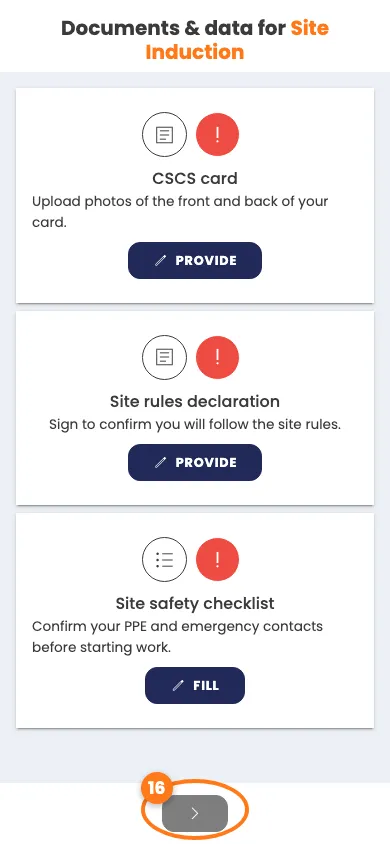
- After your induction, look for the page called Documents & data for your induction.
- Find a document with a red mark. Tap Provide.
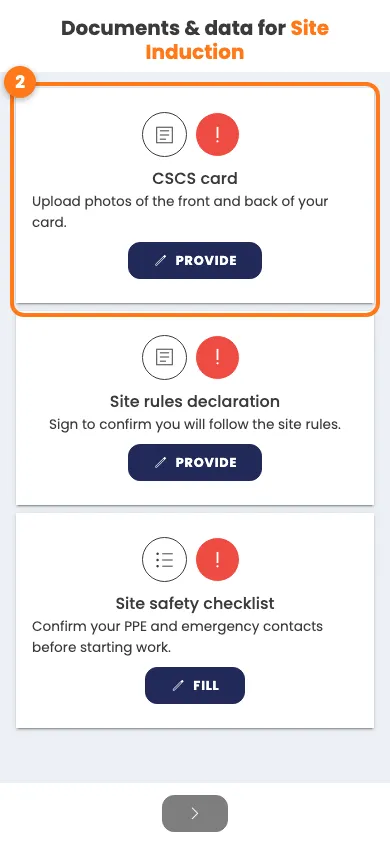
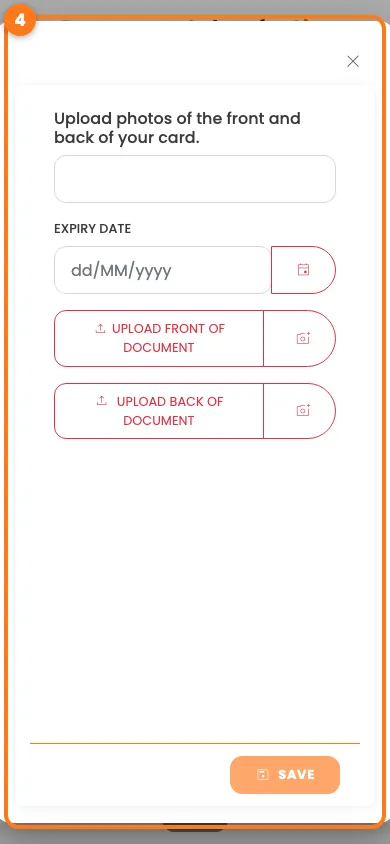
Upload a photo or file
- Fill in anything the box asks for, such as an expiry date.
- Tap Upload document. If it says Upload front of document, tap that.
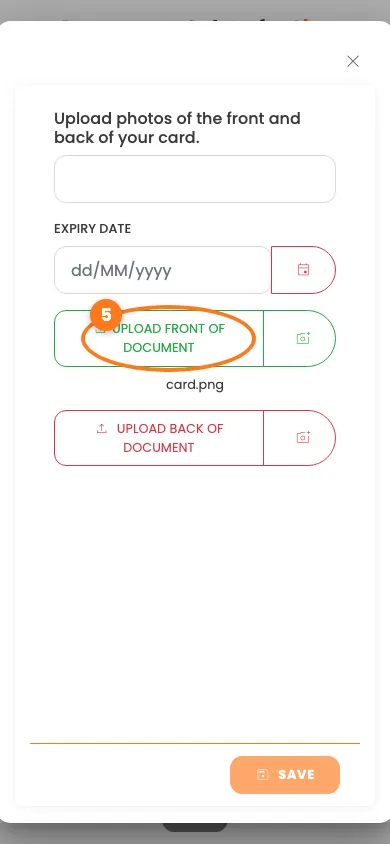
- Choose a photo or file. Its name appears under the button.
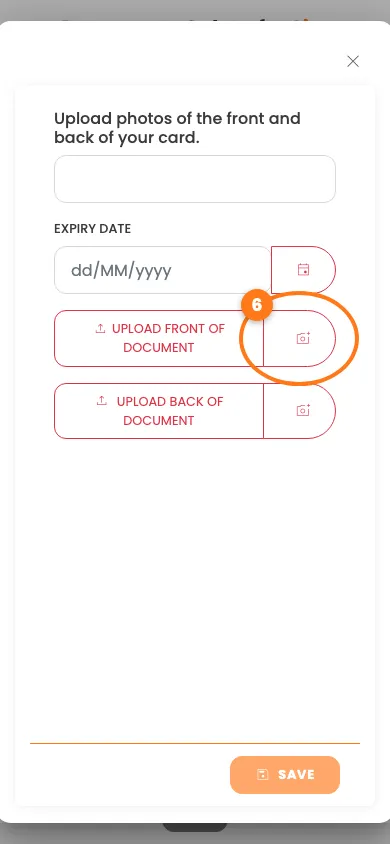
- Want to use your camera instead? Tap the small camera button next to it.
- If you see Upload back of document, do the same for the back.
- Tap Save.
Sign with your finger
- Tap Provide on a document that needs a signature.
- Draw your signature in the grey box.
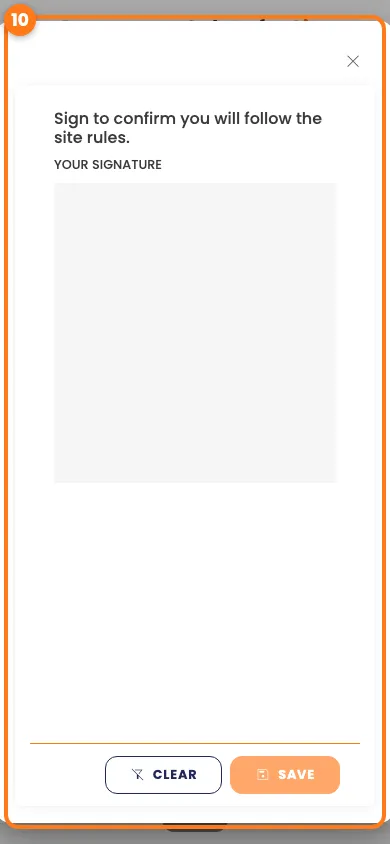
- Not happy with it? Tap Clear and try again.
- Tap Save.
Fill in a form
- Tap Fill on a form.
- Answer each question. A red star means you must answer it.
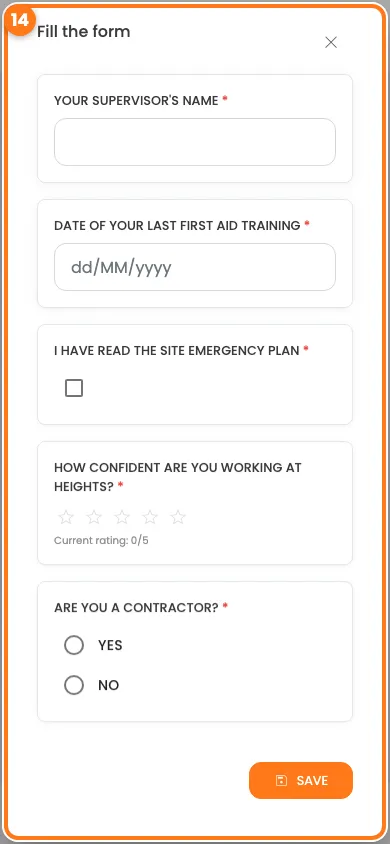
- Tap Save. If it shows a message, check the questions above it.
Carry on
- When every red mark has turned into a green tick, the arrow at the bottom turns on. Tap it.
If the company checks your documents
- Some companies check certain documents by hand. You may see Submitted — almost there!
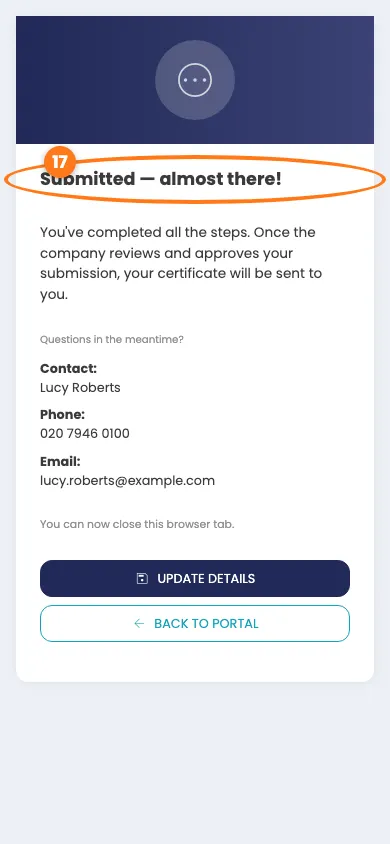
- You don’t need to do anything. The company is told automatically, and your certificate comes once they approve.
- Have a question? Use the contact details on the screen.
Tip
Got a rejected document? You get an email with the reason. Open your link again and upload a new one.
Done! What happens next
- Your documents are uploaded and signed.
- The arrow turned green and you carried on.
- If the company checks documents, you saw Submitted — almost there! and are just waiting for approval.