5 Certificates and Your Account
What can you do in your account?
After you finish an induction training, your account keeps it all in one place. You can download your certificate, see when each induction runs out, and renew it. You can also reset a forgotten password. To change your name, photo, phone number or the email or mobile number you sign in with, see 6 Updating Your Details. You can do all of this on your phone.
Rules to know
- Your certificate: you find it under Inductions in your account. Some companies don’t email it to you.
- Certificate not ready: if it says the certificate will be available soon, give it a moment and check back.
- Renew early: you can renew once your induction is within a month of expiring.
- Reminders: if your company has reminders on, we email you 28, 14, 7 and 1 days before it expires.
- Password code: it works for 15 minutes, so use it soon and from the same place you asked for it.
- New password: use at least 8 characters, big and small letters, a number and a symbol like @.
What you’ll need
- Your phone and a good signal.
- Your email address and password, to sign in.
- Your phone or email inbox, to get a code.
Find your certificate
- Sign in to your account. The Inductions list opens first.
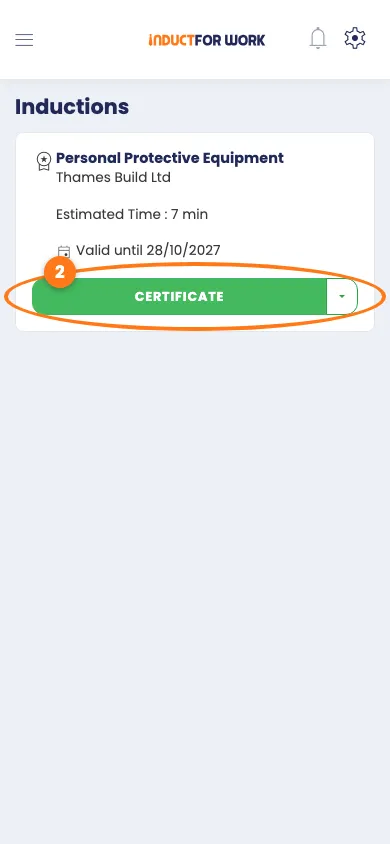
- Find the induction you finished. Tap the green Certificate button.
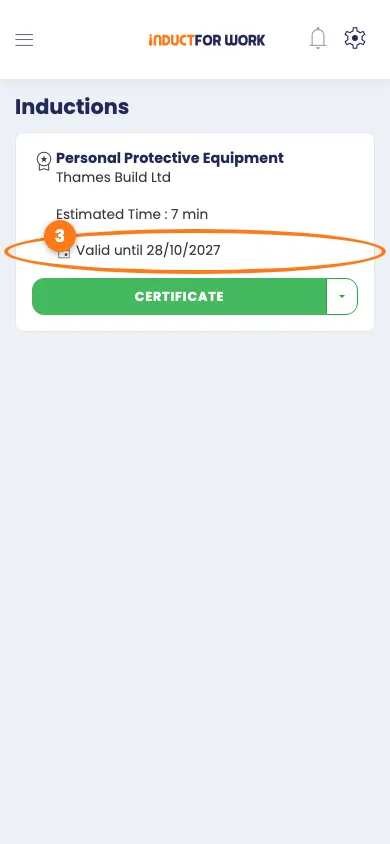
- Look under the title for Valid until. This is the date your induction runs out.
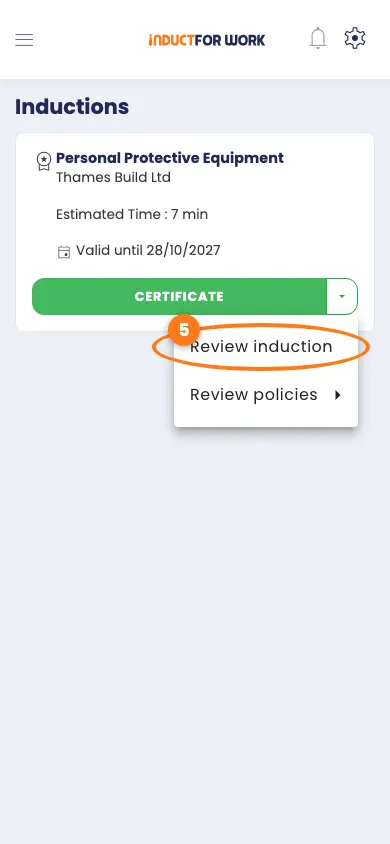
- To look through the induction again, tap the small arrow next to Certificate.
- Tap Review induction.
Tip
If it says Certificate will be available soon, wait a moment and open the list again.
Renew before it expires
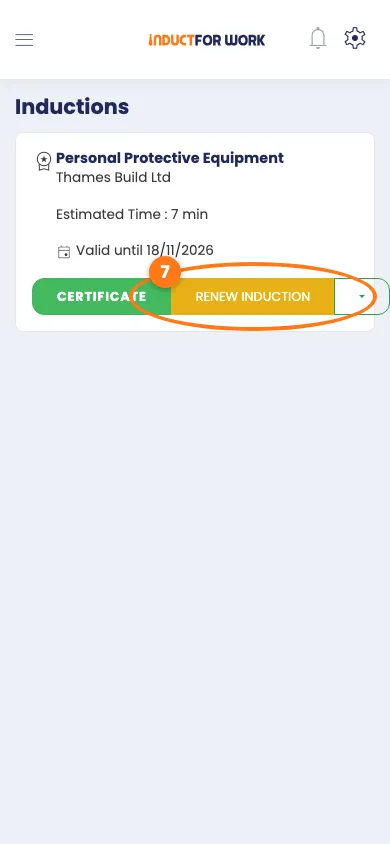
- Look for the yellow Renew induction button. It shows up in the last month before your induction expires.
- Tap Renew induction and work through the pages again.
If your induction has expired
- Find the induction that says Expired on.
- Tap the yellow Expired: Click To Reinduct button.
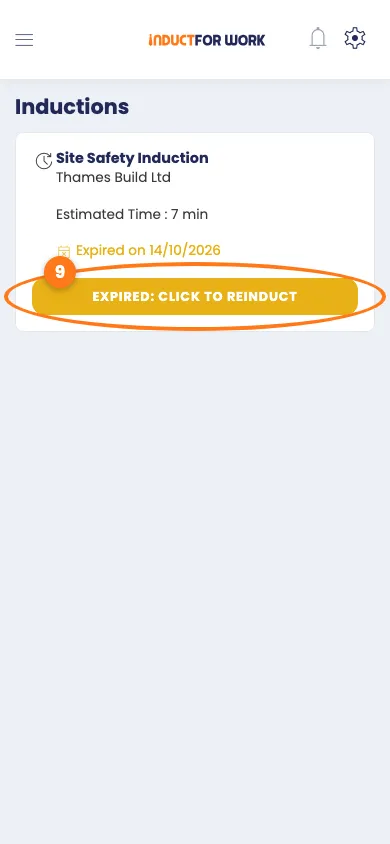
You go through the induction again. Your new certificate replaces the old one.
Reset your password
- On the sign-in page, tap forgot password?
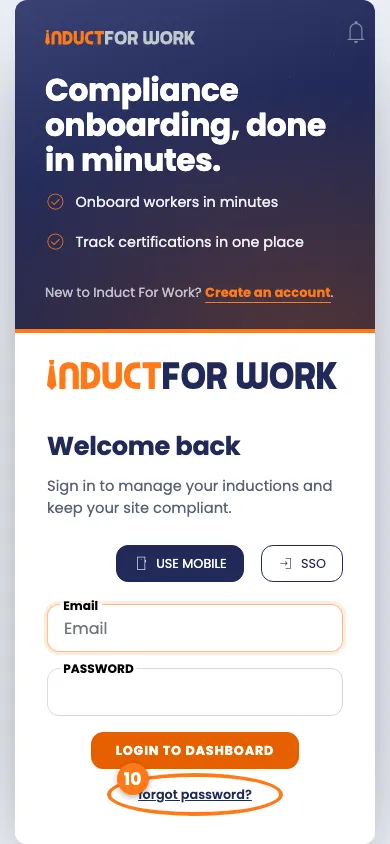
- Type your email address.
- Tap Send code.
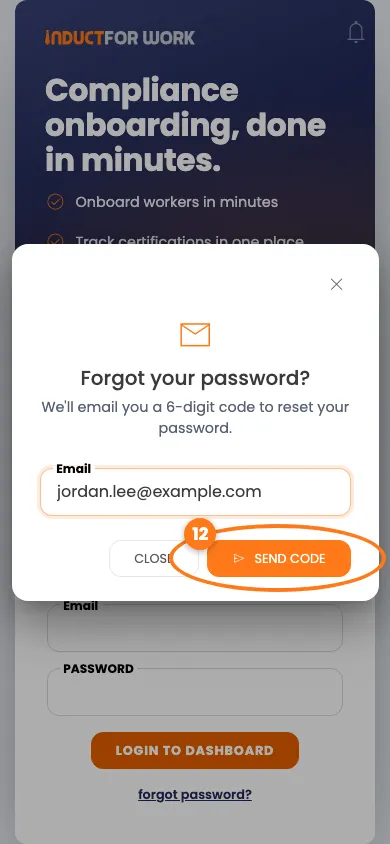
- Open the message we send you and find the 6-digit code.
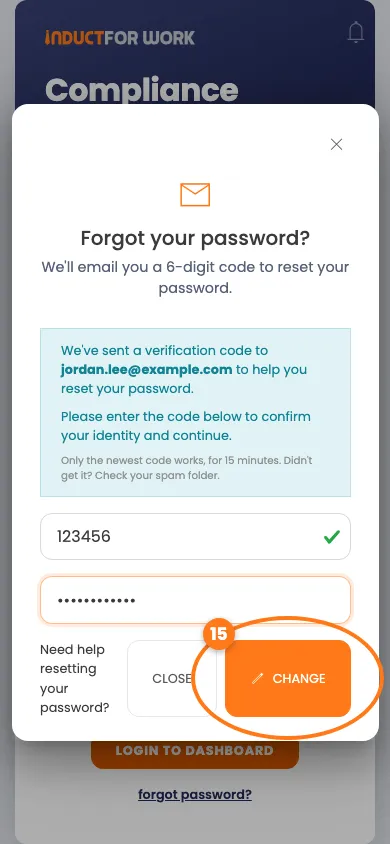
- Type the code, then your new password.
- Tap Change.
Change your password when signed in
- Tap the settings icon, then Profile.
- Tap the Settings tab.
- Type your old password, then your new password twice.
- Tap Change Password.
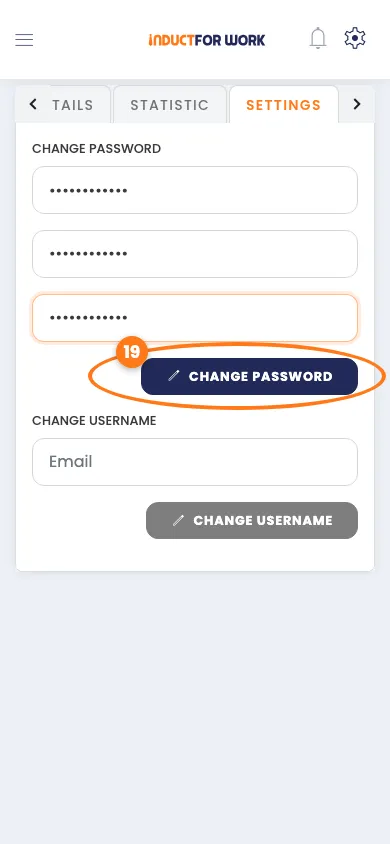
You see Your password has been changed successfully.
Change your details
To change your name, photo, phone number, or the email or mobile number you sign in with, see 6 Updating Your Details.
Done! What happens next
- You know where to find your certificate and when it expires.
- You can renew or redo an induction that is expiring or expired.
- You can reset or change your password. Your other details are in 6 Updating Your Details.