42 RAMS
What is a RAMS?
A Risk Assessment and Method Statement (RAMS) sets out how a high-risk job will be done safely. You write it, send it to the people involved, and everyone reads and signs it. Induct For Work sends the link, keeps track of who has signed, and builds the signed PDF for you. You can start from a template, but you are responsible for what it says.
Rules to know
- Plan: included on the Team Pro and Enterprise plans, and in your free trial. On a lower plan you are asked to upgrade.
- Who can use it: Supervisors and above can create, send, resend, close, cancel and revise. You only see sites you have access to.
- Templates are a starting point: you must review every line. Each one says so in an Important note.
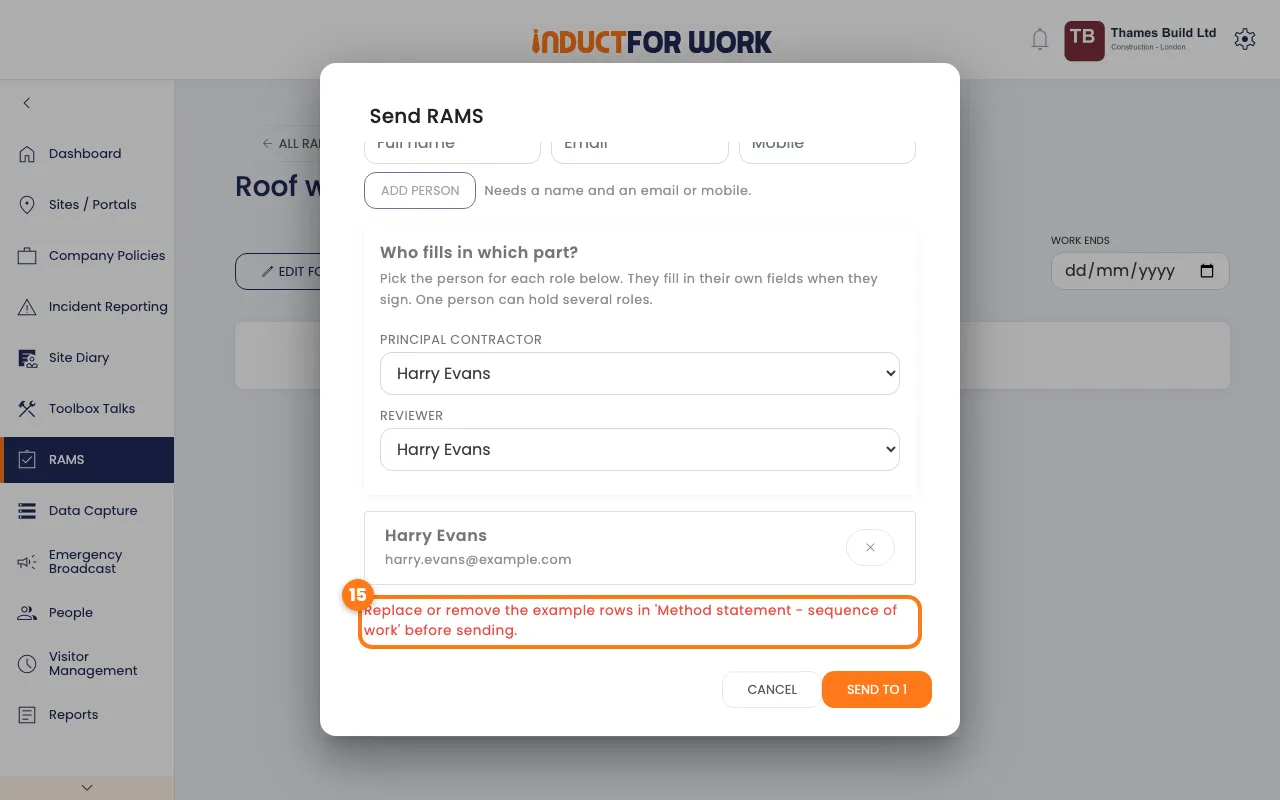
- Example rows: template tables come with sample rows. You can’t send until you change or delete them.
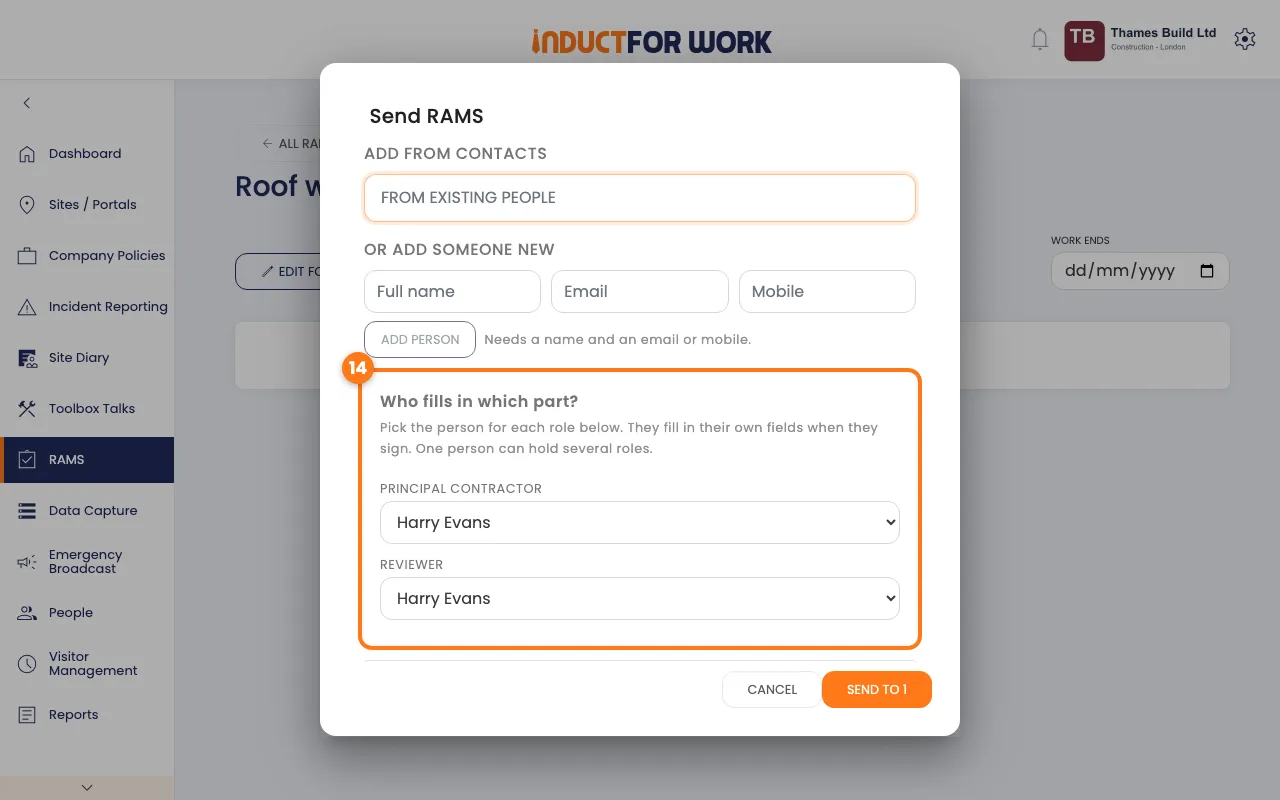
- Roles: if a field is set to be filled by a named role, choose one person for that role before you send. One person can hold several roles.
- After sending: the document is locked. Signers see exactly what you sent. To change it, use Revise.
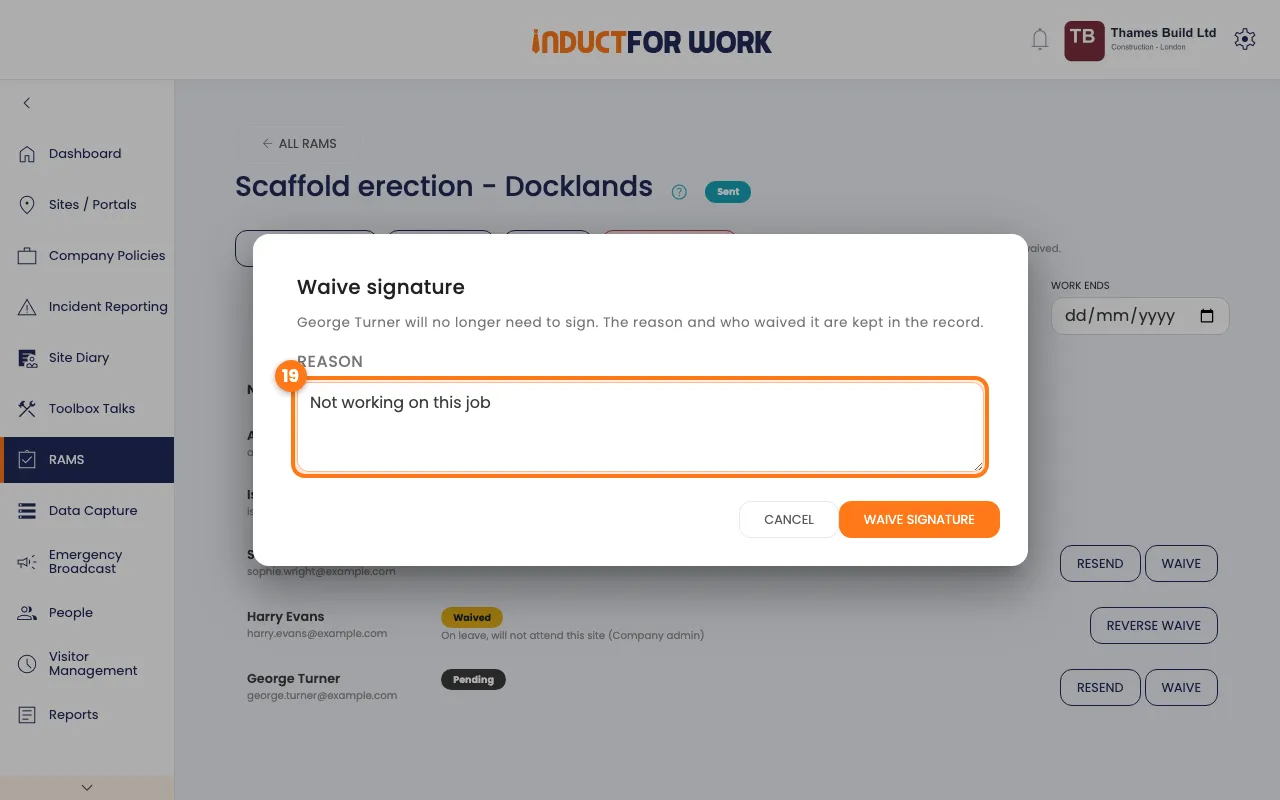
- Waive: only a Site Manager or above can waive a signature, and must give a reason. They can reverse it later.
- Resend: once every 5 minutes for each person.
- Text messages: people with only a mobile number get a text, which uses one SMS credit each.
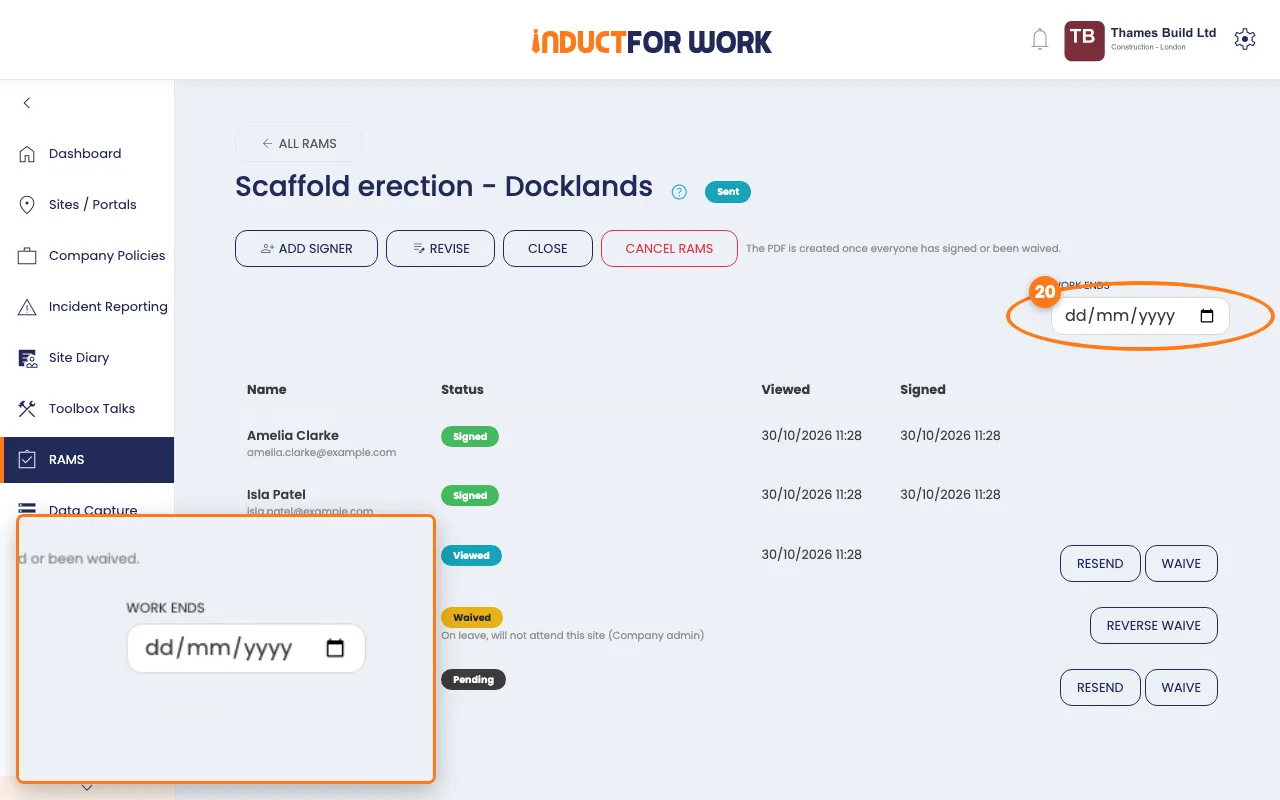
- Work end date: it is a note for you. It doesn’t close the document.
- Close or cancel: close a finished job to keep it as a read-only record. Cancel only works on a draft or one still out for signing.
- Reminders: people who haven’t signed get up to 3 reminders, at least 2 days apart.
- Signed copies: you get the combined PDF when everyone has signed. Each signer gets their own copy.
- Privacy: a signer sees the document and their own details. They never see who else has signed.
What you’ll need
- A Team Pro or Enterprise plan, or a free trial.
- A login with the Supervisor role or higher.
- The names and email addresses or mobile numbers of the people who must sign.
Start a new RAMS
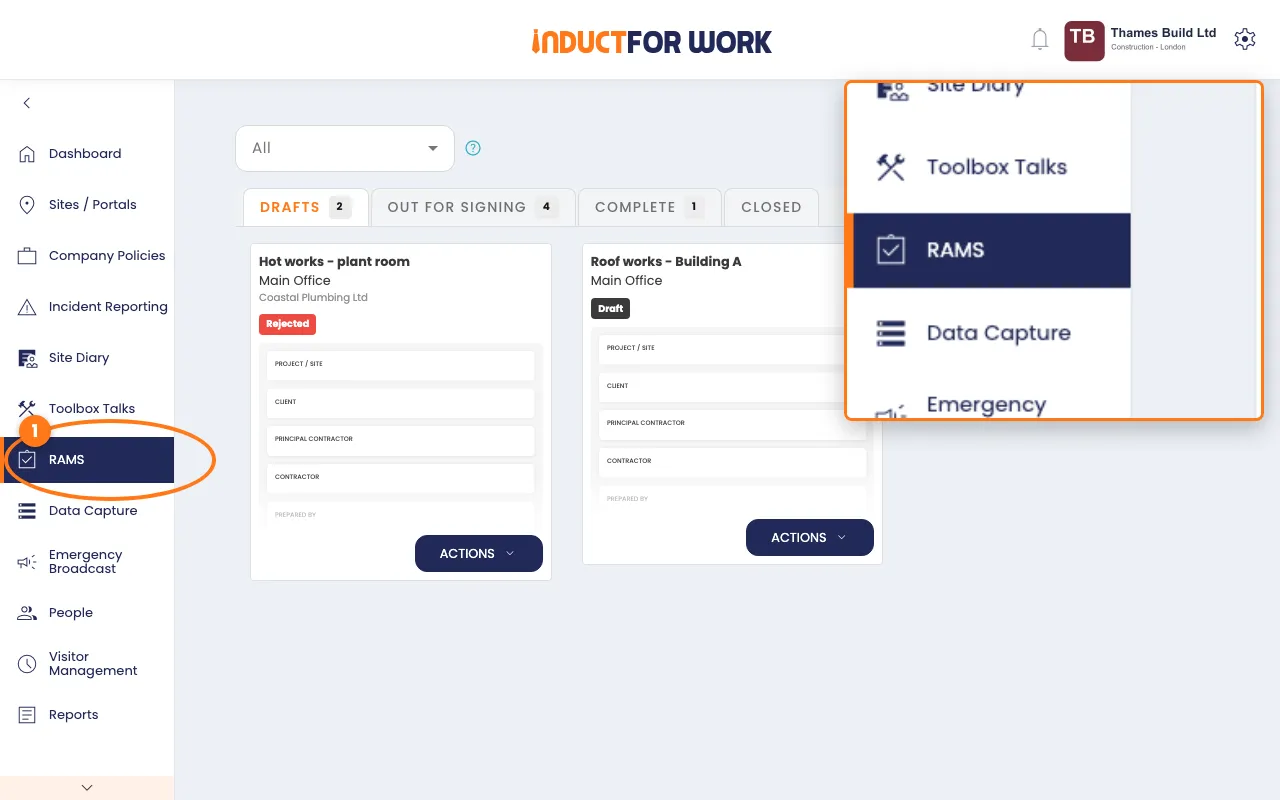
- Click RAMS in the left menu.
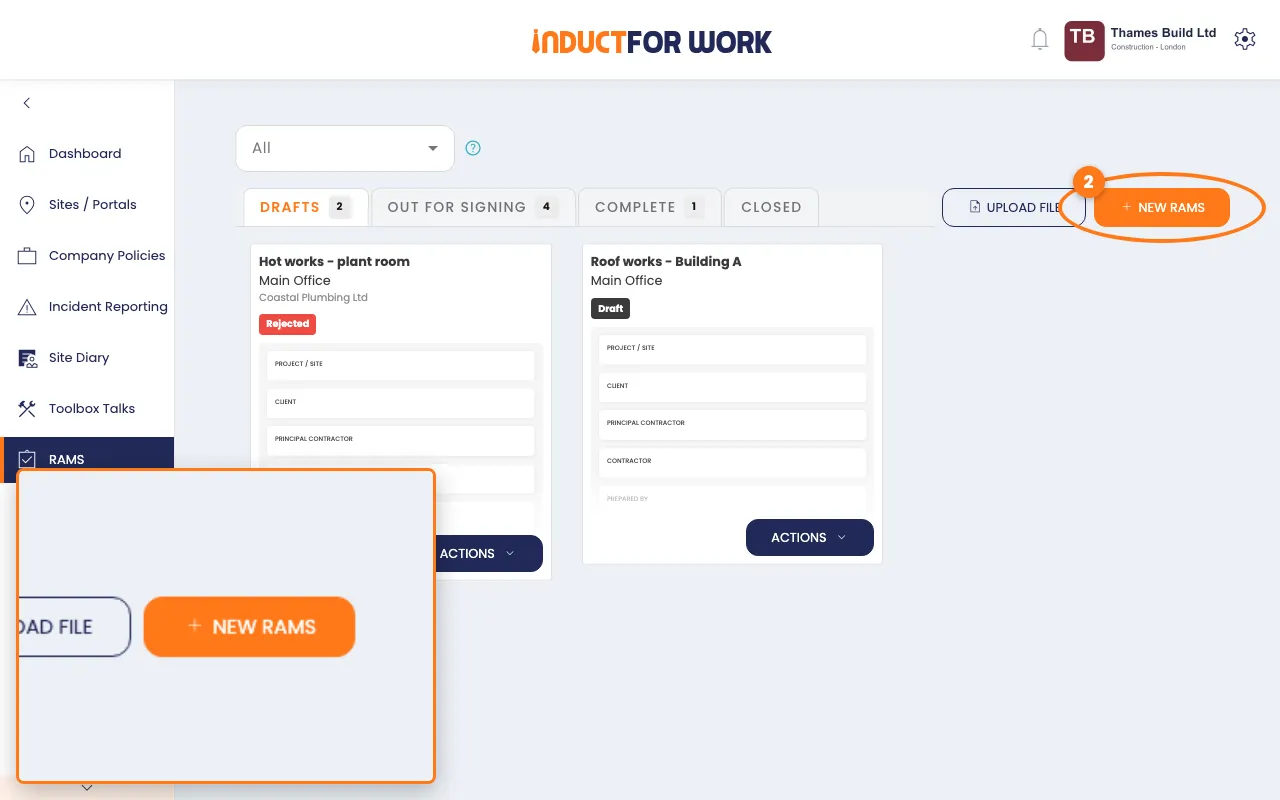
- Click the orange New RAMS button, top right.
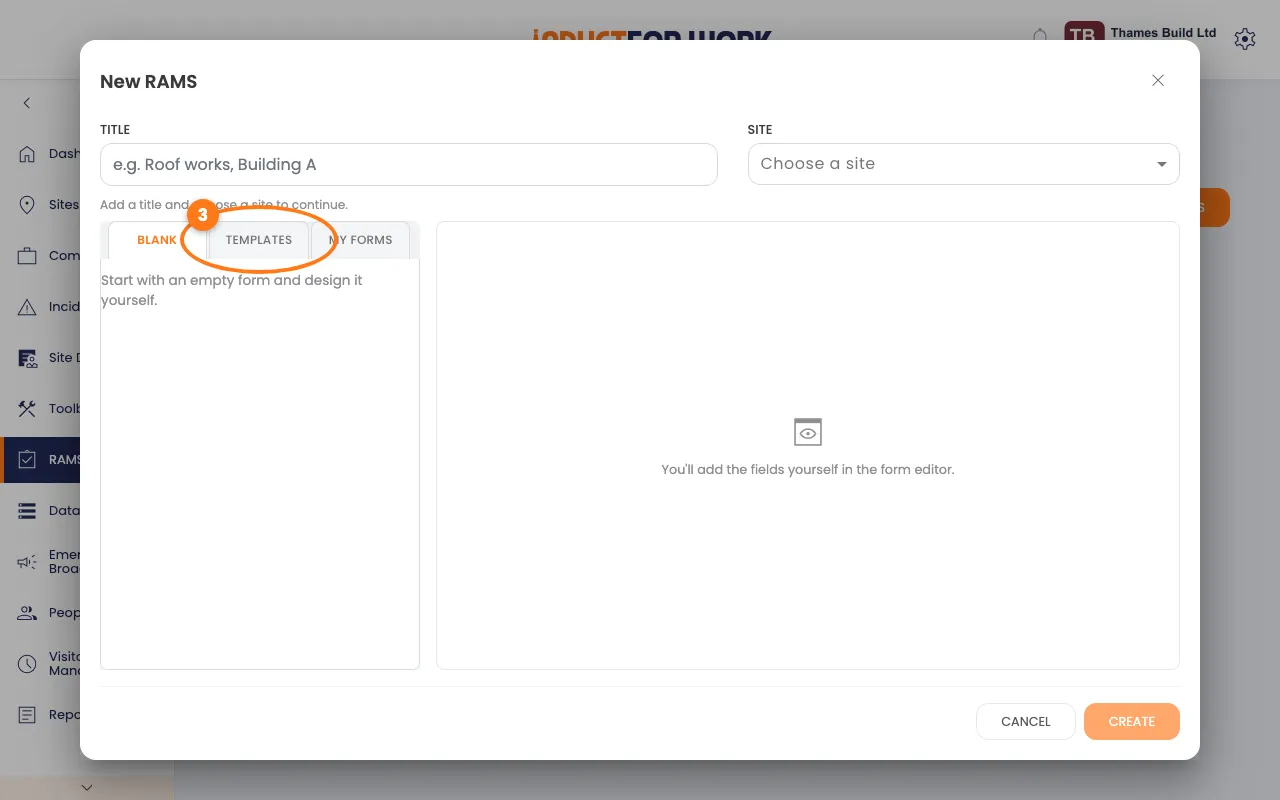
- Click the Templates tab.
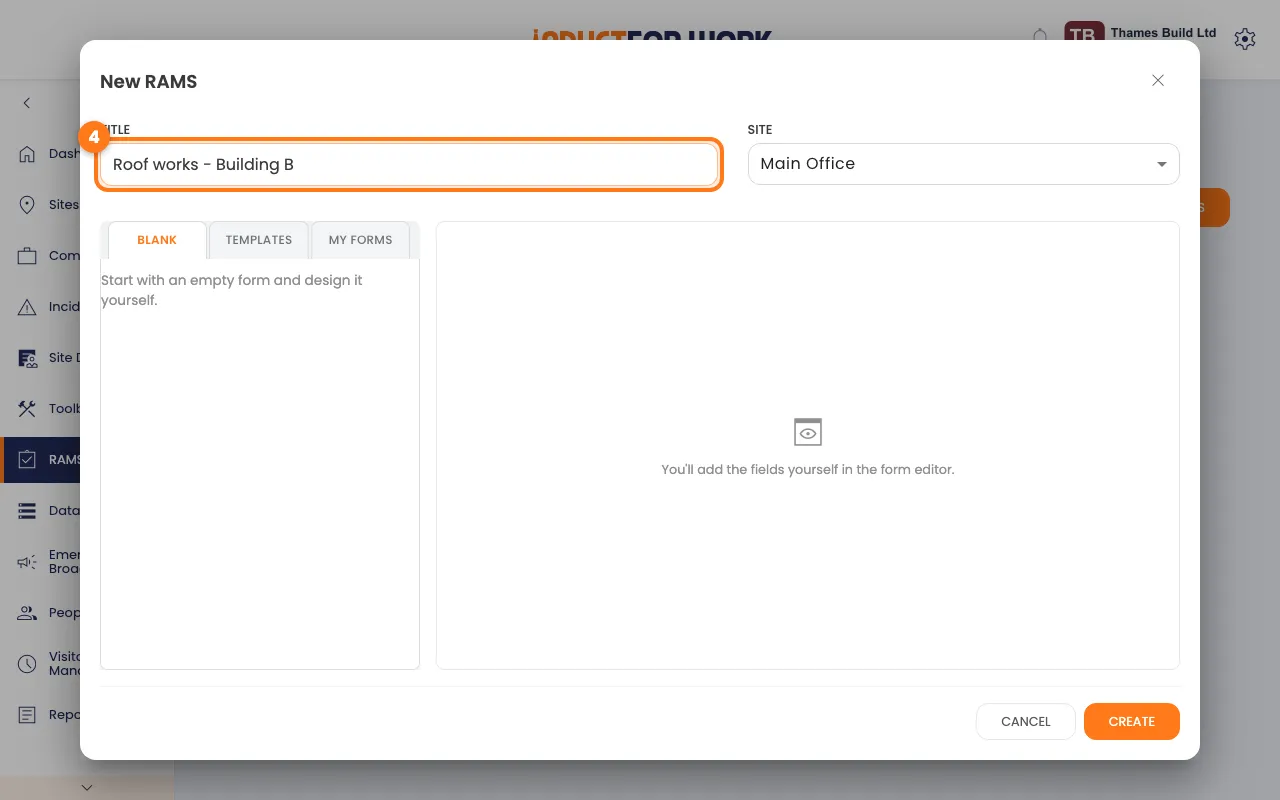
- Type a title, then choose the site.
- Click the template closest to your job to preview it, then click Use this template.
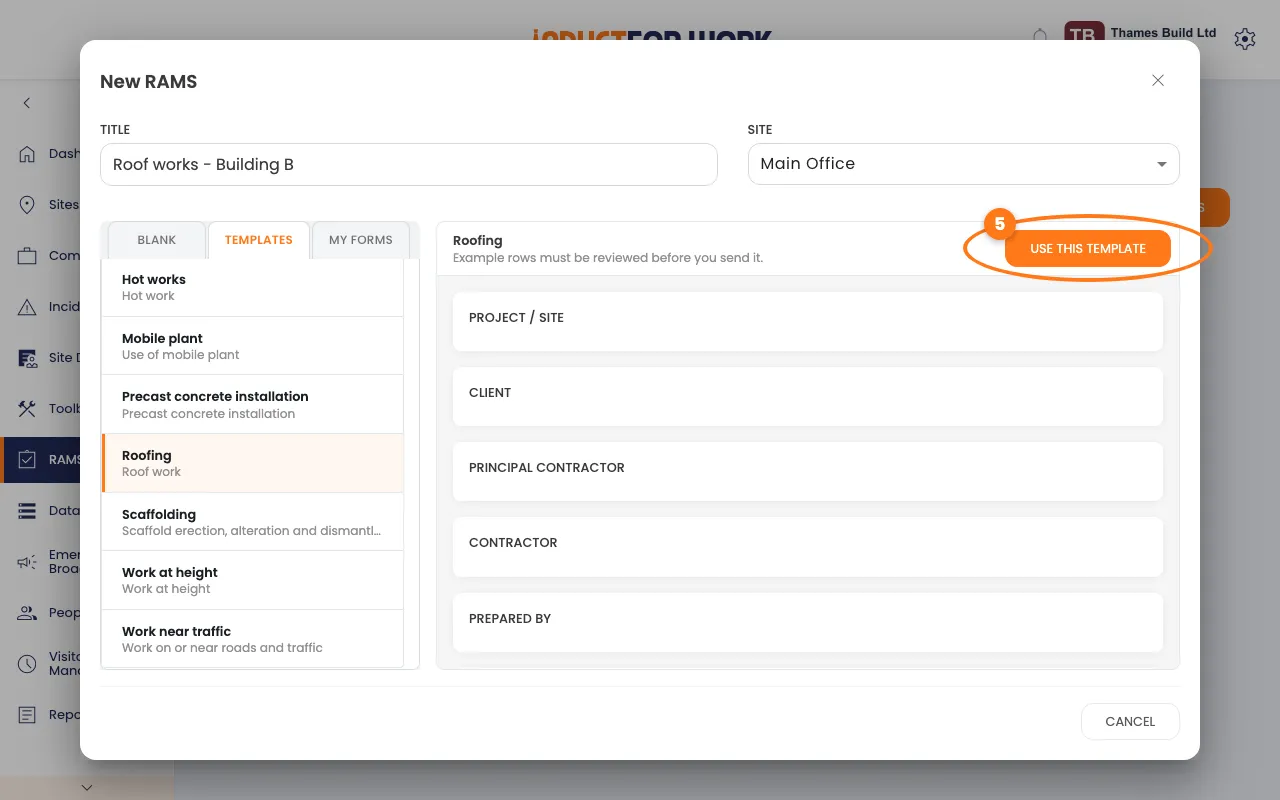
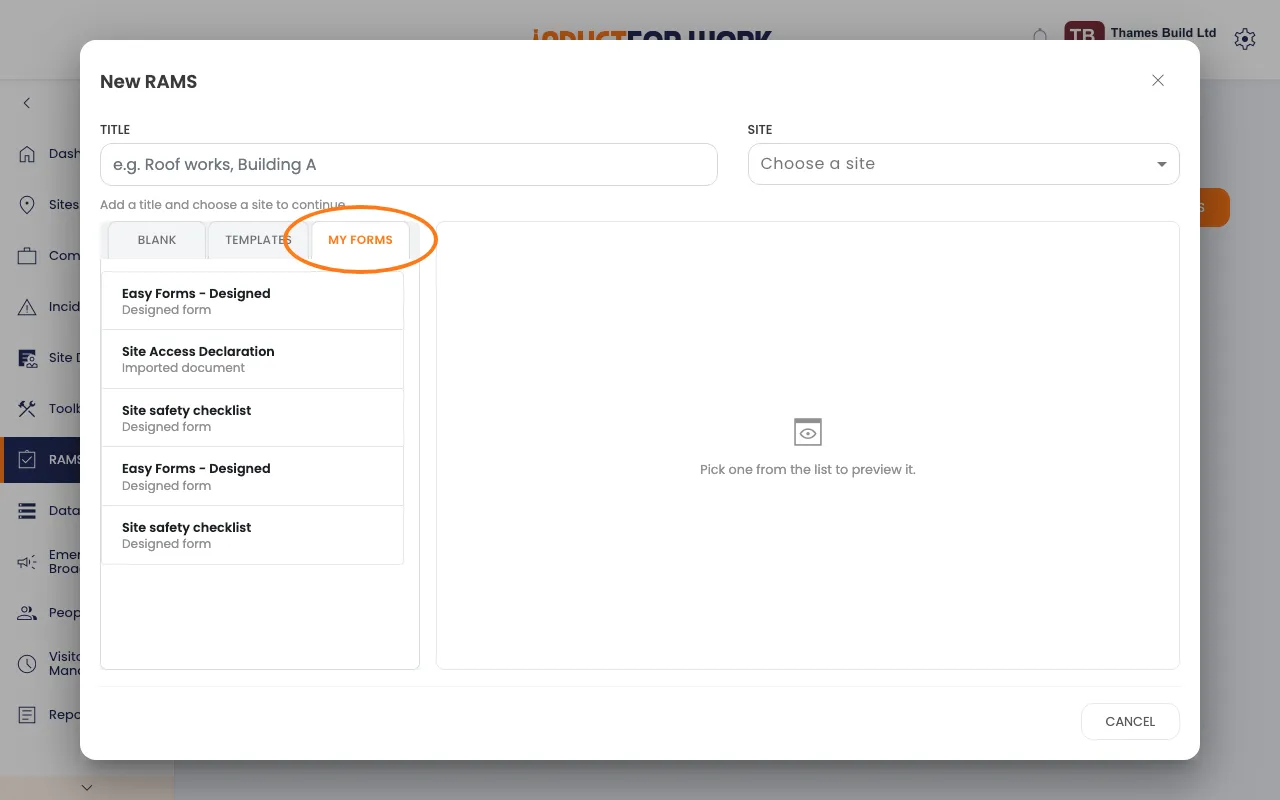
You can also click the My forms tab, pick a form you built yourself to preview it, then click Use this form. We make a copy, so your original isn’t changed.
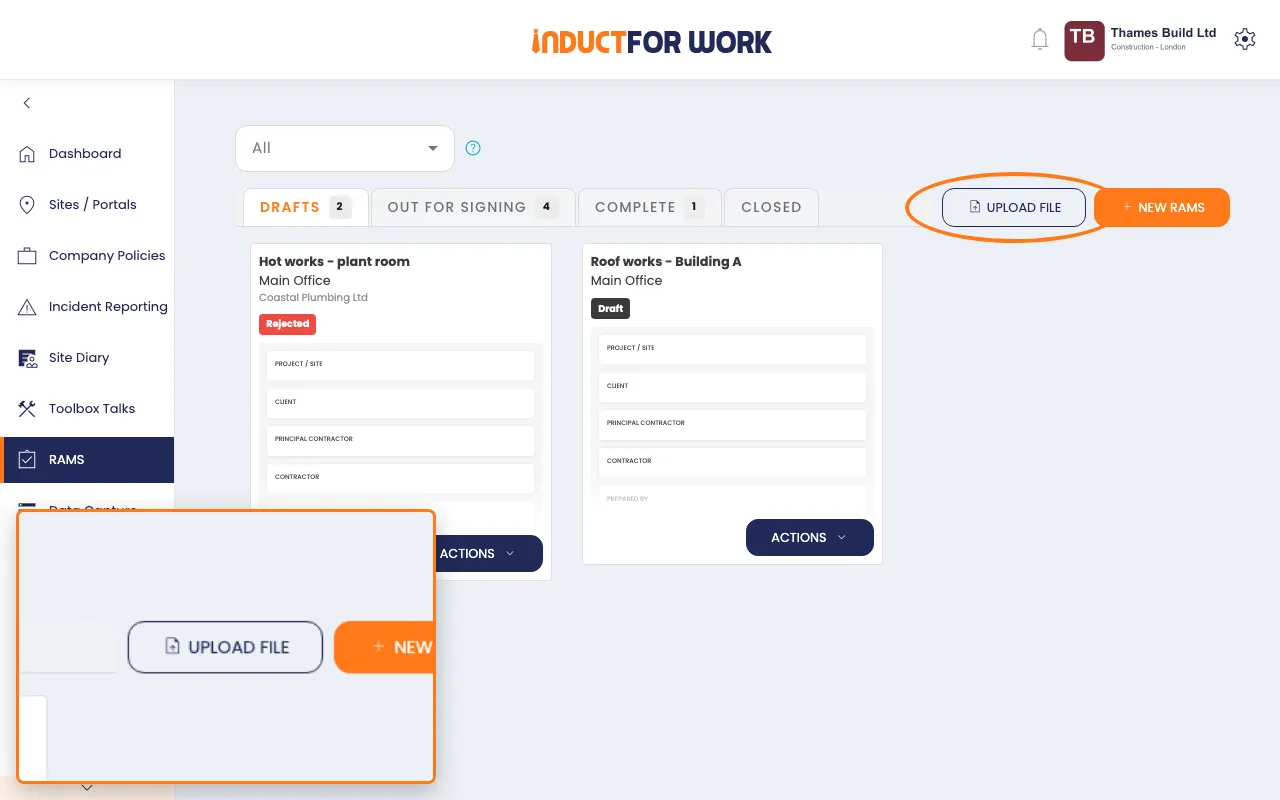
Or click Upload file on the list page to start from your own PDF, up to 100MB. Choose the site first.
Check the form and set who fills it in
- Click the pencil next to a field to check or change it.
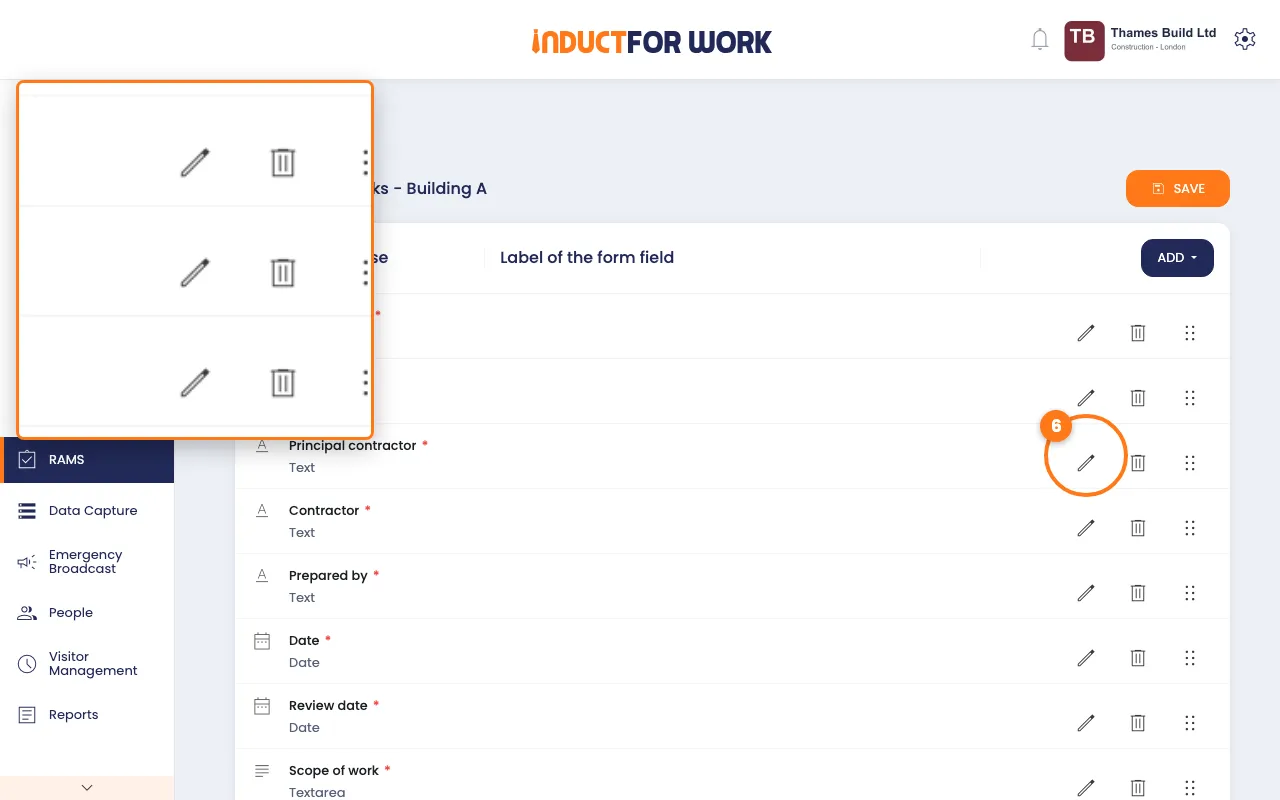
- Under Filled by, choose who completes that field.
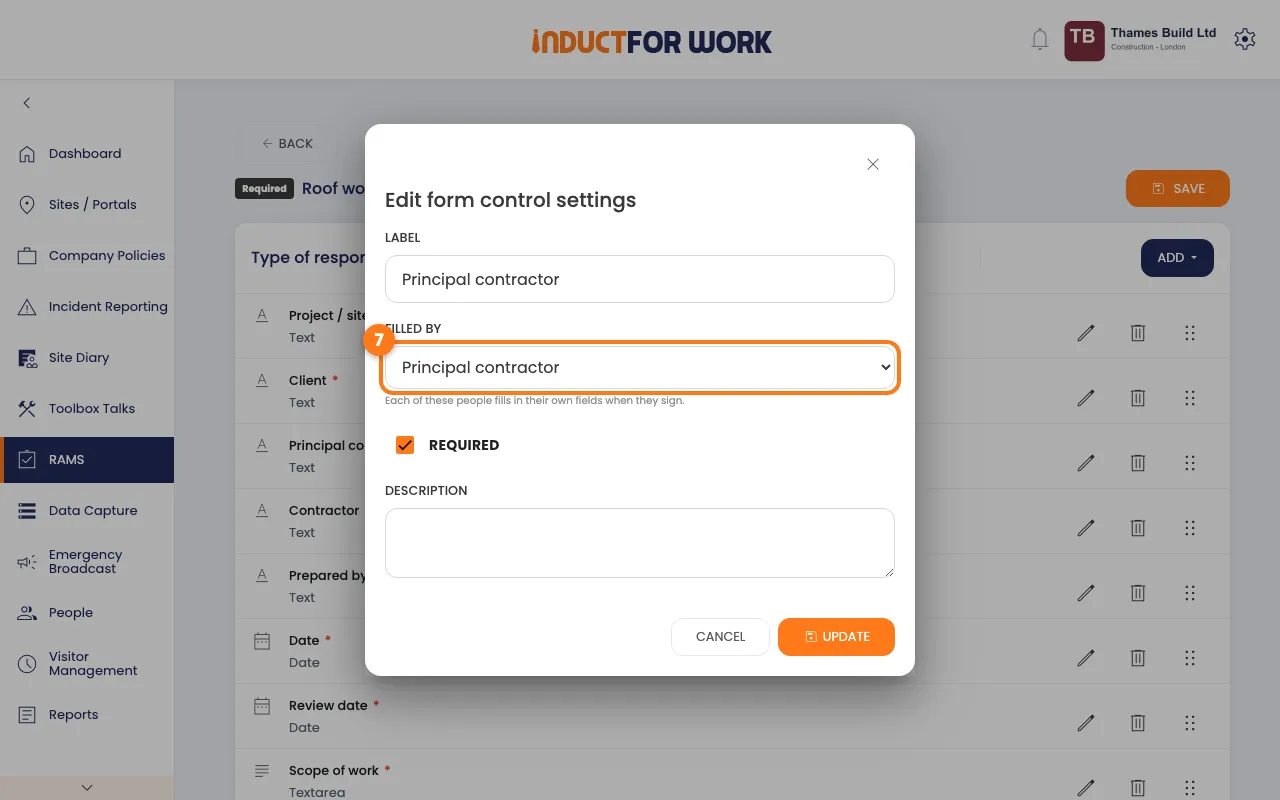
- Click Save, then click Back.
Tip
Author (you) means you fill it in before you send. Principal contractor, Supervisor or Reviewer means that person fills in their own fields when they sign. Everyone else just reads and signs.
Fill in your part
- On the draft page, click Fill in.
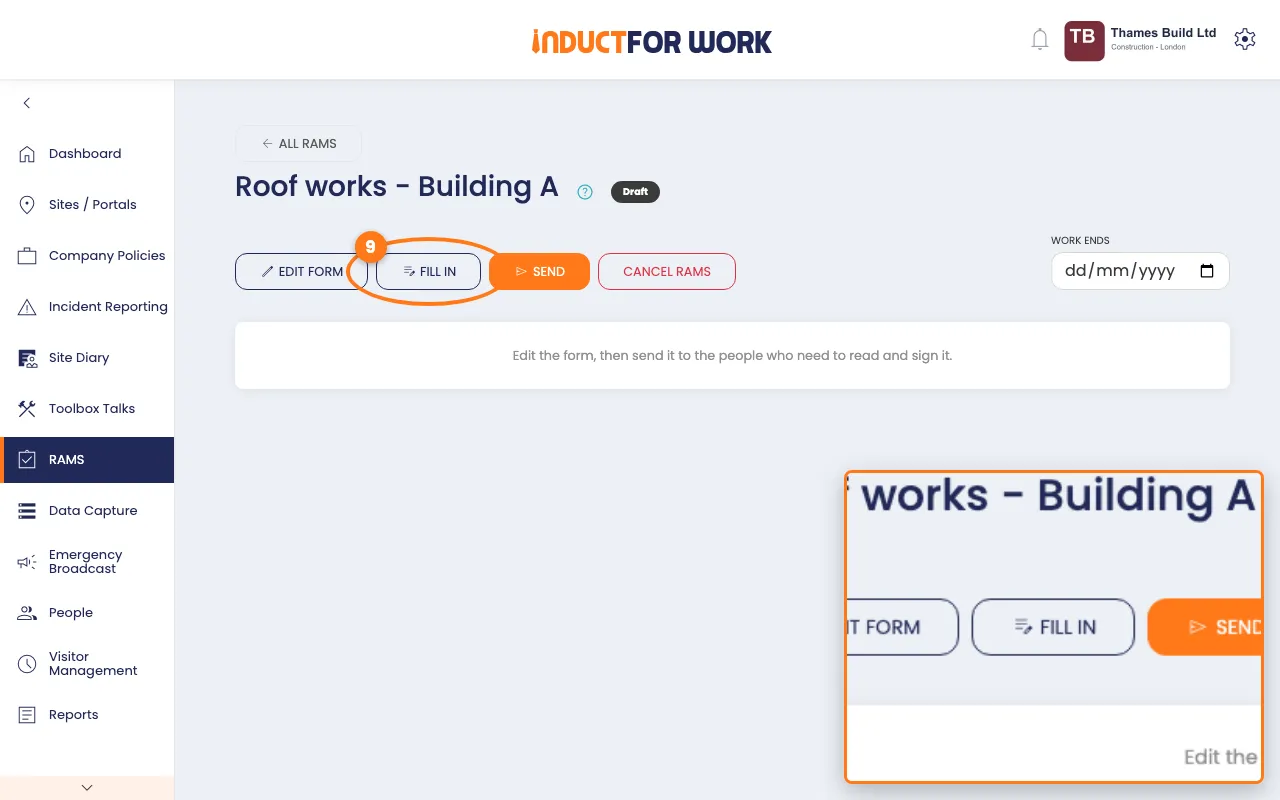
- Replace or delete every row marked Example — review and replace.
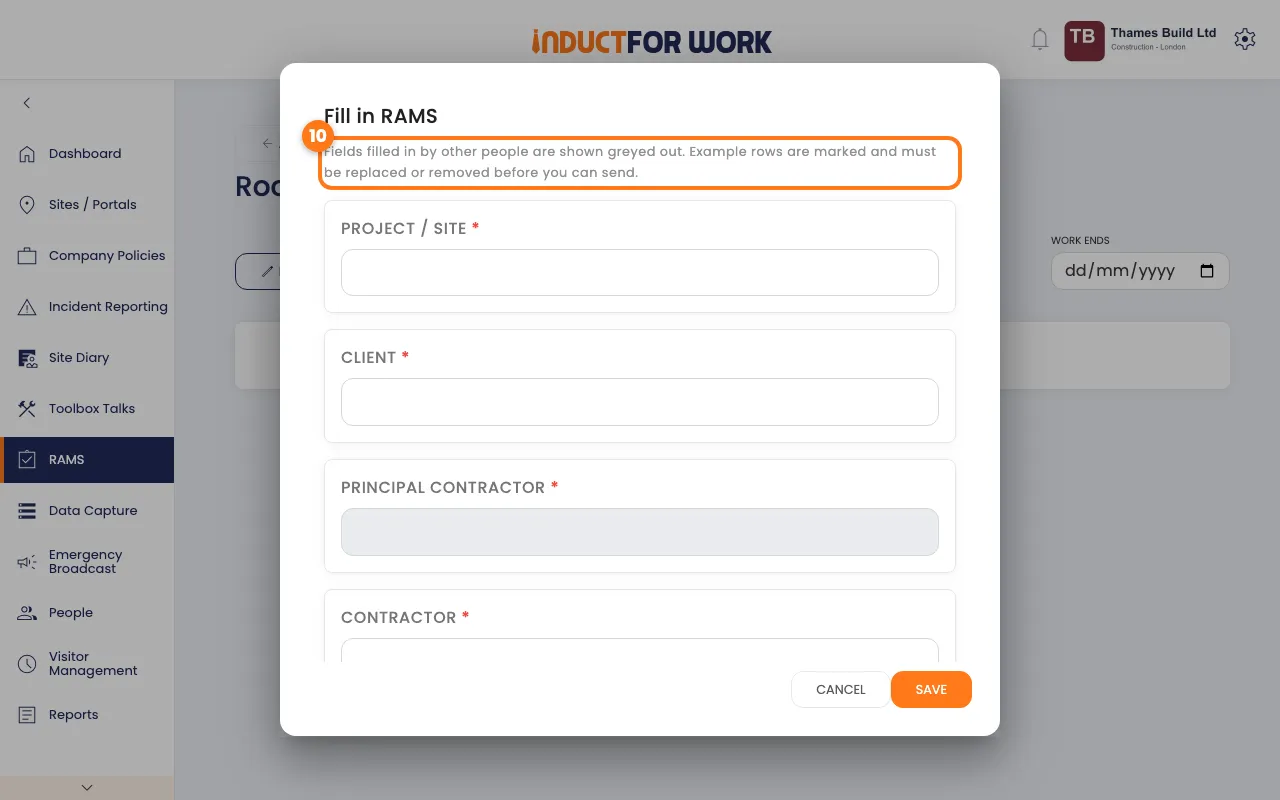
- Click Save.
Send it
- Click the orange Send button.
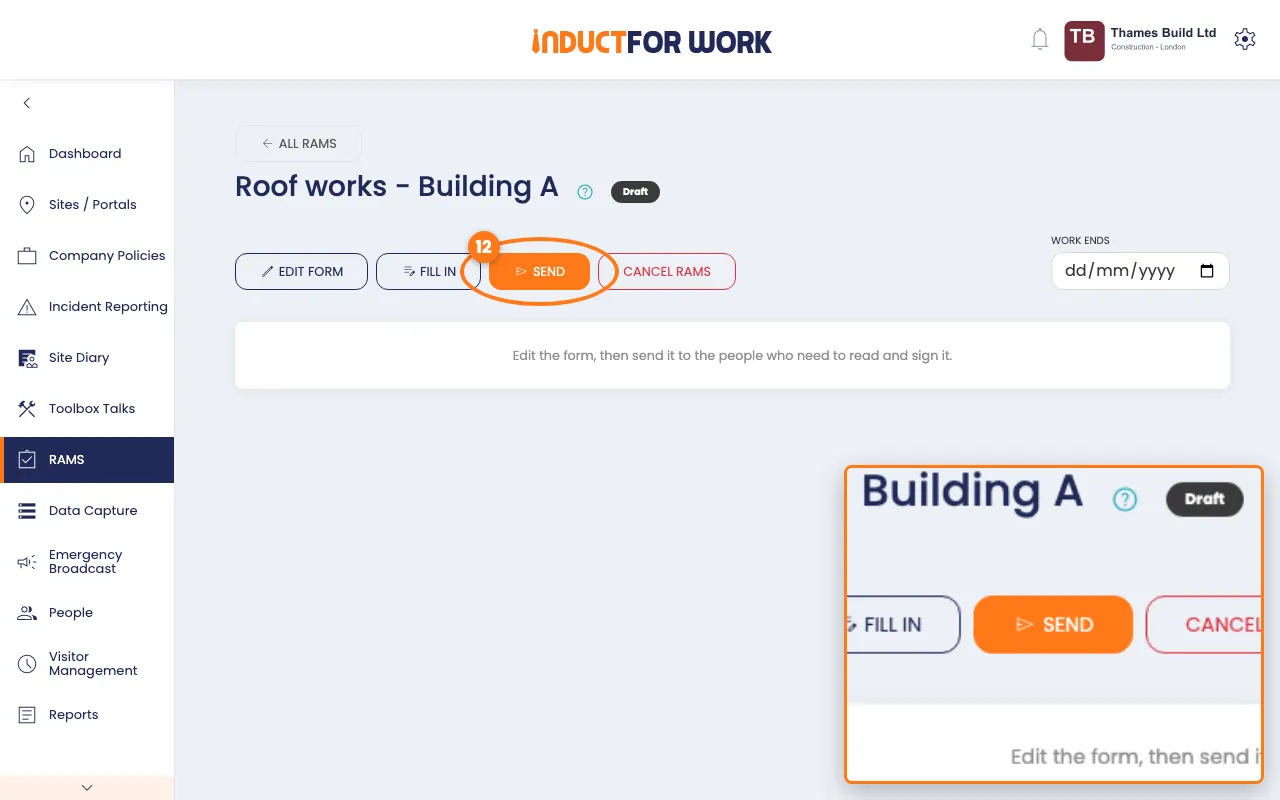
- Choose people under Add from contacts. Or type a name and an email or mobile.
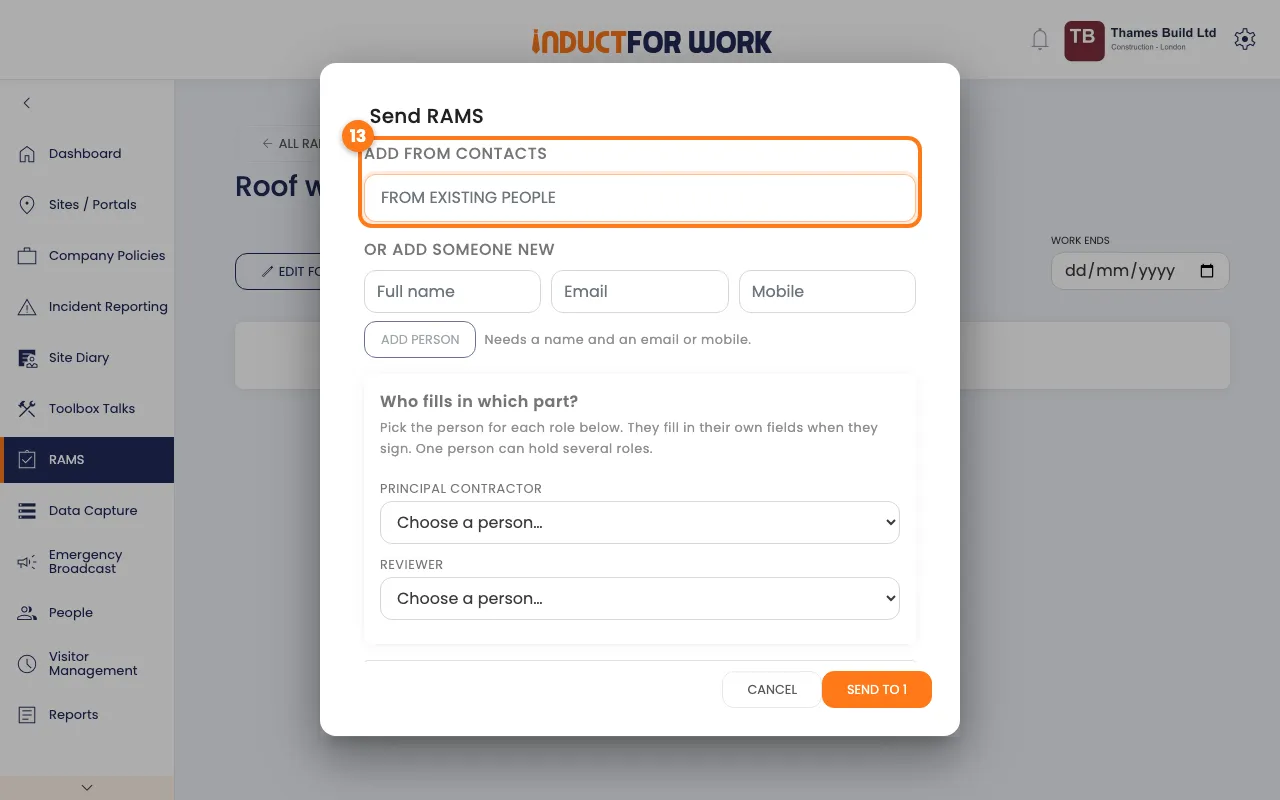
- Choose a person for each role.
- Click Send to. A red message means something still needs fixing.
Follow the sign-off
- Click the Out for signing tab.
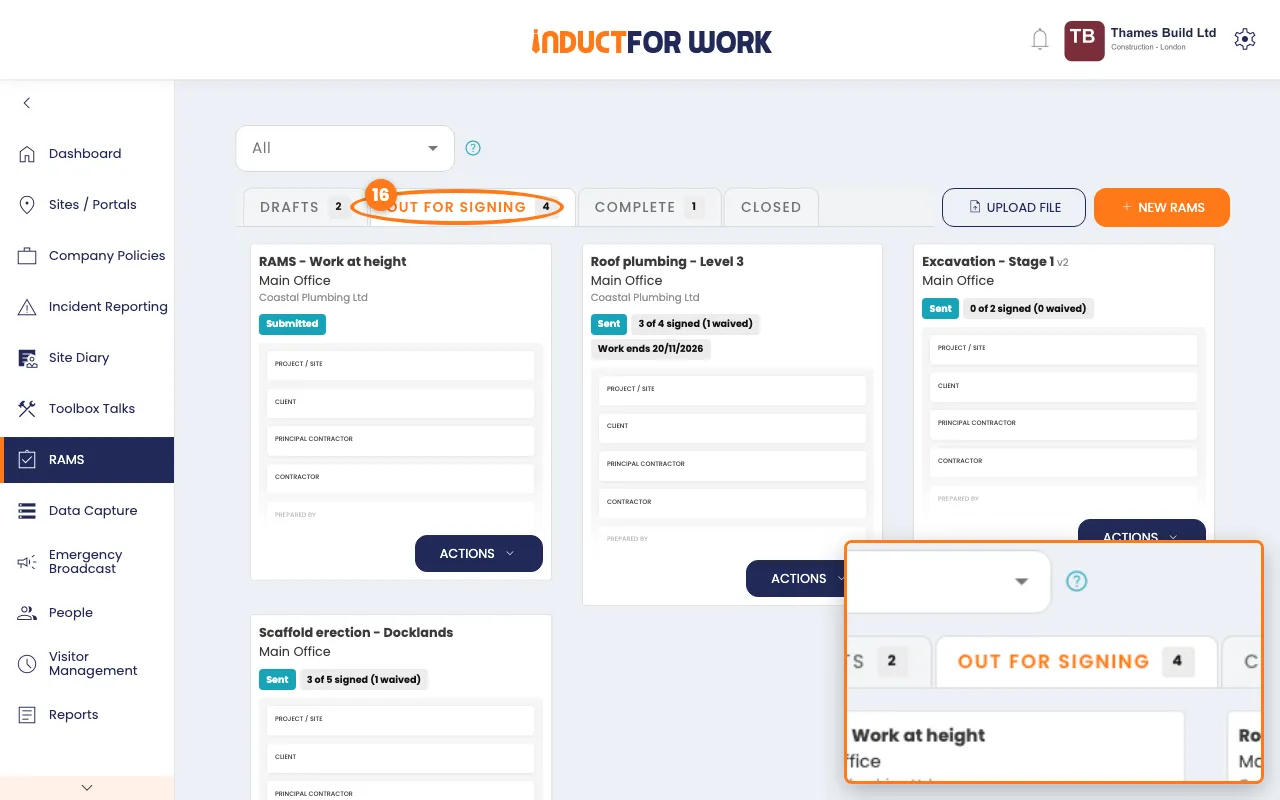
- Open your document. Each person shows Pending, Viewed, Signed or Waived.
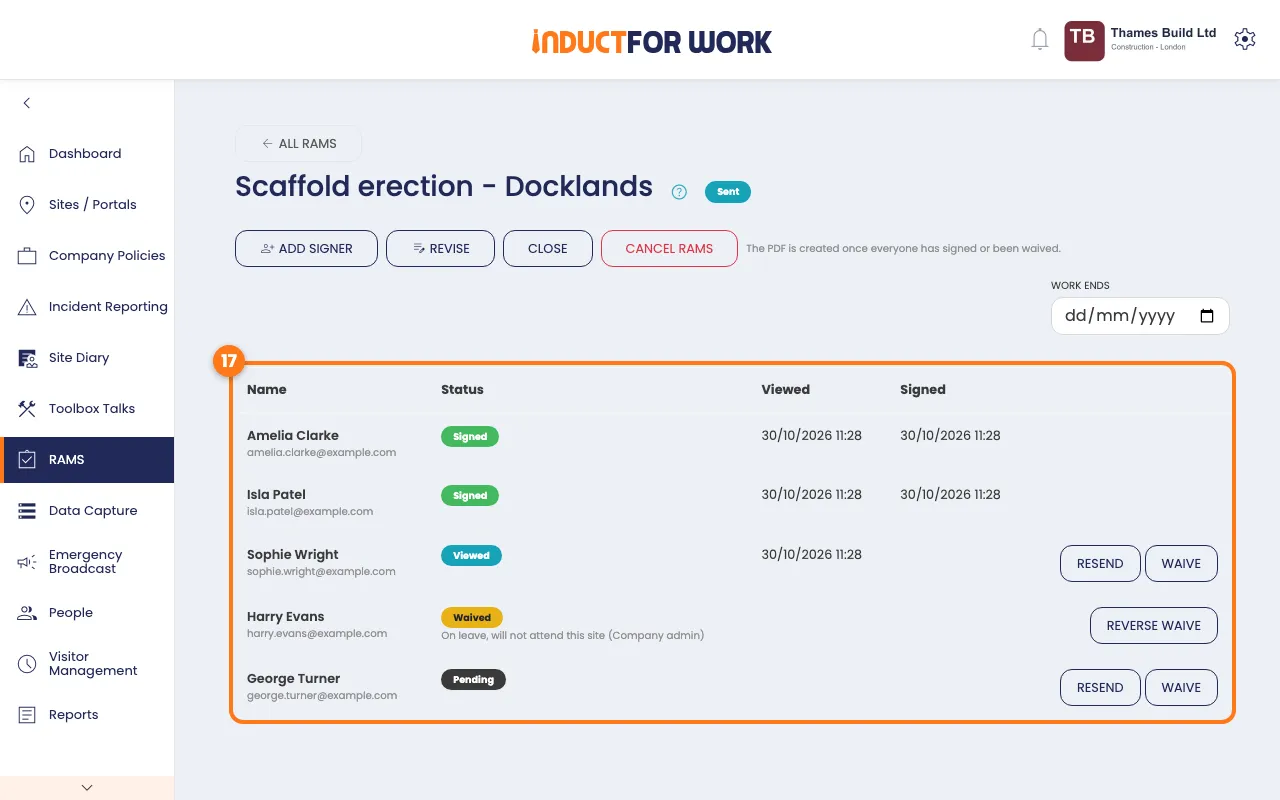
- Click Resend next to anyone who hasn’t signed.
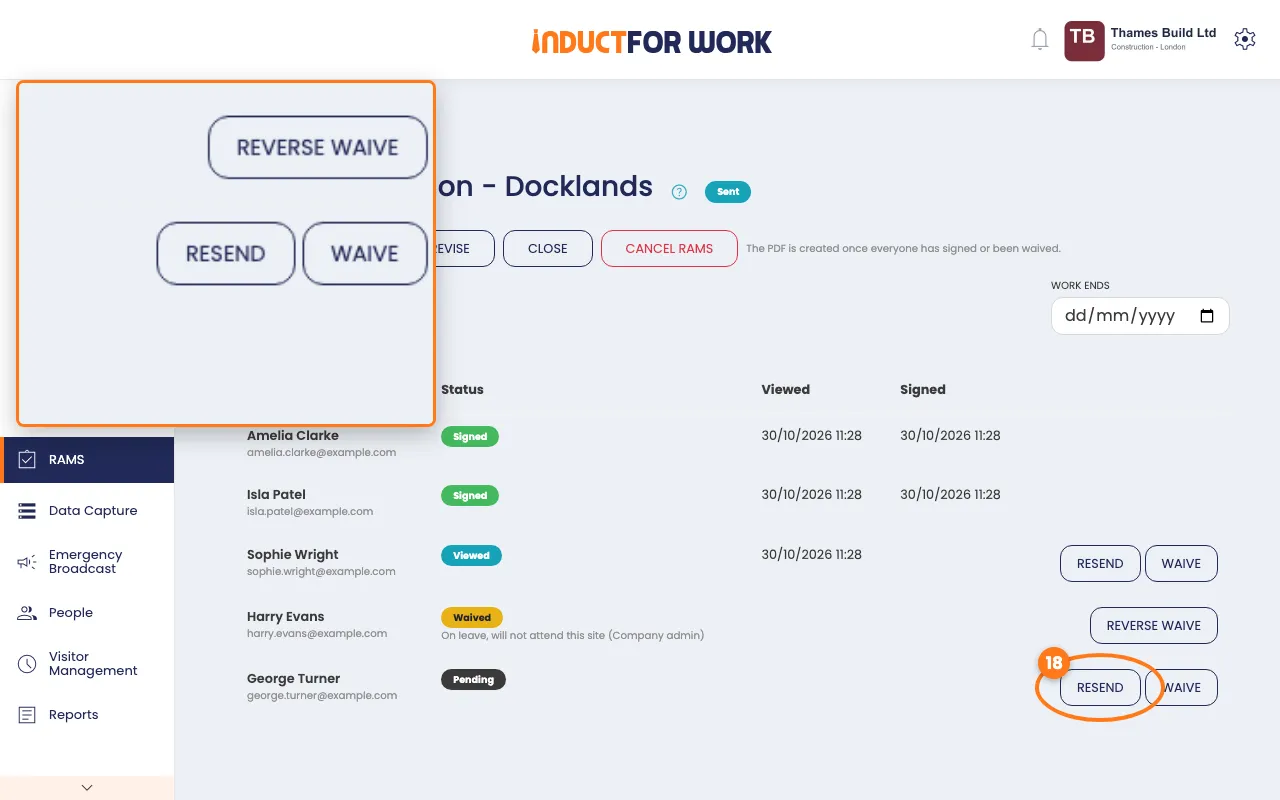
- To skip someone, click Waive, type a reason, then click Waive signature.
- Pick the Work ends date if you want it recorded.
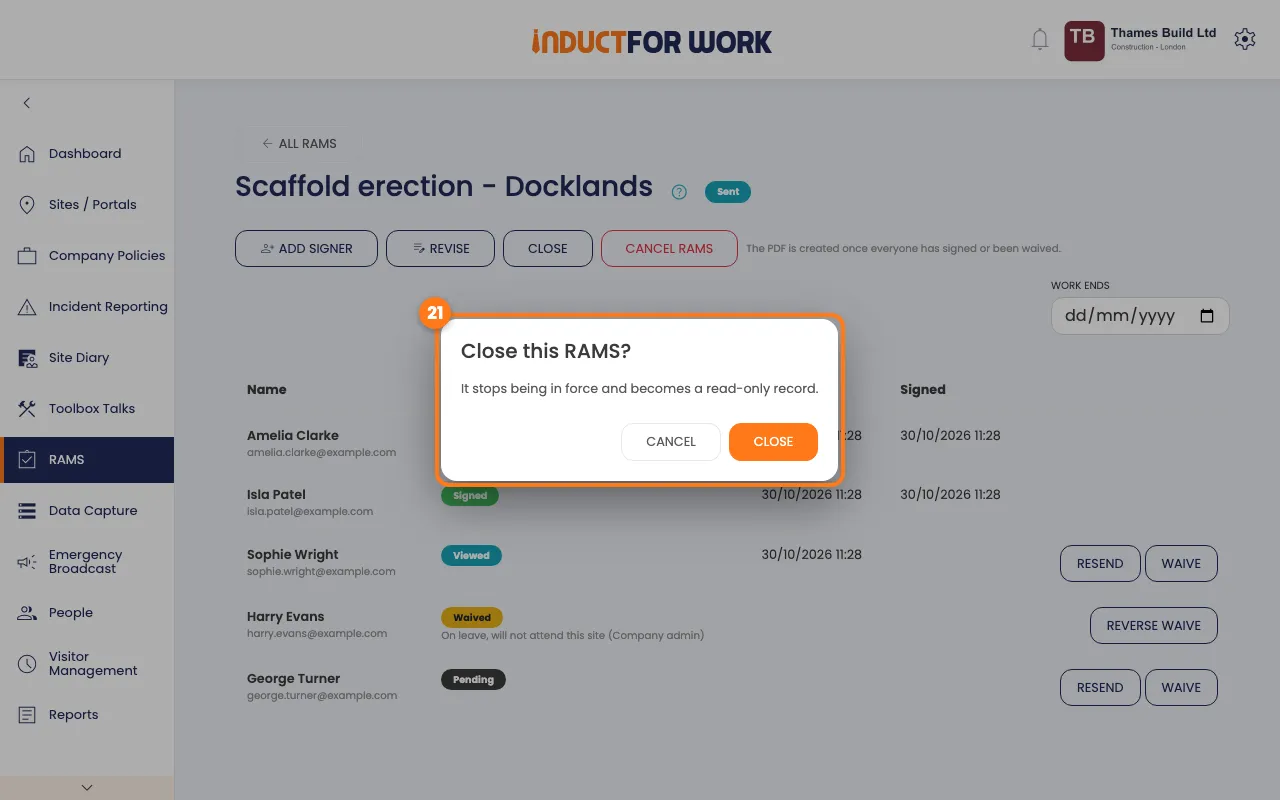
- When the job is finished, click Close. The document stays as a read-only record.
Change it later and keep the PDF
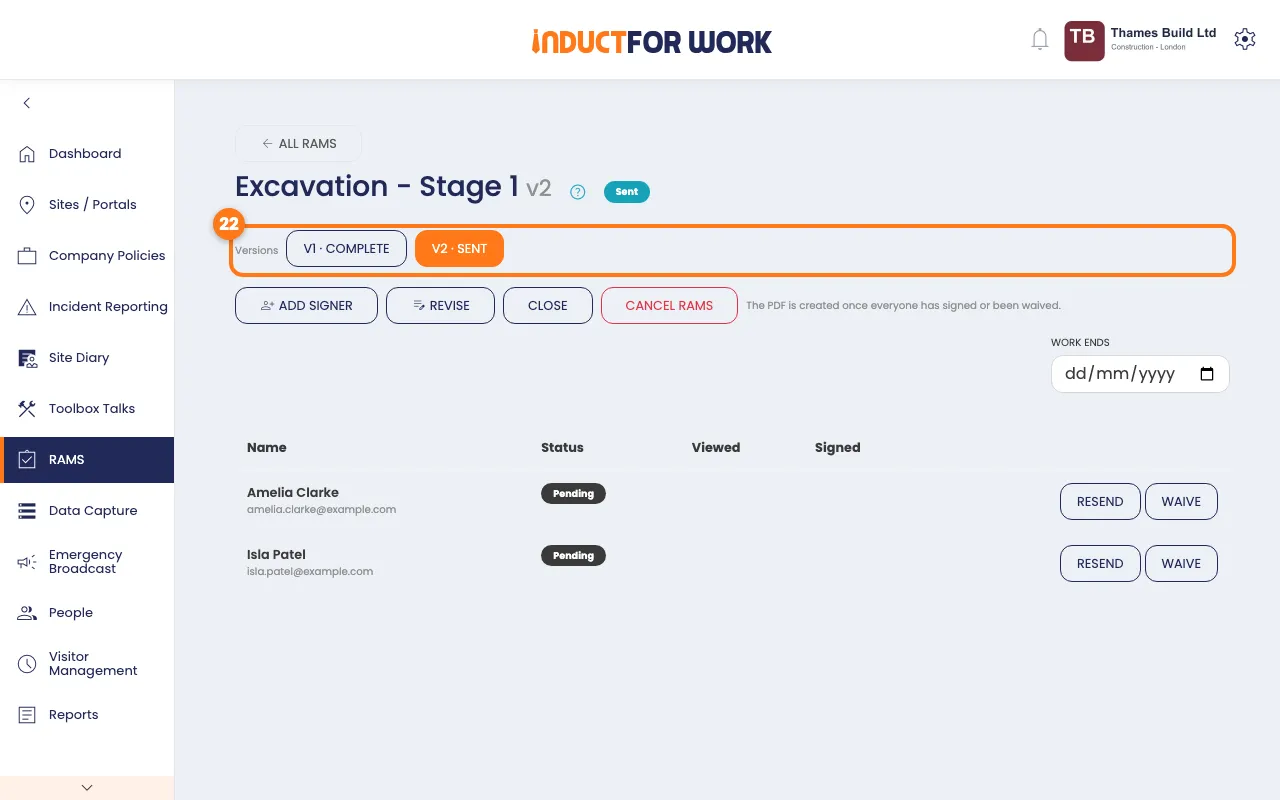
- To change a signed document, click Revise. The old version stays valid until everyone has signed the new one.
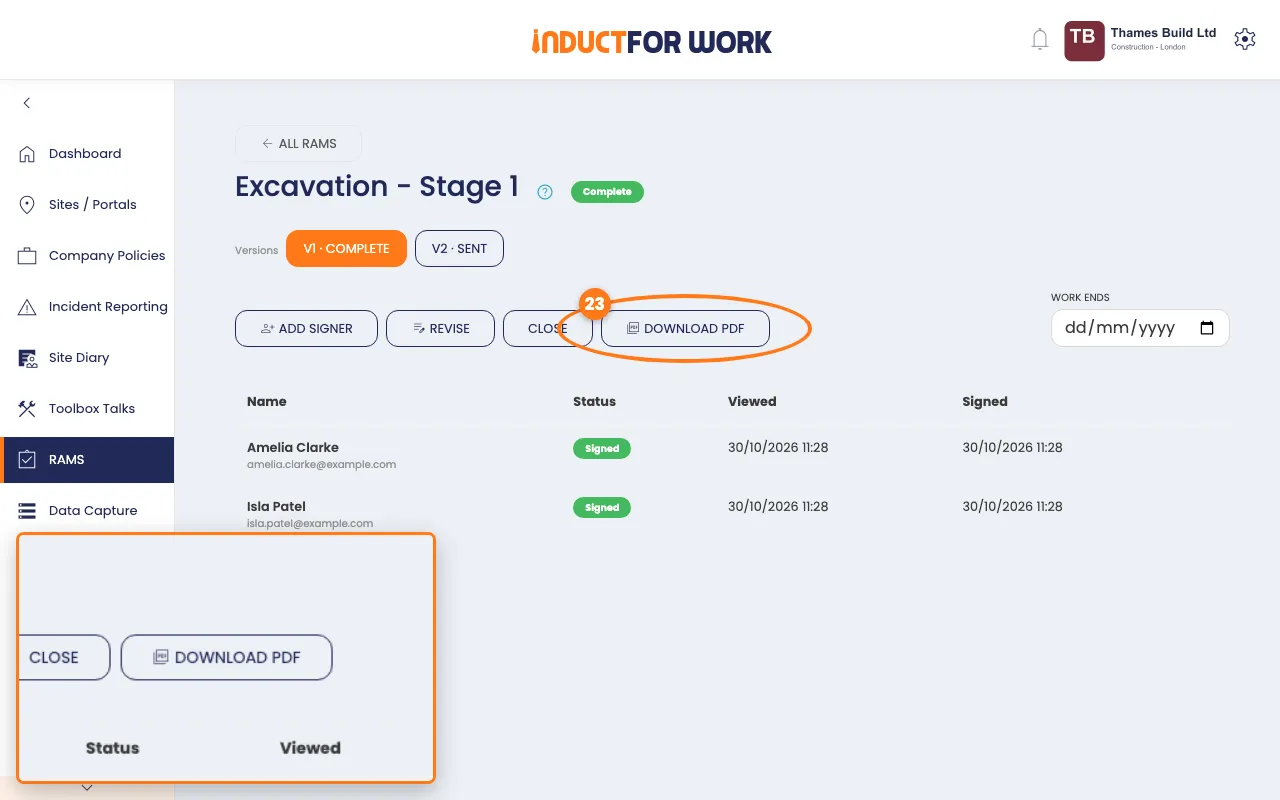
- When everyone has signed, click Download PDF.
What the people you send it to see
Each person gets an email, or a text message if they only have a mobile. The link opens the document on their phone. They don’t need a login.
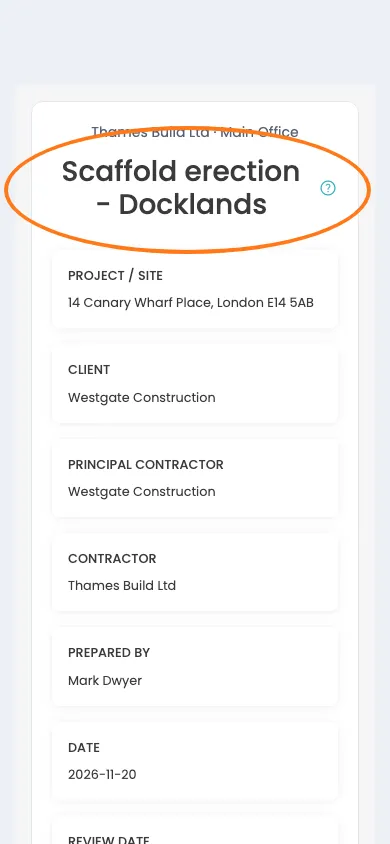
If they hold a role, they fill in their own fields first. Then they tick the box to say they have been consulted and have read and understood it.
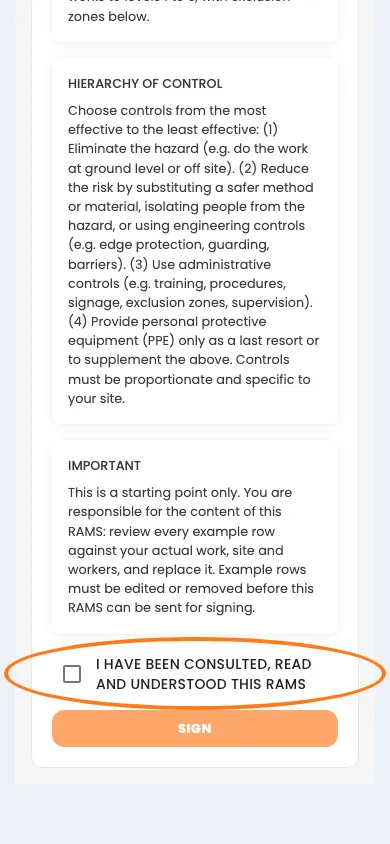
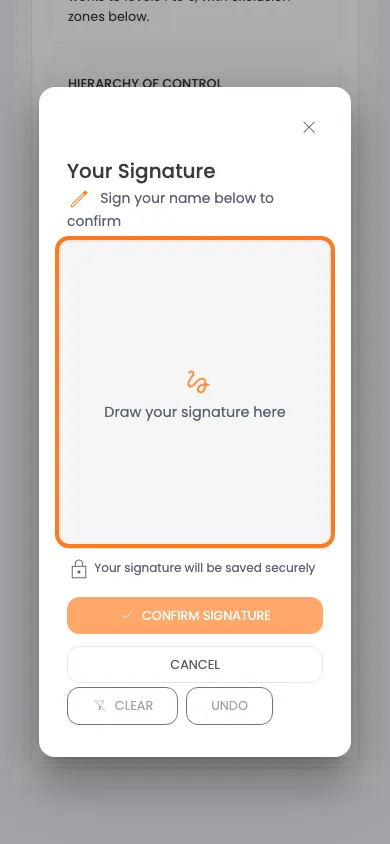
They tap Sign and draw their signature. Each person then gets their own signed copy.
Done! What happens next
When everyone has signed or been waived, the document is marked Complete and you get an email. A combined PDF holds the form, the sign-off sheet and the audit trail. Tell the team to keep it with your site records.