43 RAMS for Contractors
What is a contractor RAMS?
You can ask a contractor to fill in a RAMS before they work on your site. You check it, sign it as the principal contractor, and their crew then reads and signs it too. If a worker for that contractor hasn’t signed yet, they can’t sign in on site until they have. They can read and sign on the spot at the kiosk.
Rules to know
- Plan: you need a plan with both RAMS and Contractor Management. Enterprise has both. Team Pro doesn’t include contractor features.
- Requirement: you set it for one site and choose the template contractors fill in. Templates are a starting point only, and the contractor is responsible for what they write.
- Request: a Supervisor or above can ask an approved contractor for one from the contractor’s page.
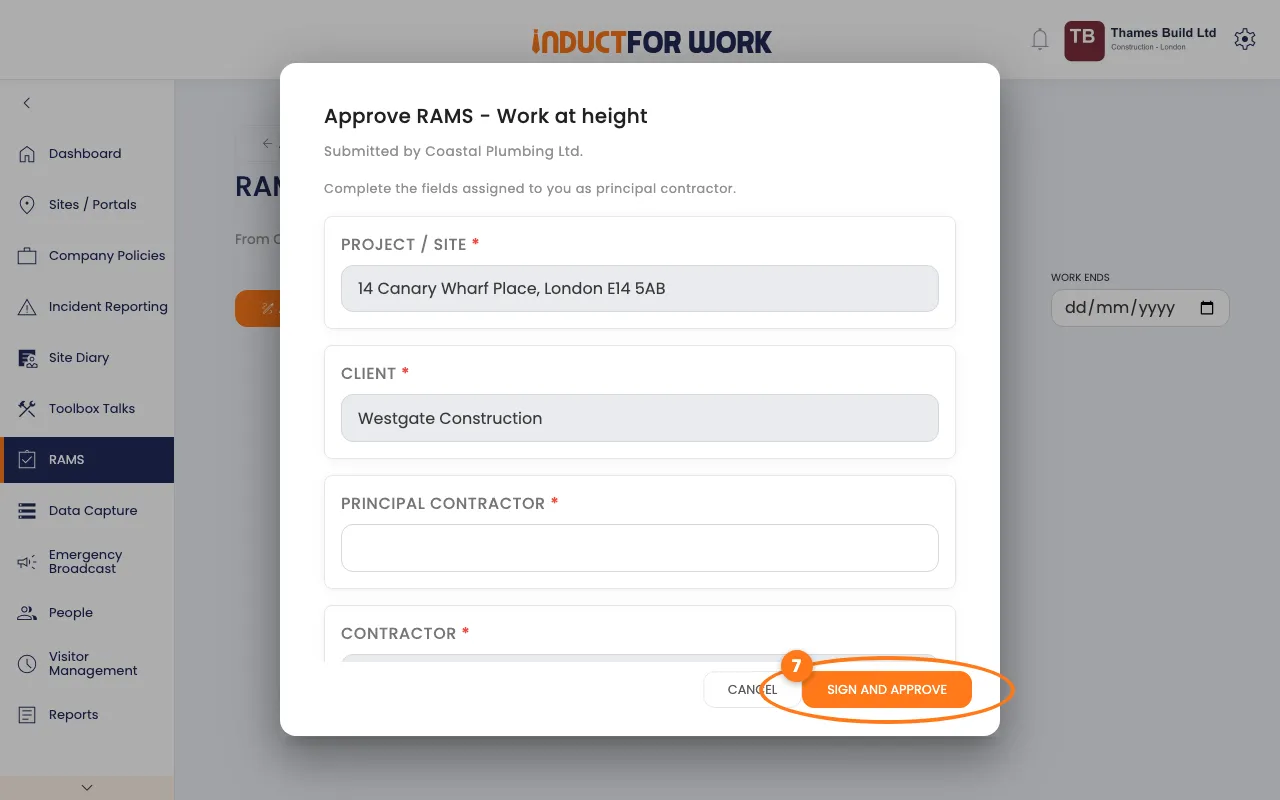
- Approve or reject: only a Site Manager or above. Approving means you sign as the principal contractor and complete the fields marked for that role.
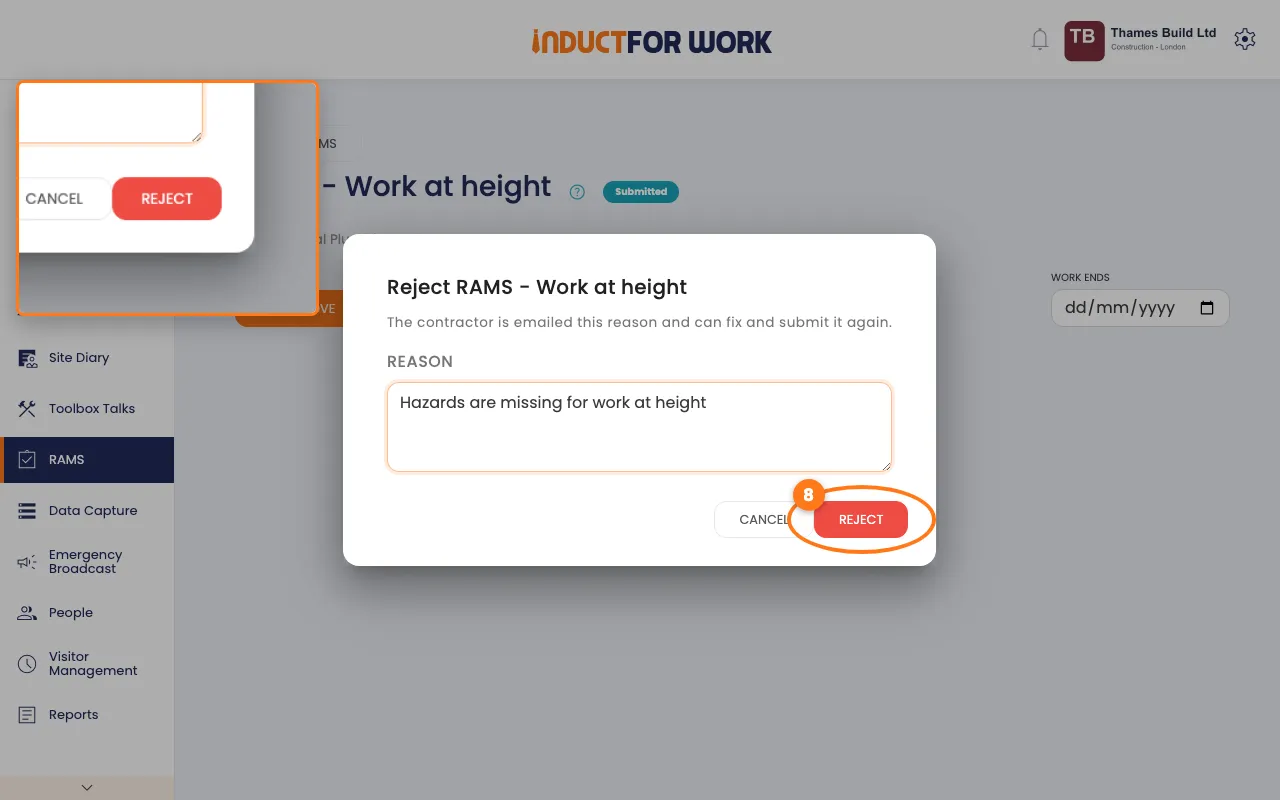
- Reject: you must type a reason. The contractor is emailed it, fixes the same form and sends it again.
- Work end date: you can set one when you approve. It can’t be in the past, and the requirement counts as met until then.
- Sign-in block: workers for that contractor can’t sign in until they have signed every RAMS that contractor has in force at that site, even one they weren’t listed on.
- In force: closed, cancelled, replaced and out-of-date documents don’t block anyone.
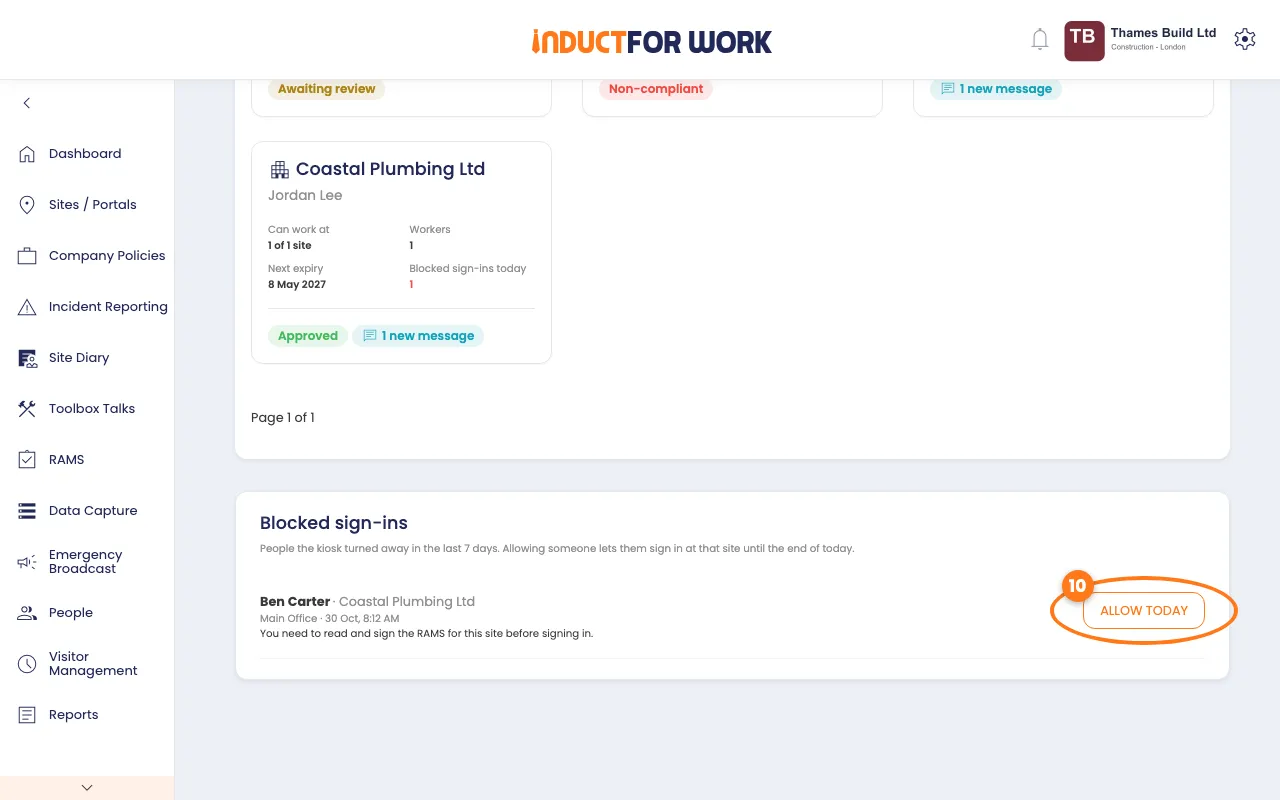
- Allow today: a Site Manager or above can let a blocked worker in until the end of the site’s day.
- Waived: if a contractor waives someone, you get an email with the reason. A Site Manager or above can reverse it.
- If you downgrade: when your plan loses RAMS or Contractor Management, workers are no longer blocked.
What you’ll need
- An Enterprise plan or free trial.
- Contractor Management switched on for the site, and a contractor that is approved.
- A login with the role you need for each step above.
Ask every contractor on a site
- In the left menu, click Contractors, then Requirements. Find the RAMS for a site box.
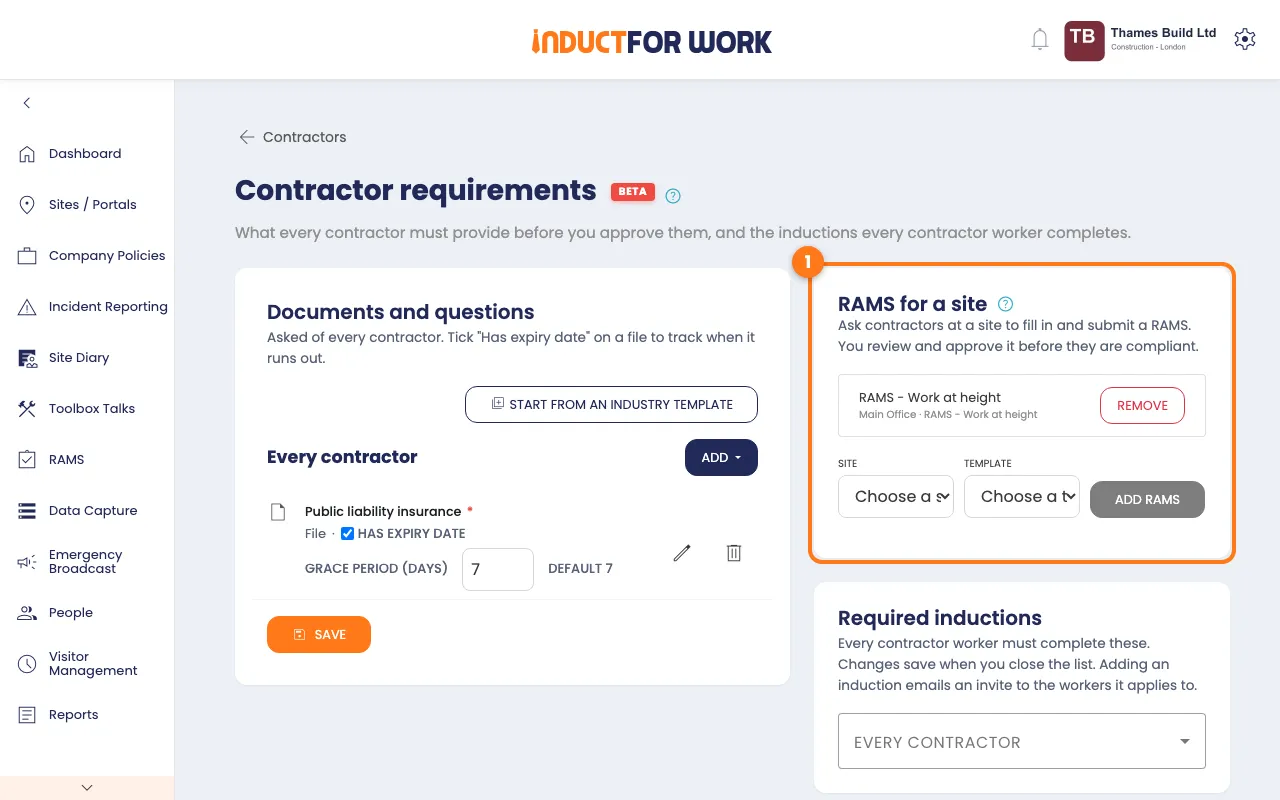
- Choose the site and the template, then click Add RAMS.
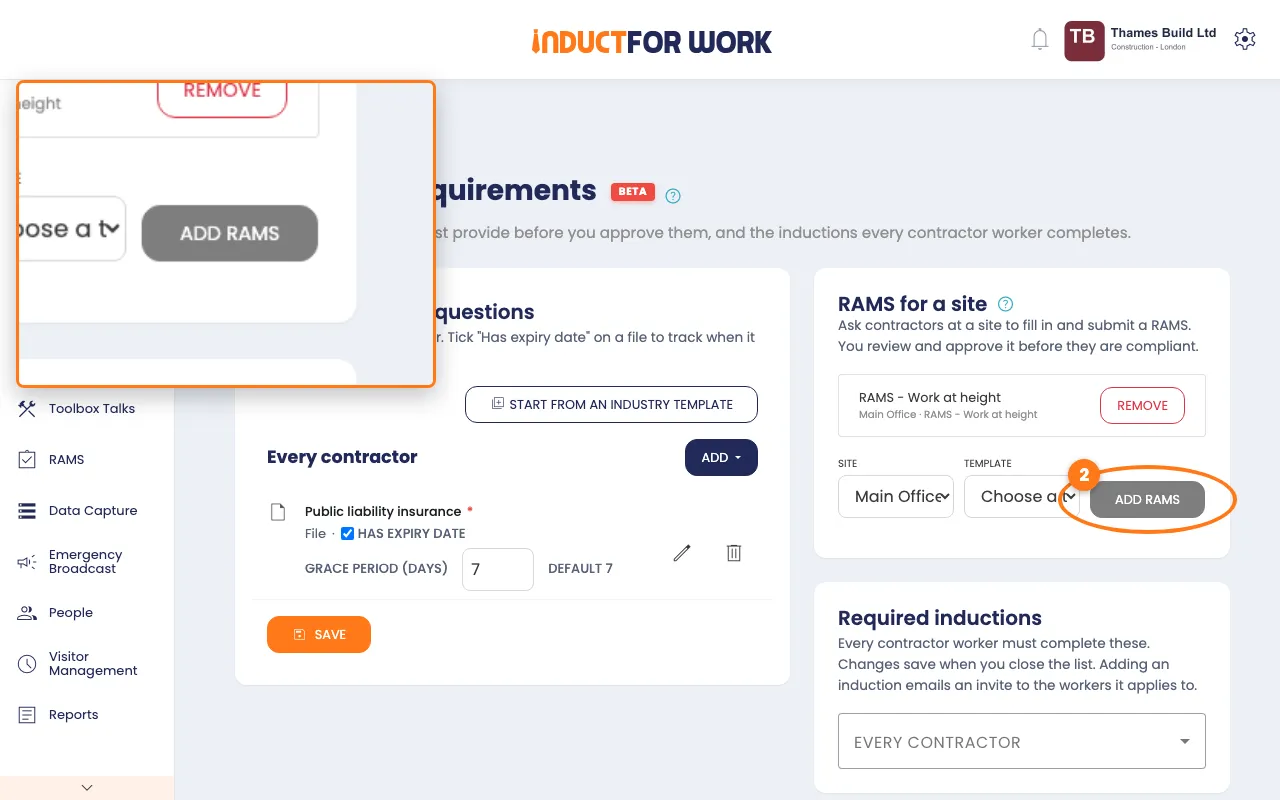
Each contractor at that site then sees a Start button in their portal.
Ask one contractor
- Open the contractor. In the RAMS box, click Request RAMS.
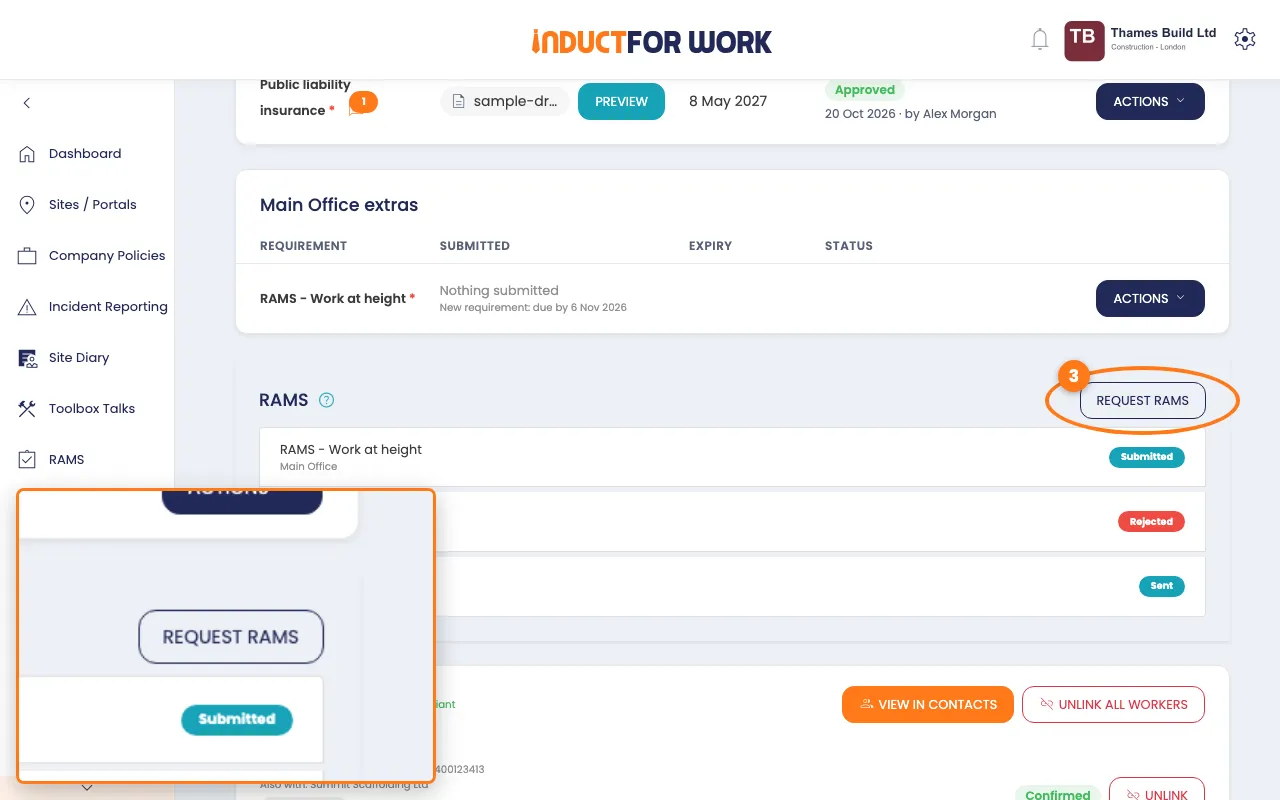
- Choose the site and the template, type a title, then click Send request.
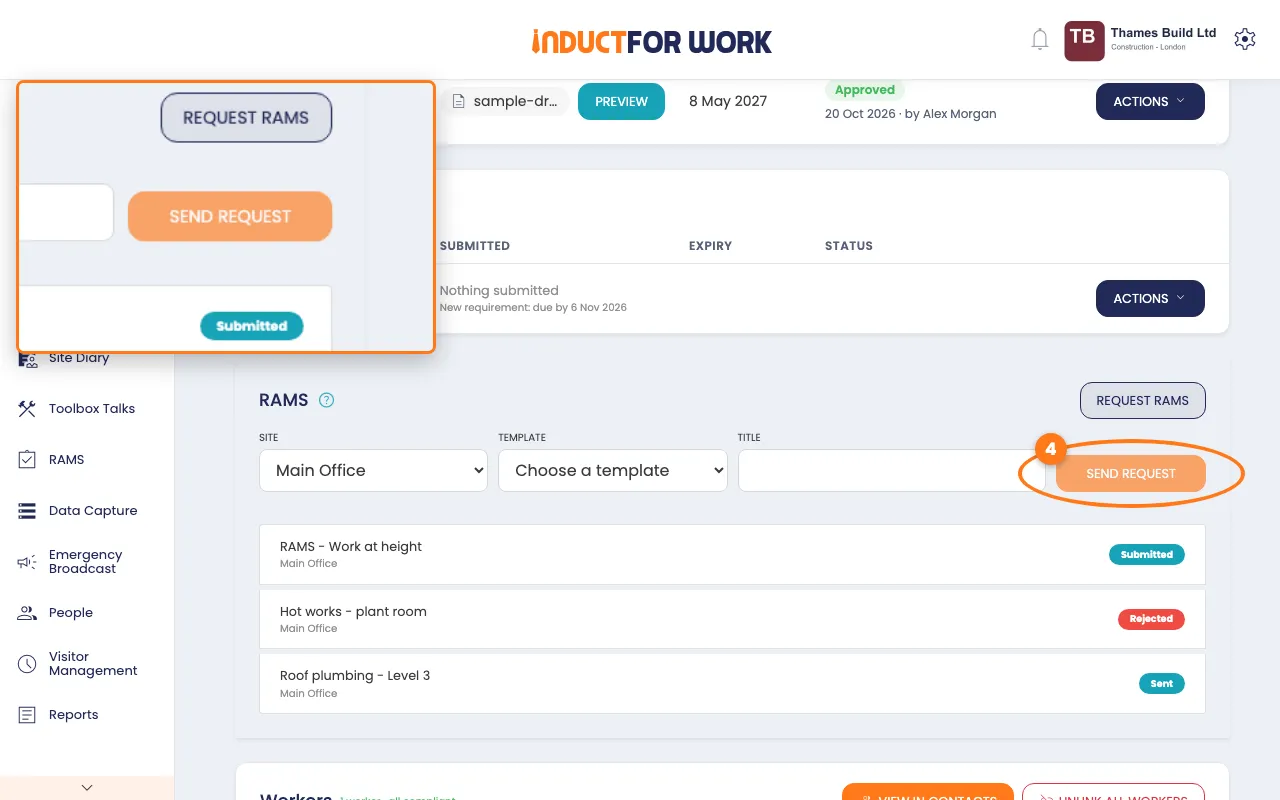
- See every request for that contractor, with its status.
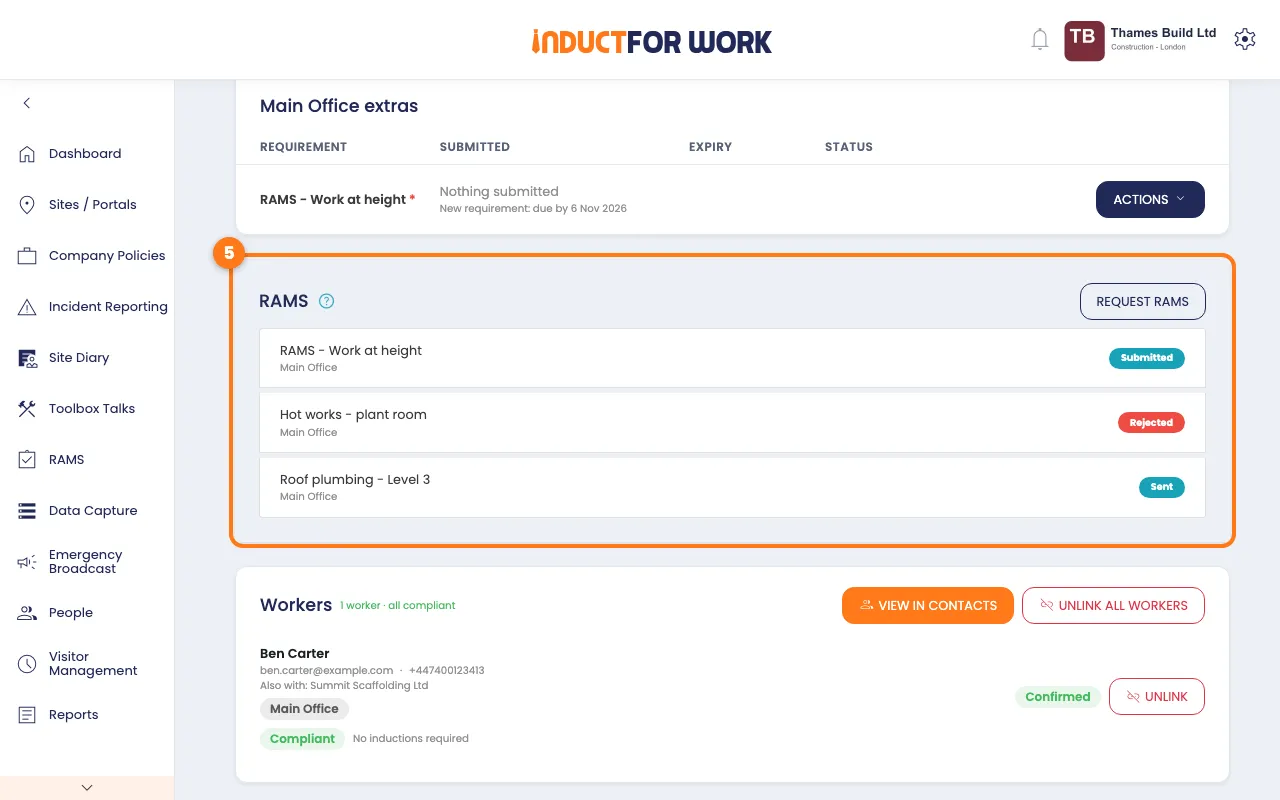
Approve or reject
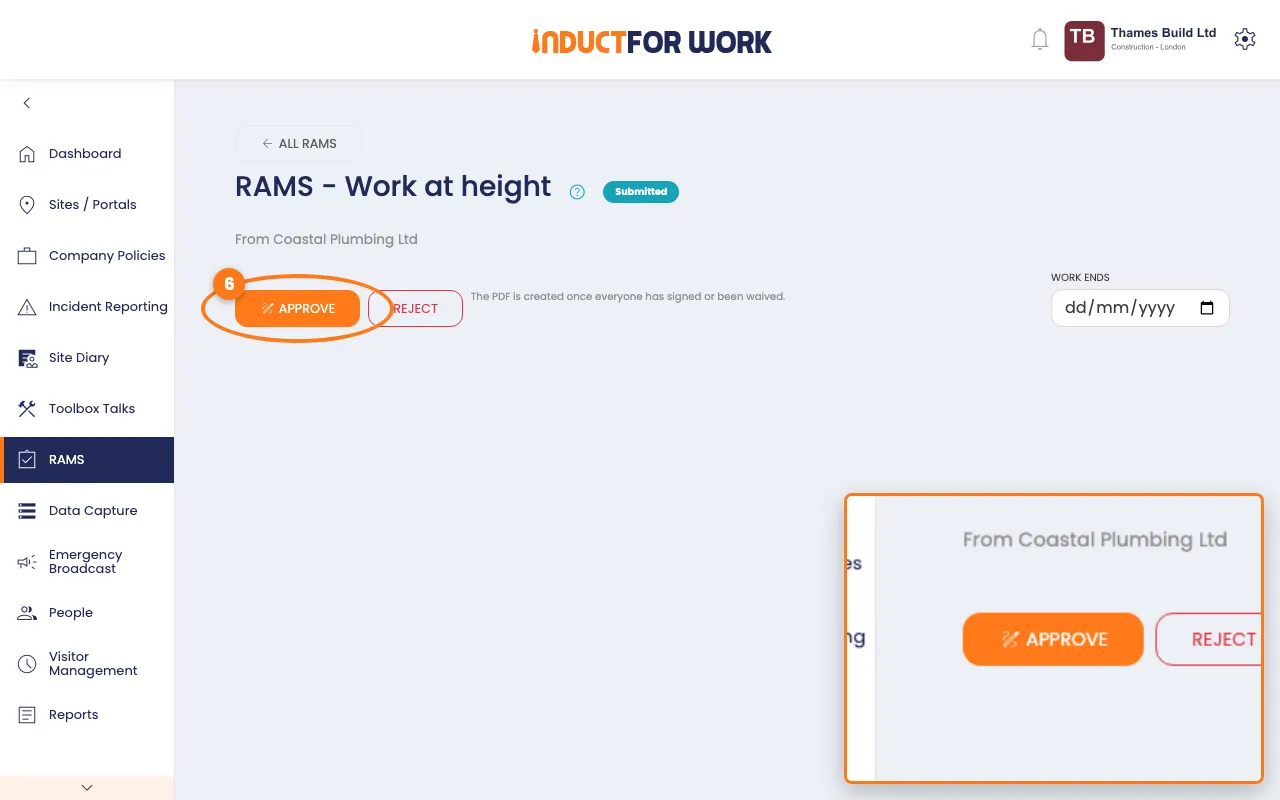
- When a contractor sends one in, open it and click Approve.
- Fill in your fields as principal contractor, then click Sign and approve.
- To send it back, click Reject, type the reason, then click Reject.
Check the crew
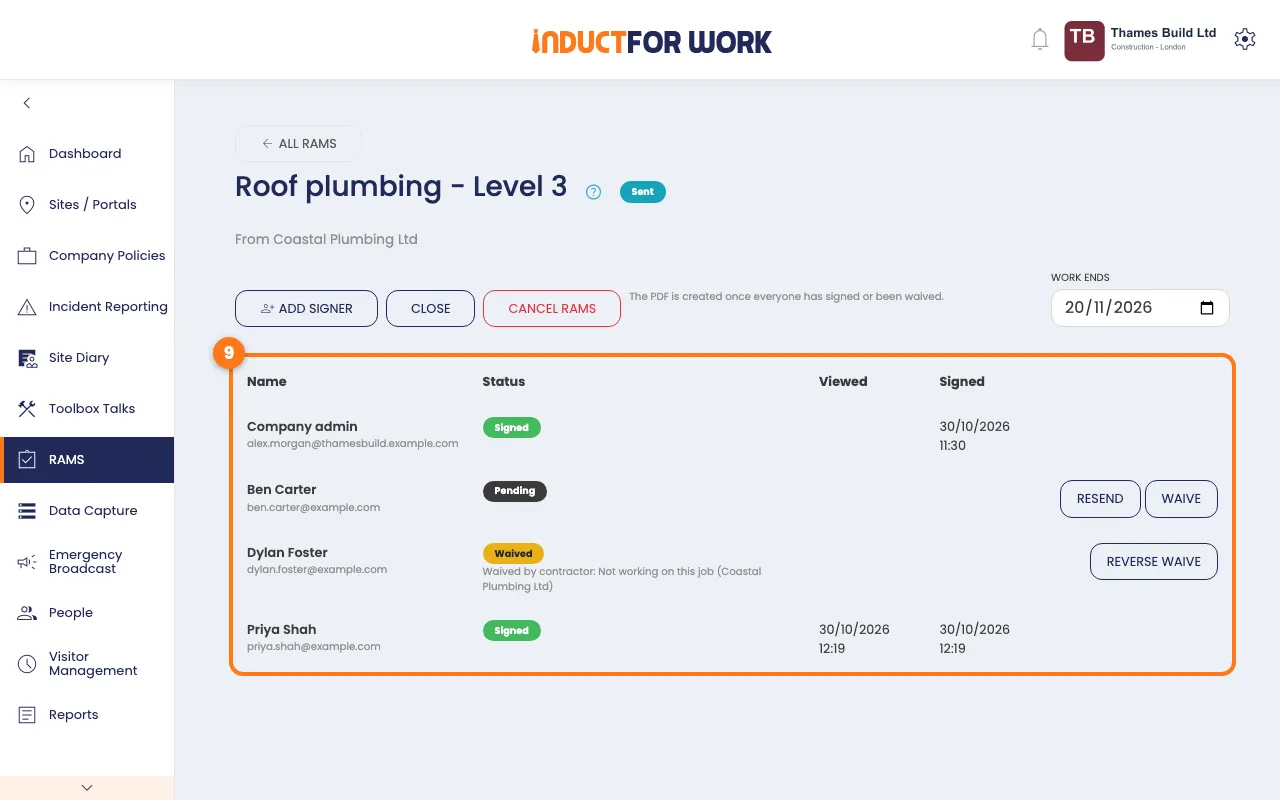
- Open an approved document to see which of the contractor’s crew have signed, been waived, or are still waiting.
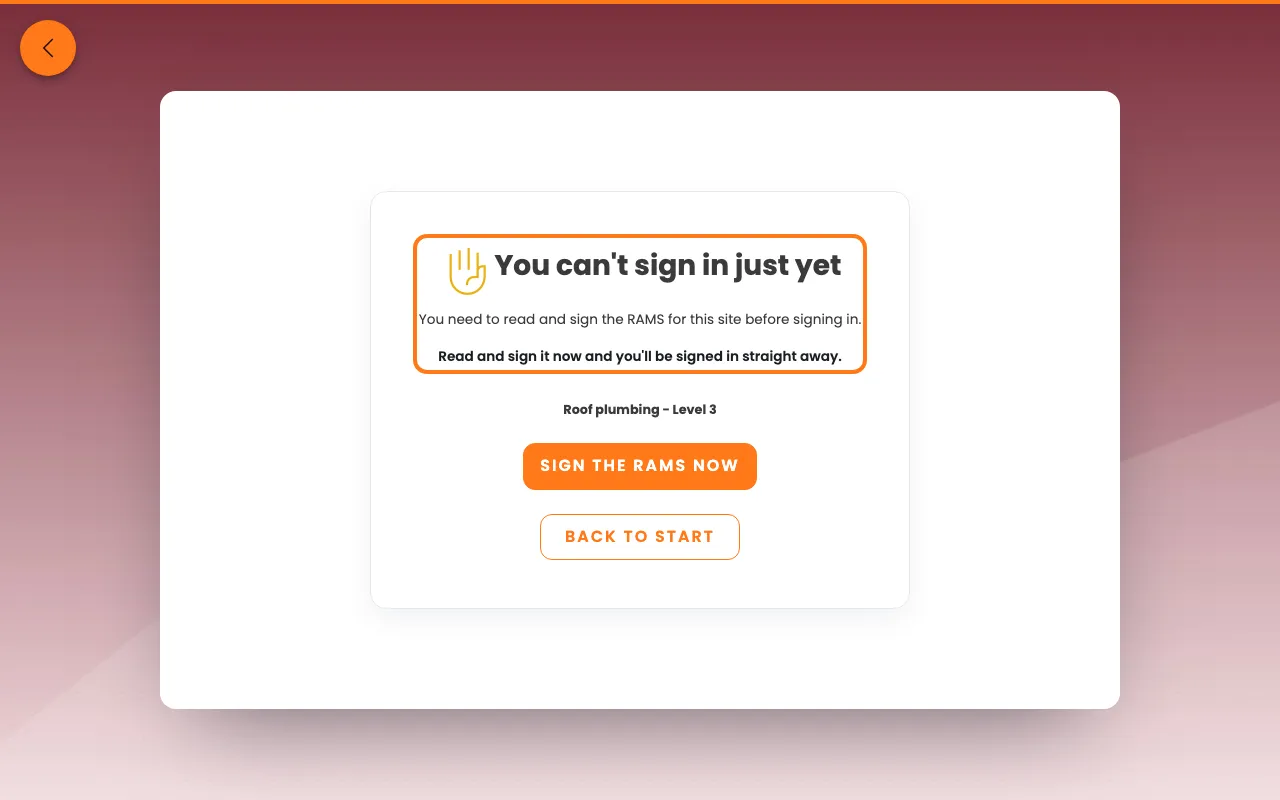
What workers see at the kiosk
A worker who hasn’t signed sees this when they choose their contractor.
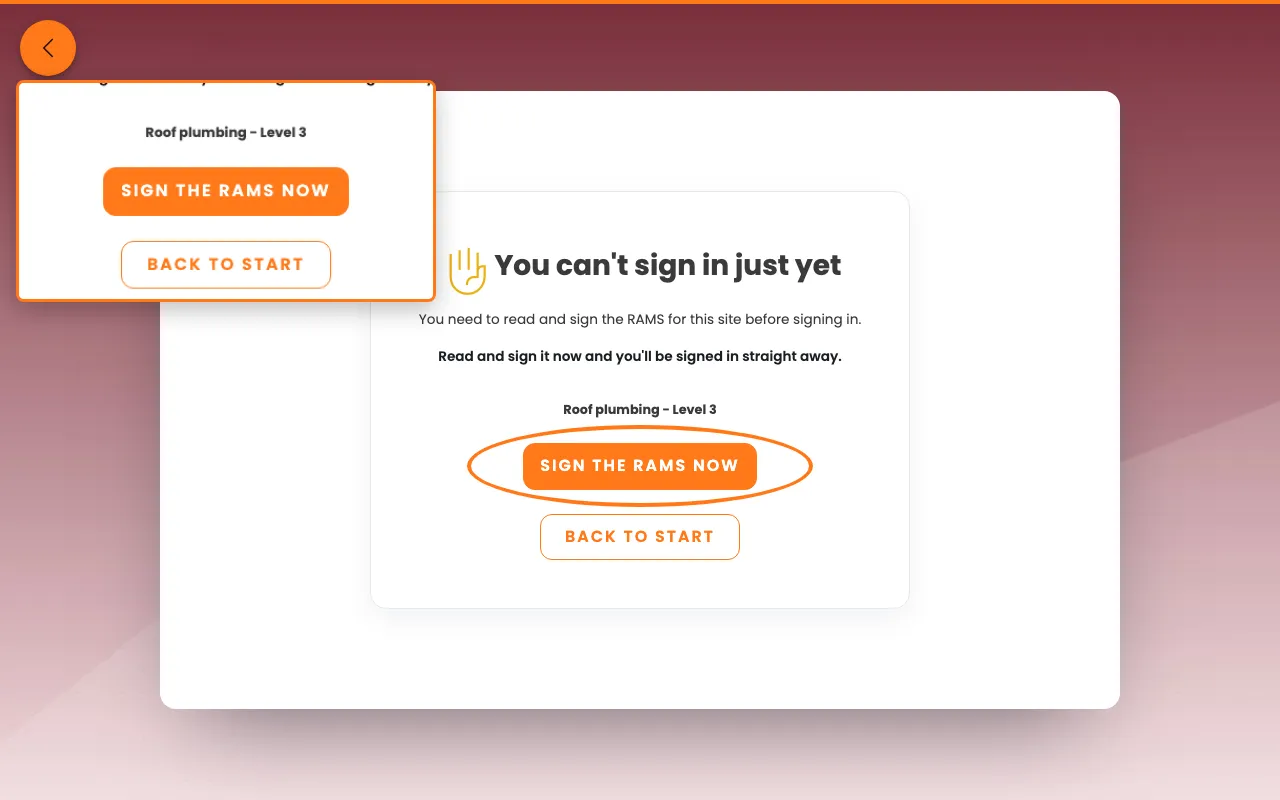
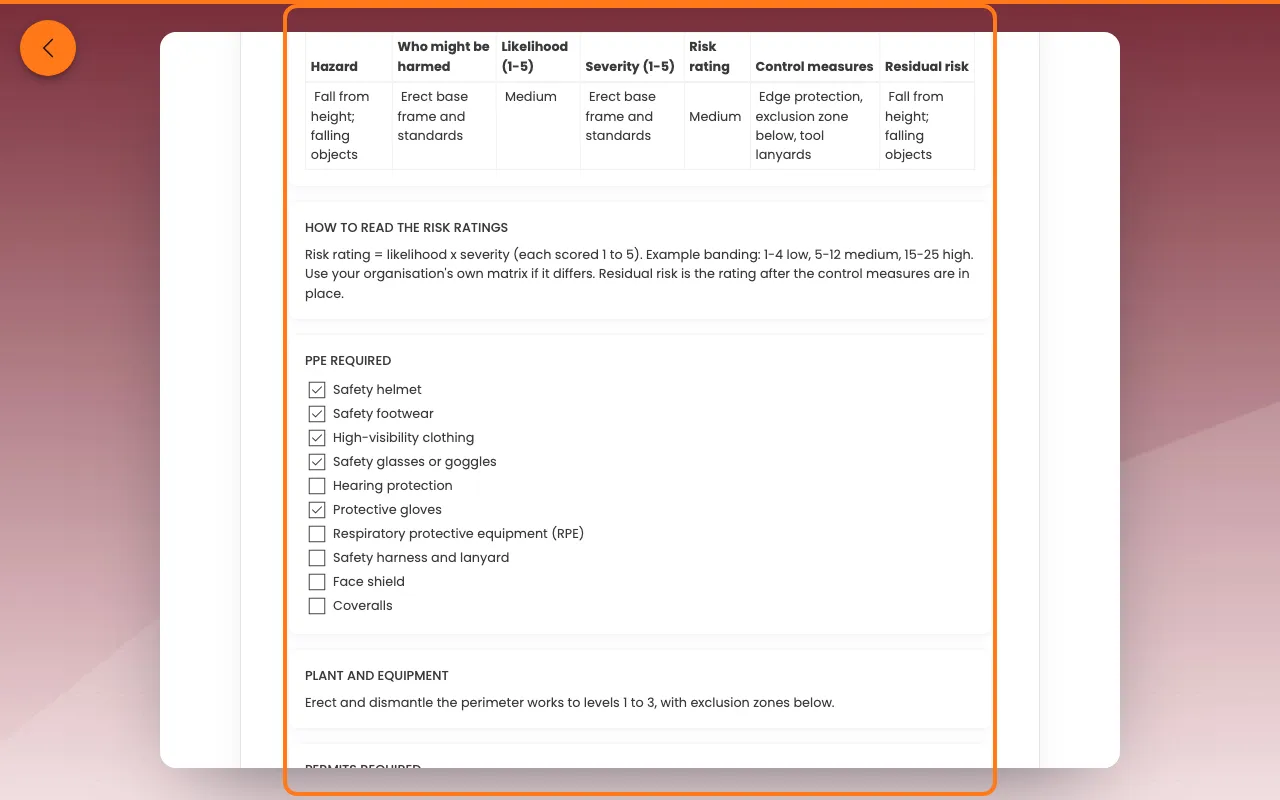
They tap Sign the RAMS now, read the document, tick the box and sign. They are then signed in straight away.
Let someone in anyway
- In Blocked sign-ins, click Allow today next to the worker. They can sign in until the end of the day.
Done! What happens next
Approved documents count as met until their work end date. New workers for that contractor are asked to sign before they can sign in, and every blocked attempt shows in Blocked sign-ins.