1 Getting Started
What is the contractor portal?
Some companies use Induct For Work to check their contractors’ paperwork before work starts. Their workers also do the company’s induction training. The contractor portal is where your business registers, sends its documents and manages its workers.
Rules to know
- Email: any email address you check works, including a personal one.
- Open sites only: you can only register at a site that is taking contractors.
- Existing account: already have an Induct For Work account? Log in with it instead.
- Email code: the code only works for a short time. After 5 wrong tries, ask for a new one.
- Team invites: an invite link works for 7 days, with the email it was sent to.
- Before approval: Workers, Compliance and Team open once the company approves you.
What you’ll need
- The link or QR code the company sent you.
- An email address you can open now.
- Your business name and your mobile number.
Register your business
- Open the link in the company’s email, or scan their QR code.
- Type your Email, then click Continue.
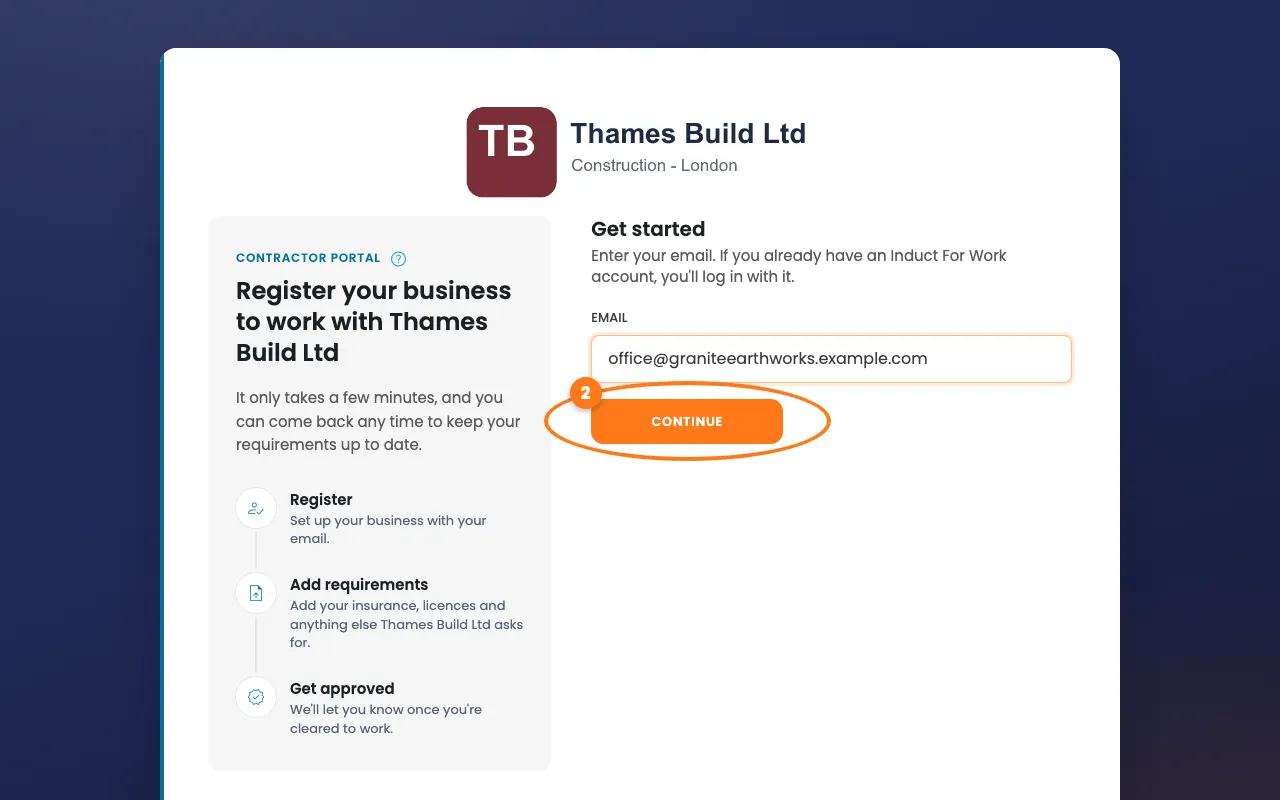
- Fill in your Business name, First name and Last name.
- Type Your mobile number.
- Choose a password under Create a password.
- Click the Create account button at the bottom.
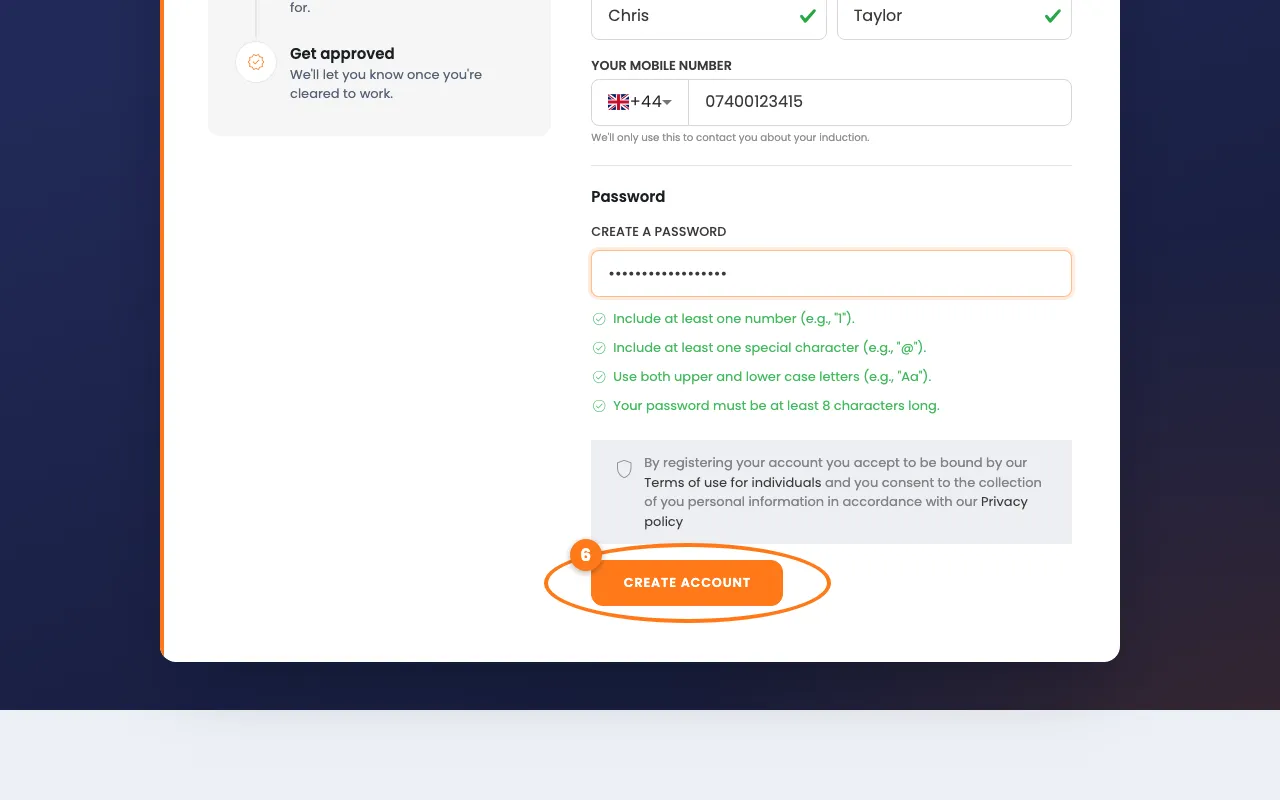
- Open the email we sent you, and copy the 6-digit code.
- Type the code, then click Verify and create account.
Tip
Can’t see the email? Check your junk or spam folder. The code expires after about 10 minutes.
Already have an Induct For Work account?
- Type your Email, then click Continue.
- Type your Password, then click Log in.
- Check your business details, then click Register business.
Joining your team
- Open the invite email from your teammate.
- Use the same email address the invite was sent to.
- Follow the steps above. The last button says Join team or Verify and join.
Find your way around
- At the top of Requirements, a box tells you where you stand.
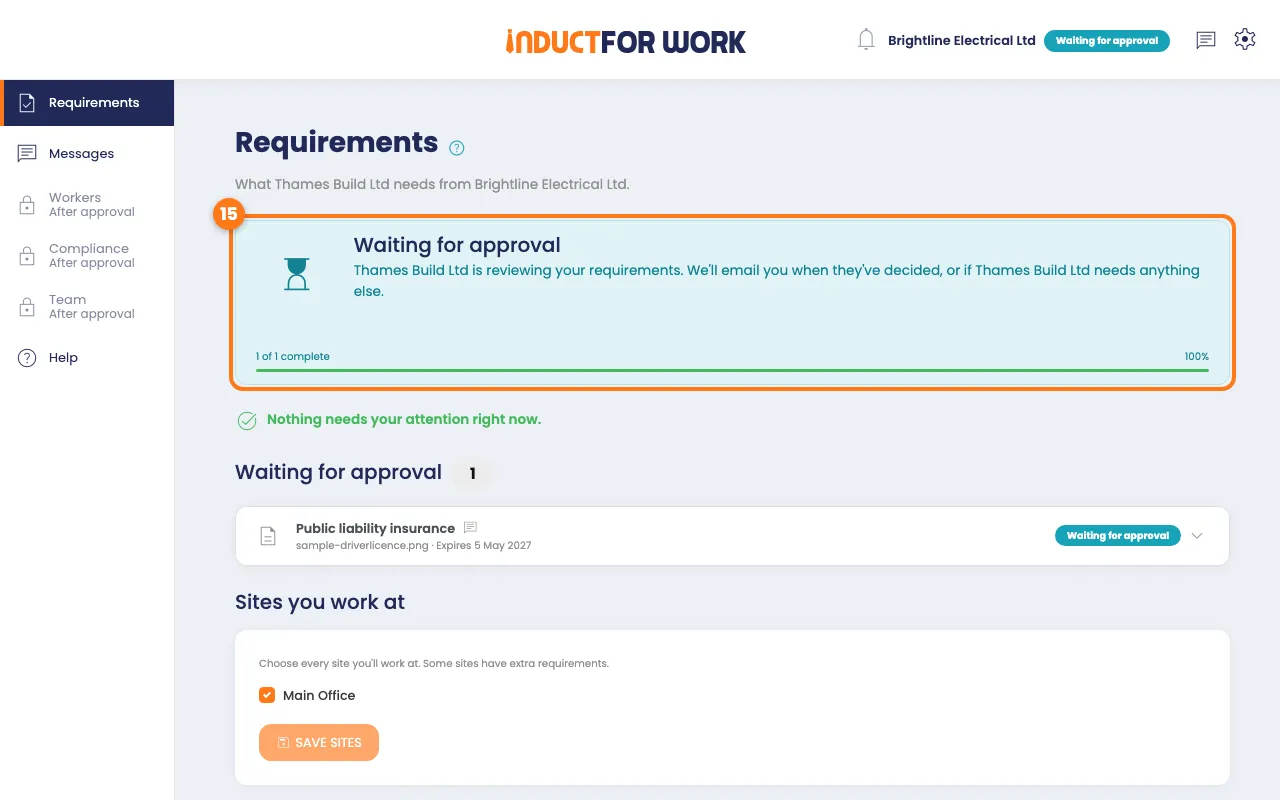
- Use the menu on the left to move between pages.
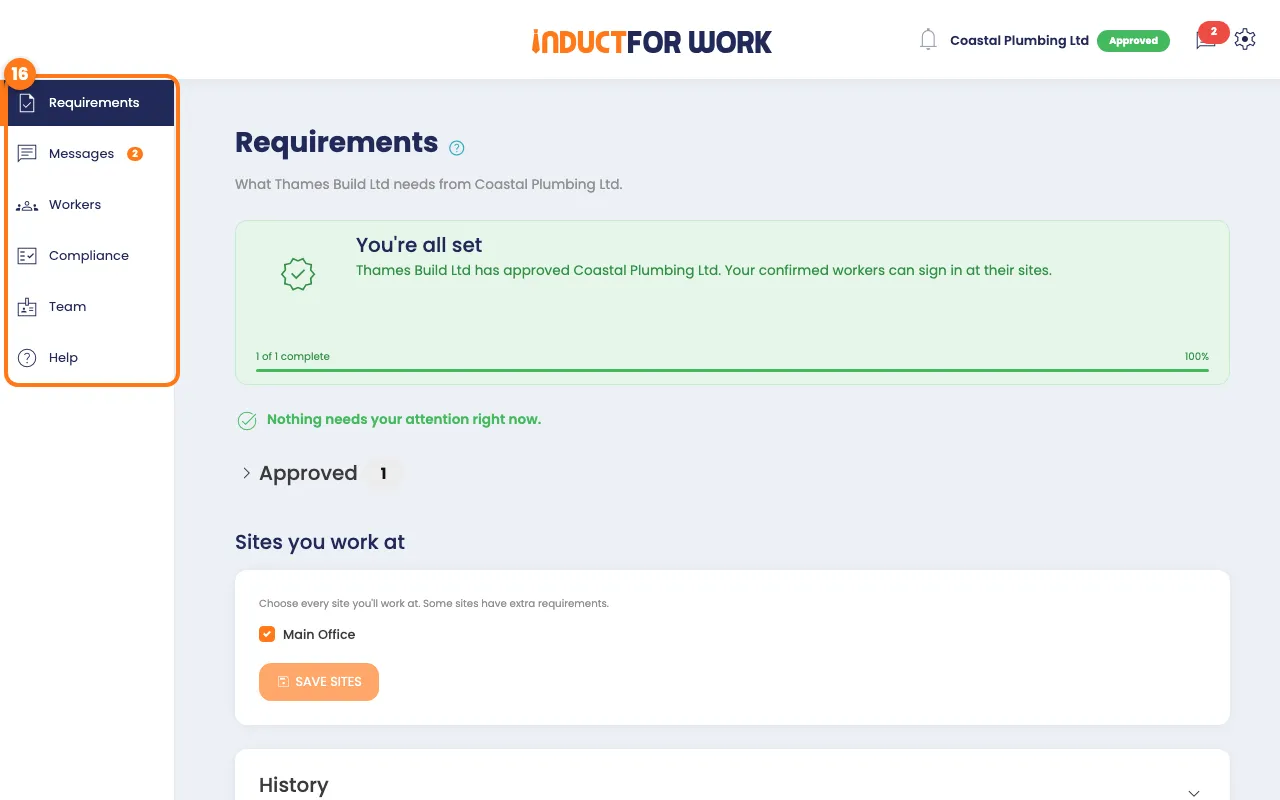
- Requirements: what the company needs from your business.
- Messages: ask the company a question.
- Workers, Compliance and Team: these say After approval until the company approves you.
- To change your business details, click the gear icon, top right.
- Choose Business details, make your changes, then click Save details.
Done! What happens next
- You’re registered. The company gets an email to say so.
- Next, send your documents on the Requirements page.
- If you don’t send anything, we’ll remind you after 2 and 7 days.