2 Uploading Your Documents
What are requirements?
Requirements are what the company needs from your business before your workers can start. They might be documents, like insurance or licences, or questions, like your Companies House number or UTR. You send them once, the company checks them, and we remind you before anything runs out. It’s part of the company’s induction training process.
Rules to know
- Files: PDF, JPG,.webp or Word (DOCX), up to 20 MB each.
- Expiry dates: documents that expire need their expiry date. It can’t be in the past.
- Everything required: fill in every required item before you send.
- Rejected items: a rejected file needs a new upload. A rejected answer can be sent again as is.
- Blocked everywhere: if anything required expires, is rejected or is missing, your workers can’t sign in anywhere.
- Renewals: your old document keeps counting until it expires, while the new one is checked.
- Expiry emails: we email you 14, 7 and 1 days before a document expires, and the day after.
- New requirements: they come with a due date. We remind you 2 days before and on the last day.
What you’ll need
- Your documents saved on your computer or phone, as PDF, JPG,.webp or DOCX.
- The expiry date of each document that runs out.
Choose your sites
- In the left menu, click Requirements.
- Under Where will you work?, tick each site your business will work at.
- Click Save sites. Some sites add extra requirements below.
Fill in your requirements
- On a document, click Upload file and choose the file.
- If you see Expiry date, type the date from the document.
- Answer each question. Your answers save as you go.
- When everything is done, click Send all for approval at the bottom.
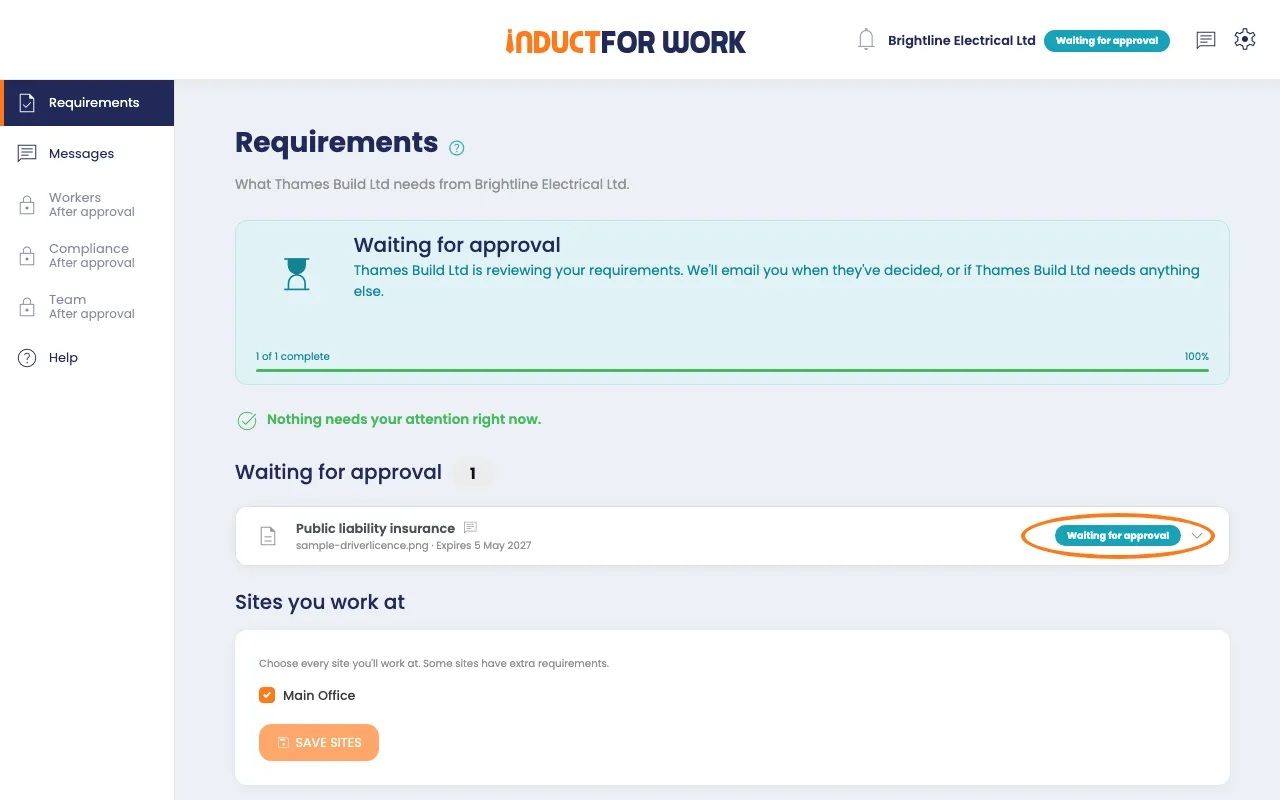
Your items move to Waiting for approval. The company gets an email, and we email you when they’ve decided.
Tip
After your first send, each change has its own Send for approval button. You send items one at a time.
If something isn't accepted
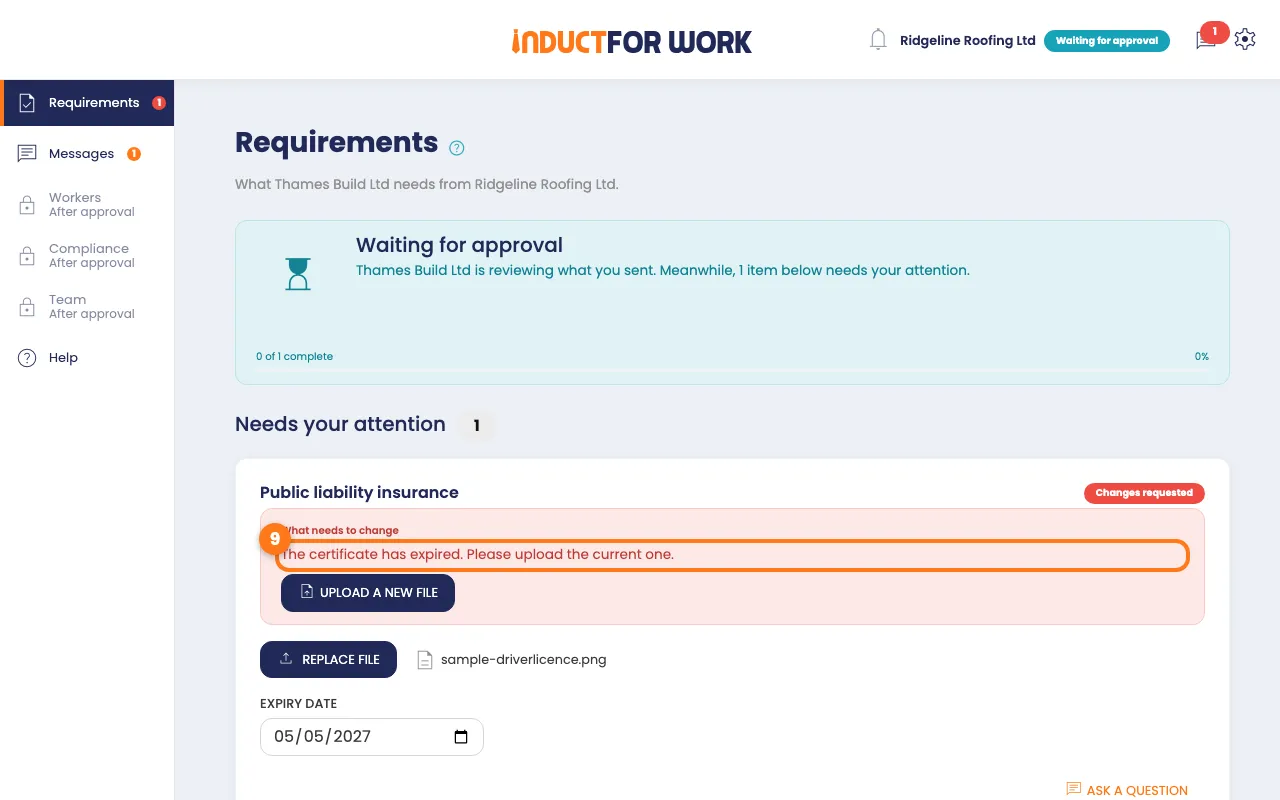
- Look under Needs your attention at the top of the page.
- Read the company’s reason under What needs to change.
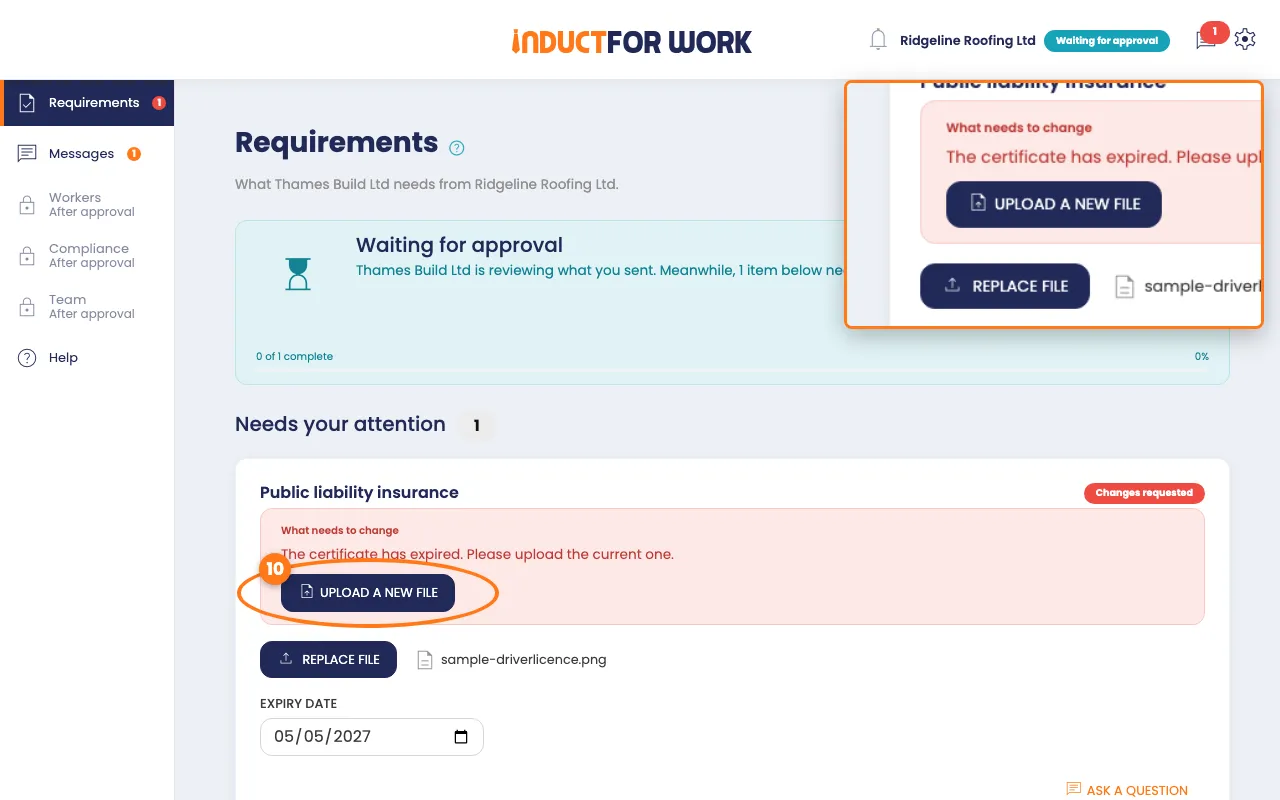
- For a document, click Upload a new file.
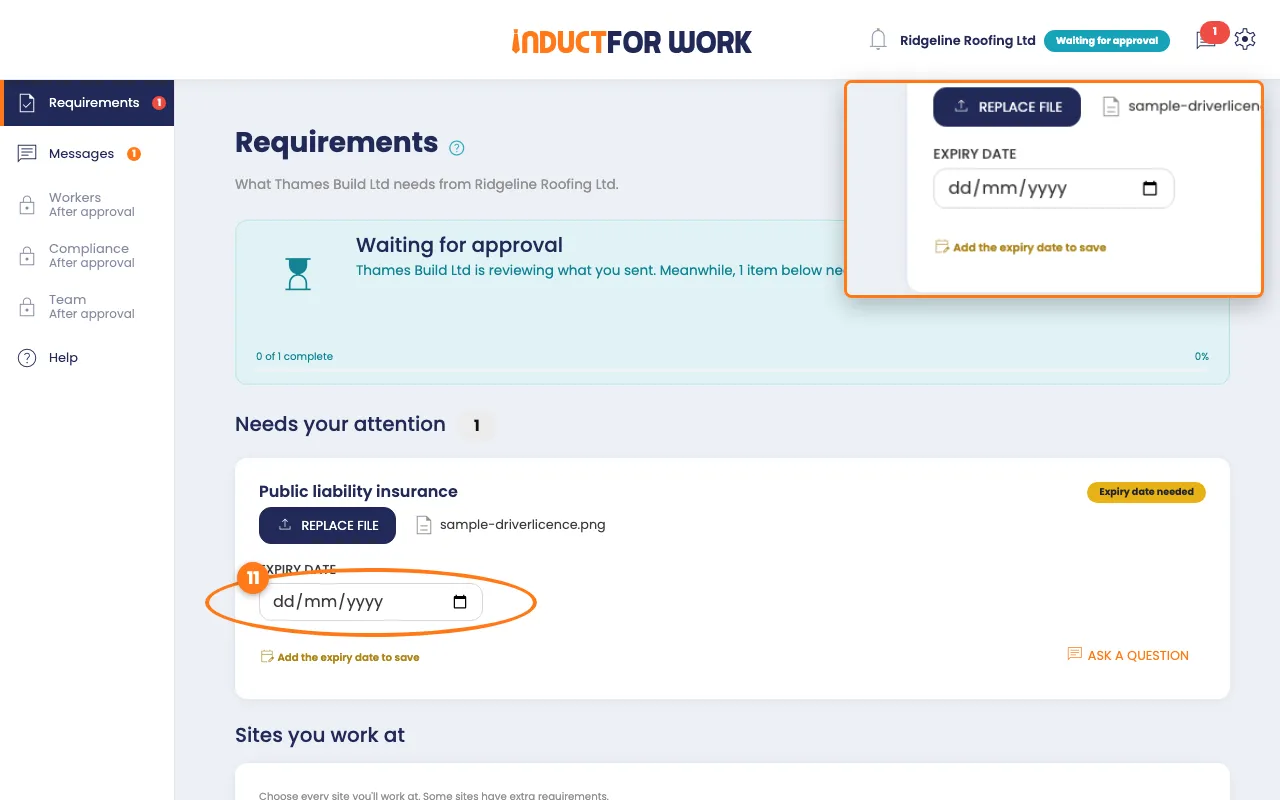
- Choose the right file, then type its Expiry date.
- For an answer, change it, or click Send again as is if it was right.
- Click Send for approval.
If the company asks for changes
You’ll see a red banner with their message, and maybe a Fix by date.
- Open the Approved list.
- On the item to change, click Update or Replace file.
- Make the change, then click Send for approval.
- When everything is done, click Send back for review.
If the fix-by date passes first, your workers can’t sign in until the company accepts your changes.
Renew a document before it runs out
- Look for a document marked Expired or Expires soon.
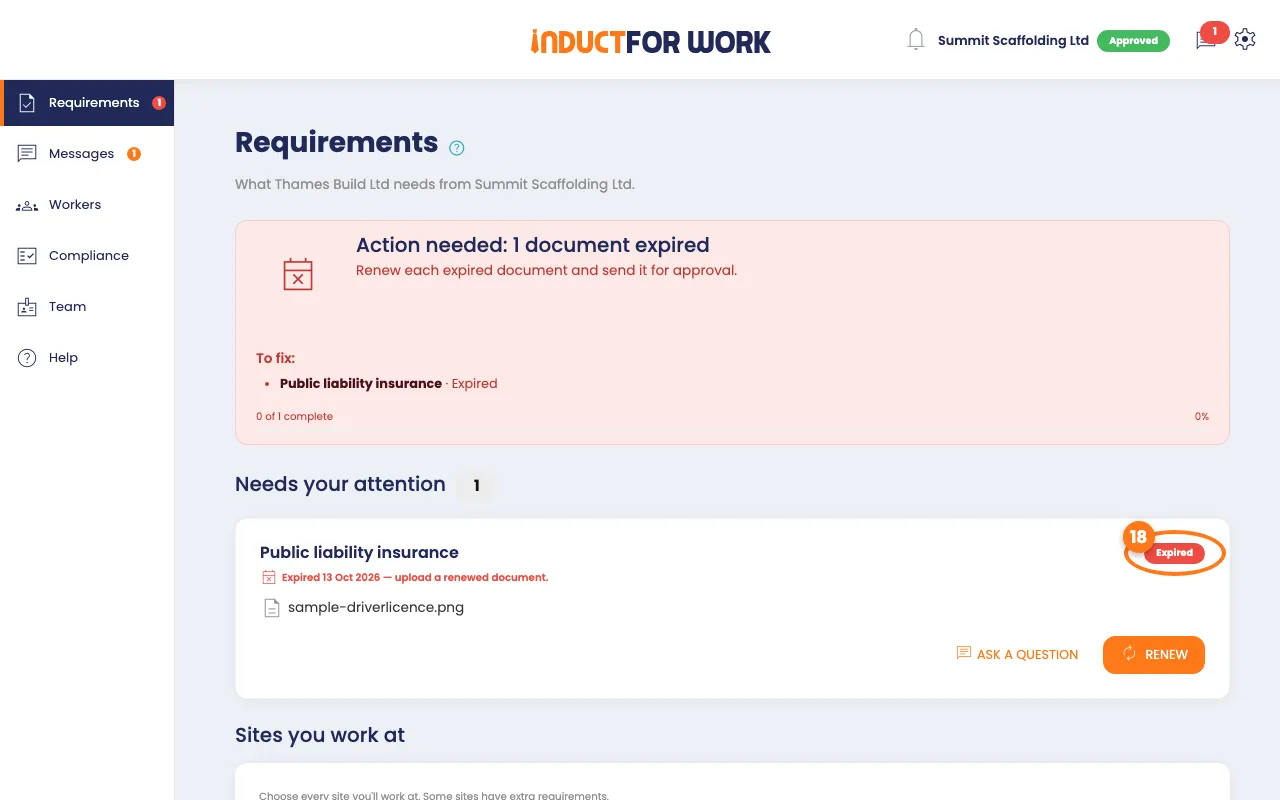
- On that document, click Renew.
- Upload the new file and type its new Expiry date.
- Click Send for approval.
Done! What happens next
- The company checks each item and emails you when they’ve decided.
- Once everything is approved, the company can approve your business.
- Then your workers can sign in at the sites you’re cleared for.
- At the bottom of Requirements, open History to see everything that’s happened.