3 Your Workers and Signing In
What are workers?
Workers are the people your business sends to the company’s sites. You add them here, and we invite each one to the induction training their sites need. When they arrive, they sign in at the site. We check your business and the worker before letting them in.
Rules to know
- After approval: you can add workers once the company approves your business.
- Contact details: each worker needs an email or a mobile number.
- People the company knows: if the company already has the person, it confirms them first.
- Inductions: workers are only invited to inductions they haven’t done. They get 14 days.
- Blocked everywhere: if your business is non-compliant or suspended, none of your workers can sign in.
- At the site: workers must be added to that site and finish its required inductions.
- Locked details: if a worker also works for another contractor, only the company can edit them.
- Let in for today: only the company’s staff can decide this. Never for a suspended business.
What you’ll need
- Your business approved by the company.
- Each worker’s name, and their email or mobile number.
- Which sites each worker will work at.
Add a worker
- In the left menu, click Workers.
- Under Add a worker, type their First name and Last name.
- Type their Email or Mobile, for example 07400 123456.
- Under Sites, tick each site they’ll work at.
- Click the Add worker button.
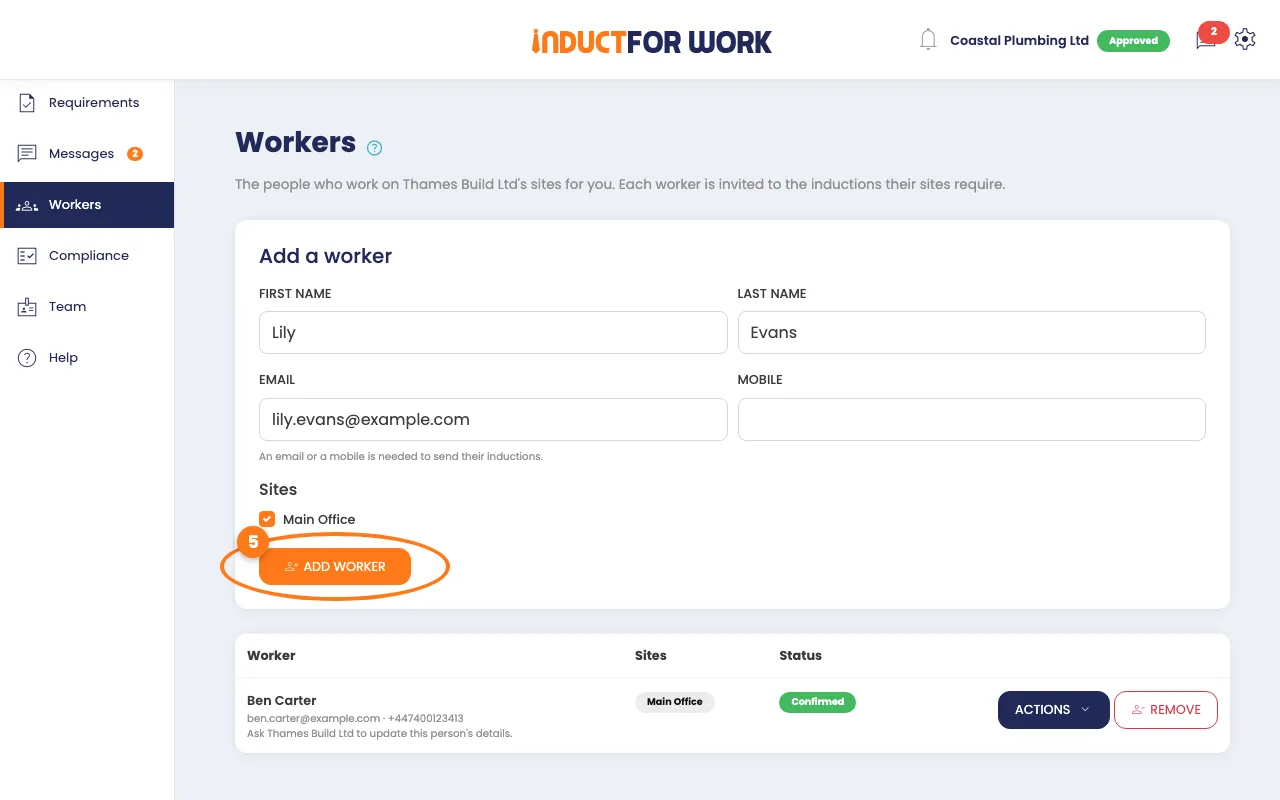
We send them an invite to the inductions they need.
Tip
If the company already knows this person, they show as Awaiting company until the company confirms them.
Change or remove a worker
- Find the worker in the list.
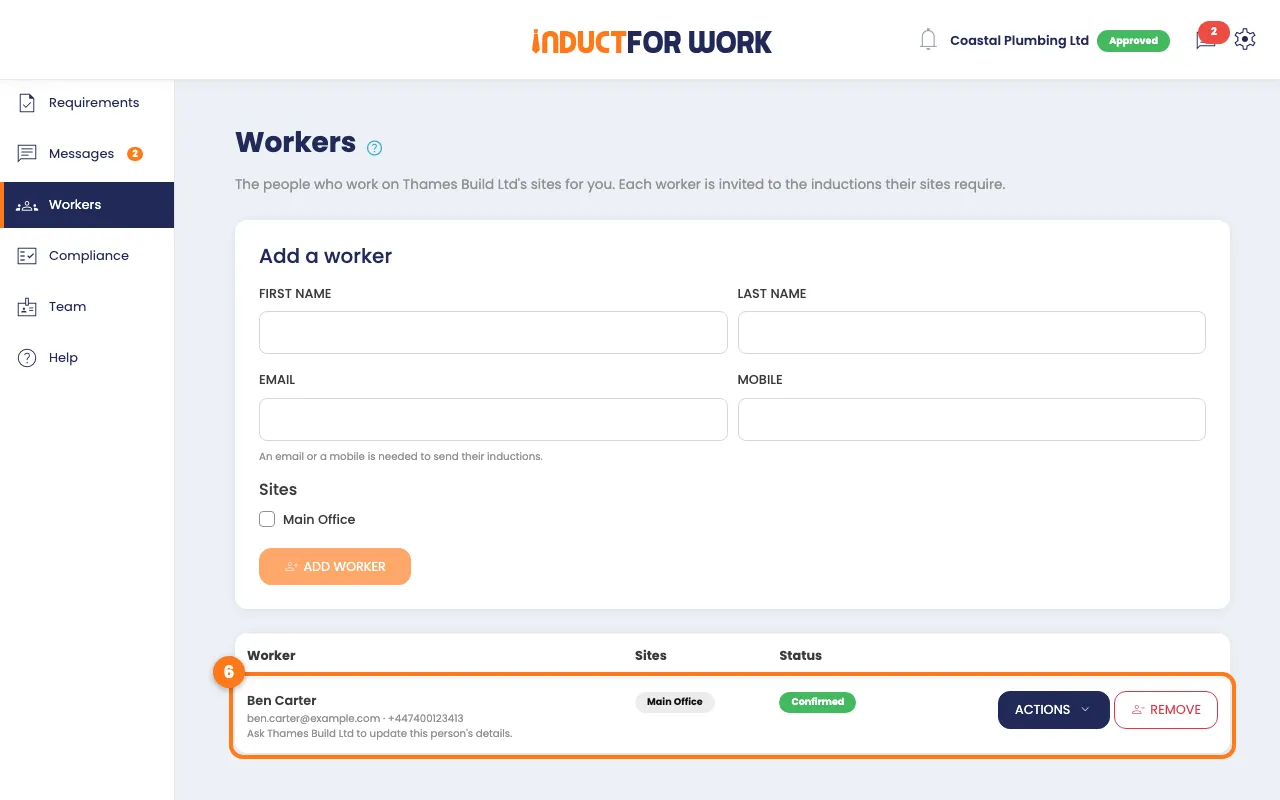
- Click the Actions button next to them.
- Choose Edit details, Edit sites or Resend induction invites.
- For Edit sites, tick their sites, then click Save sites.
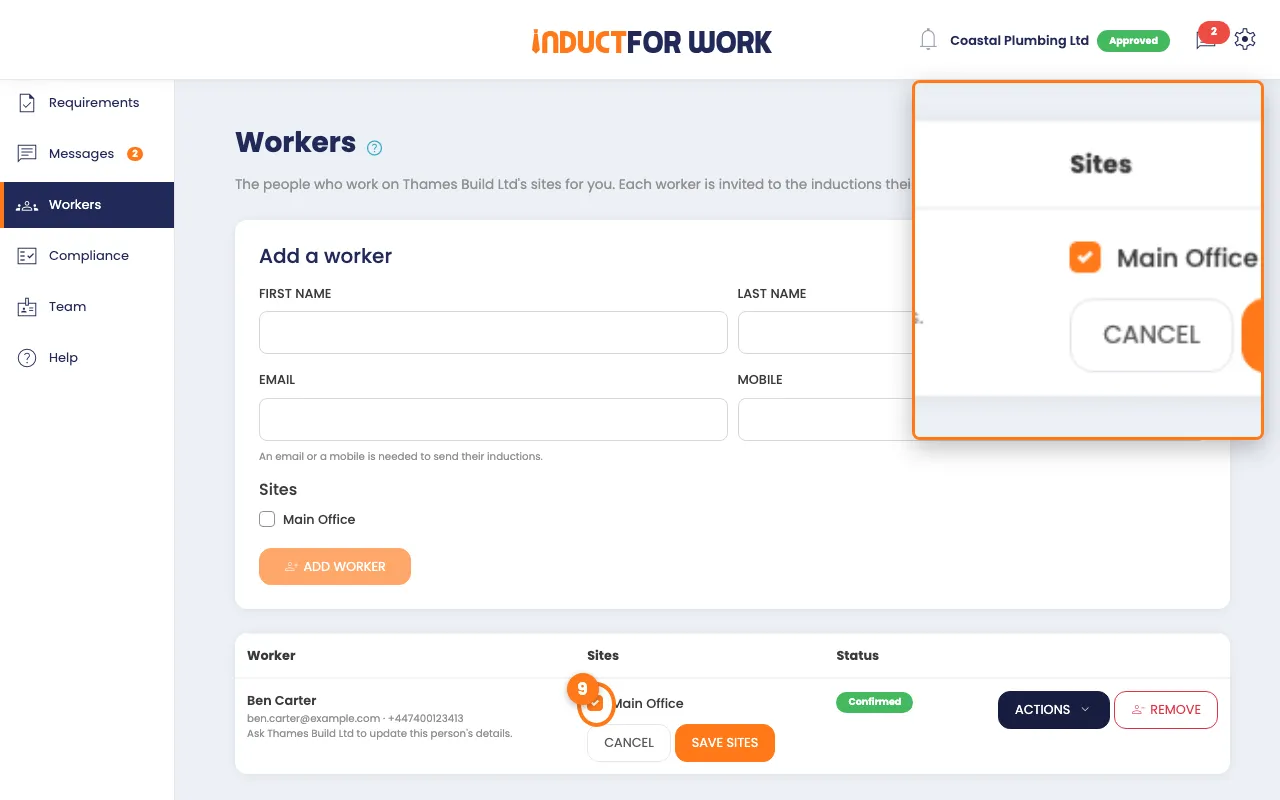
- To stop them working for you, click Remove.
If Edit details is missing, ask the company to update that person.
Someone said they work for you
A worker can tell the kiosk they work for you. They then show as Awaiting your confirmation.
- On Workers, find the person.
- Click Confirm worker if they work for you, or Decline if not.
Check what your workers need to do
- In the left menu, click Compliance. The number next to it shows what needs action.
- Under Action needed, click Send reminder or Send renewal for each worker.
- To remind everyone at once, click Send all reminders.
- Under Requirements, check the status of your business’s documents.
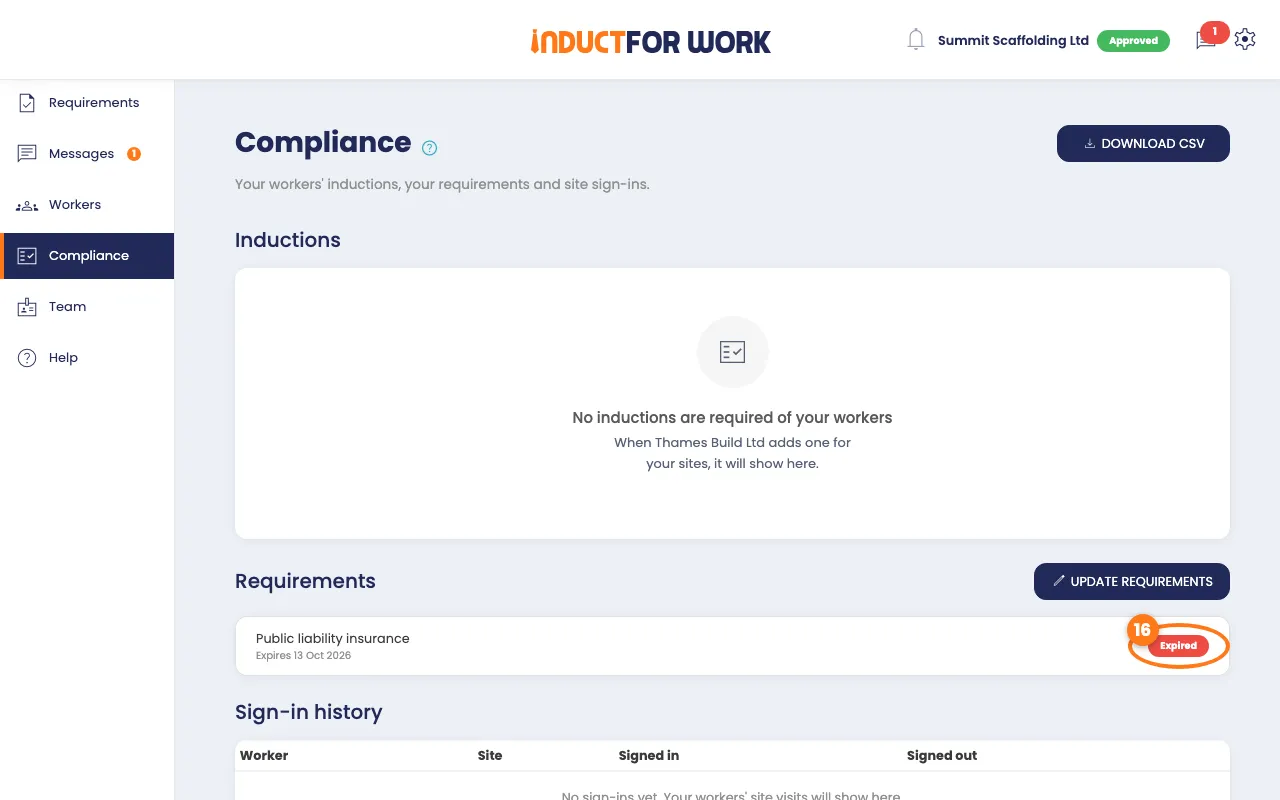
We also email you on Mondays if anything needs doing.
What your workers see when they sign in
Workers sign in at the site’s kiosk, or on their phone with the site’s QR code. At the kiosk they tap Sign In, choose Contractor, then type their details. The same checks run both ways.
- Your business must be approved, and not suspended.
- Nothing required can be expired, rejected or missing.
- The worker must be added to that site, and finish its required inductions.
If they work for two or more contractors at that site, the kiosk asks Who are you working for today?
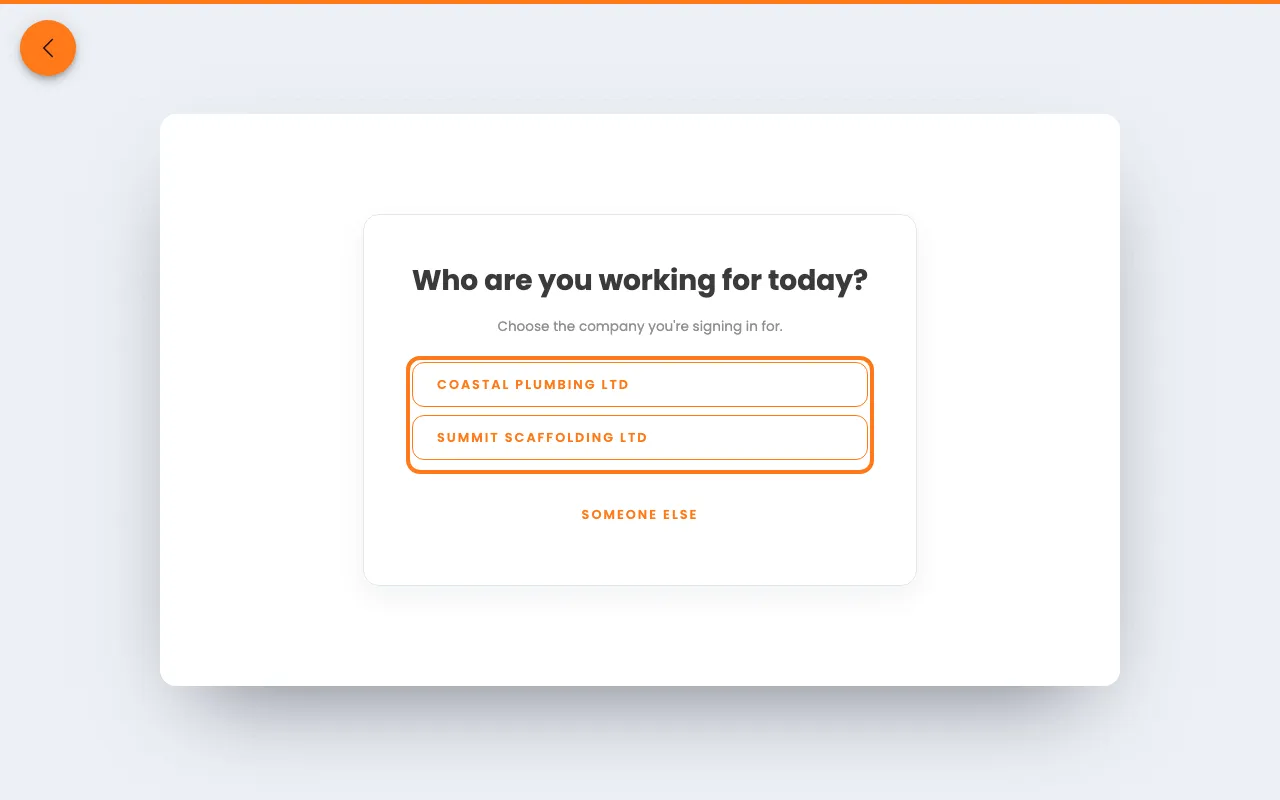
If a check fails, the kiosk says You can’t sign in just yet and tells them why. If they work for someone else that day, they can tap Working for someone else?
Tip
The company’s site staff can let a worker in for the rest of the day. That’s their decision, and it never works while your business is suspended.
Done! What happens next
- Your workers get invites to the inductions they need.
- See their sign-ins under Sign-in history on the Compliance page.
- Keep your requirements up to date, so nobody is turned away.